
iLoungeiLounge
  • News
    • Apple
      • AirPods Pro
      • AirPlay
      • Apps
        • Apple Music
      • iCloud
      • iTunes
      • HealthKit
      • HomeKit
      • HomePod
      • iOS 13
      • Apple Pay
      • Apple TV
      • Siri
    • Rumors
    • Humor
    • Technology
      • CES
    • Daily Deals
    • Articles
    • Web Stories
  • iPhone
    • iPhone Accessories
  • iPad
  • iPod
    • iPod Accessories
  • Apple Watch
    • Apple Watch Accessories
  • Mac
    • MacBook Air
    • MacBook Pro
  • Reviews
    • App Reviews
  • How-to
    • Ask iLounge
Font ResizerAa
iLoungeiLounge
Font ResizerAa
Search
  • News
    • Apple
    • Rumors
    • Humor
    • Technology
    • Daily Deals
    • Articles
    • Web Stories
  • iPhone
    • iPhone Accessories
  • iPad
  • iPod
    • iPod Accessories
  • Apple Watch
    • Apple Watch Accessories
  • Mac
    • MacBook Air
    • MacBook Pro
  • Reviews
    • App Reviews
  • How-to
    • Ask iLounge
Follow US

News › iPad

iPadiPhoneiPod

Suspending or removing Apple Pay via iCloud

Last updated: May 16, 2021 3:40 pm UTC
By Jesse Hollington
Suspending or removing Apple Pay via iCloud

Apple takes security pretty seriously, particularly when it comes to Apple Pay, and authentication features like Touch ID and Wrist Detection help to ensure that only you can use your device to make payments. However, if you’ve misplaced your iPhone or Apple Watch, you may not be entirely confident in relying solely on these features to protect your credit cards or bank accounts, so Apple provides several ways to remove your Apple Pay information from these devices even when they’re not in your hands.

Suspending or removing Apple Pay via iCloud

Suspending or removing Apple Pay via iCloud

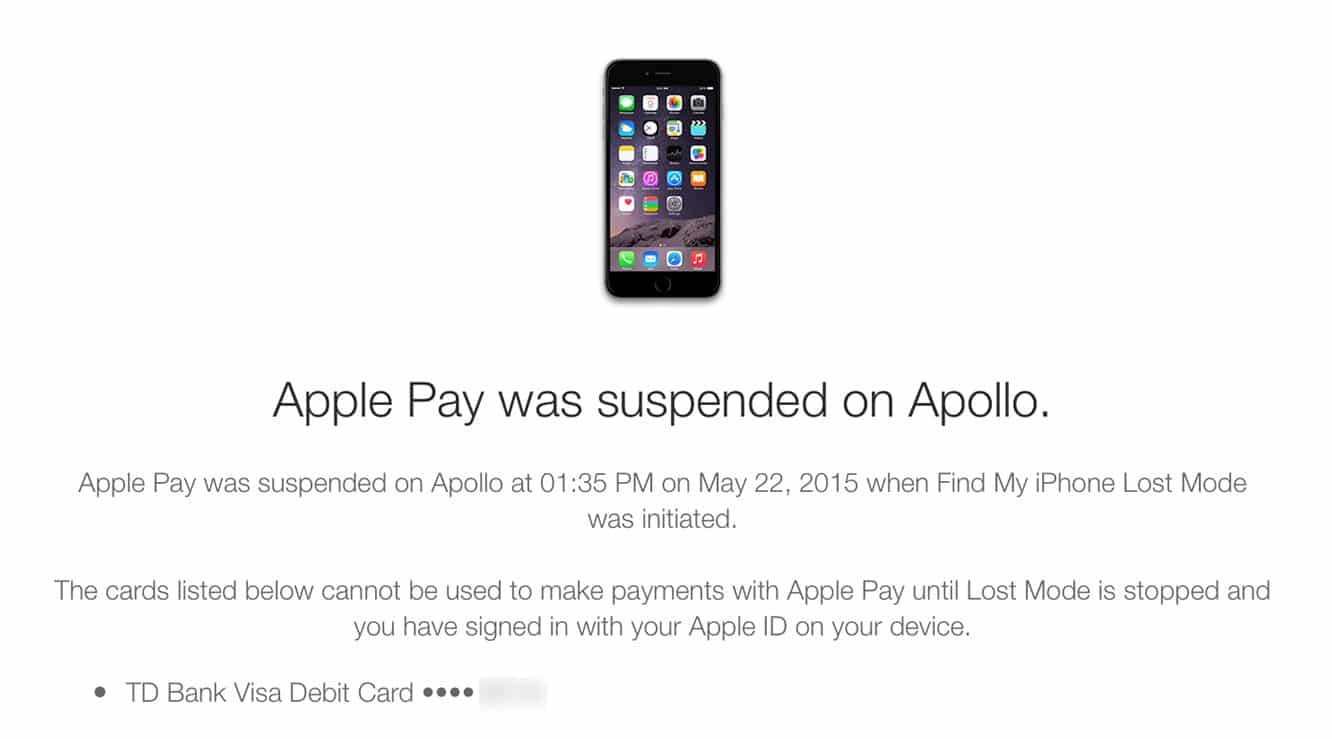
If you’ve lost your iPhone, iPad, or iPod touch, and you’re concerned that it may be in somebody else’s hands, the best thing to do is to immediately put it into Lost Mode by logging into your iCloud account at iCloud.com, selecting Find My iPhone from any web browser, and then clicking on your iPhone and choosing the “Lost Mode” option. This will not only immediately suspend all Apple Pay credit and debit cards associated with that device, but will also disable Touch ID entirely, and allow you to enter a message that can be displayed on the home screen along with a phone number that whoever finds your iPhone can call you at by tapping on a link.


When your iPhone or other iOS device is back in your hands, you can unlock it with your normal passcode or password and then enter your Apple ID password when prompted to turn off Lost Mode and re-enable your Apple Pay cards. Note that this does not affect your ability to use your actual physical credit or debit cards; only the virtual cards associated with Apple Pay on that specific iOS device are suspended.

Suspending or removing Apple Pay via iCloud

If you’d rather permanently deactivate any Apple Pay cards associated with your device, or you’re dealing with an Apple Watch, where “Lost Mode” isn’t currently supported, then you can remove your Apple Pay cards entirely from the Settings section in your iCloud account. In here you should see a list of all of your devices, with those enabled for Apple Pay showing the Pay logo beside them.


Click on a device, and you’ll see the list of Apple Pay cards associated with that device, with “Remove” links beside each. Simply click on these and they’re removed. The Apple Pay virtual card number will be deactivated on the back-end processing systems, so this even works with the Apple Watch or an iPhone that’s offline, and as with suspending cards in Lost Mode, this only affects the virtual cards associated with that iOS devices; your physical credit and debit cards will remain active and usable.

.


Latest News
The 14-inch MacBook Pro with M5 Chip 16GB RAM/512GB is $250 Off
1 Min Read
Noise and Static on AirPods Pro 3 Still Unfixed
1 Min Read
New iMac with 24-inch OLED Display May be Brighter With 600 Nits
1 Min Read
The 15-inch M4 MacBook Air 256GB Is $250 Off
1 Min Read
Internal Kernel Debug Kit from Apple Reveals Tests for a MacBook with A15 Chip
1 Min Read
Apple Currently In Talks With Suppliers for Chip Assembly & Packaging of iPhones in India
1 Min Read
Apple Allows Easier Battery Replacement For M5 MacBook Pro with 14-inch Display
1 Min Read
The Apple Watch SE 3 44mm GPS is $50 Off
1 Min Read
20th Anniversary iPhone May Launch in Two Years
1 Min Read
Better Image Generation Capabilities and Apple Music Integration Coming to ChatGPT
1 Min Read
A20 Pro Chip Coming to Next Gen iPad Mini OLED
1 Min Read
Amazon has the AirTag 4 Pack Marked $29 off
1 Min Read

iLounge logo

iLounge is an independent resource for all things iPod, iPhone, iPad, and beyond. iPod, iPhone, iPad, iTunes, Apple TV, and the Apple logo are trademarks of Apple Inc.

This website is not affiliated with Apple Inc.
iLounge © 2001 - 2025. All Rights Reserved.
  • Contact Us
  • Submit News
  • About Us
  • Forums
  • Privacy Policy
  • Terms Of Use
Welcome Back!

Sign in to your account

Lost your password?









