
As we noted in our 20 Things Worth Caring About at 2009’s Expos article, we were genuinely excited to come across a couple of new solutions to common MacBook problems. First, and one that has been a huge issue for some potential buyers, is the lack of a matte screen option for the MacBook. Power Support has fixed that with its Anti-Glare Film for MacBook 13” ($35), also available in a 15” MacBook Pro version for the same price. Like the company’s popular iPod screen and Click Wheel films, this Anti-Glare Film attaches using static cling, requires little preparation to properly install on the screen of your glossy notebook, and generates excellent results: rather than a shiny reflection whenever the sun hits your screen, glare is very substantially reduced. Updated: A full discussion of the Anti-Glare Film is now available below.
The other cool new item is Just Mobile’s Xtand Pro ($90). In a world of mostly plastic docks and simple designs, Just Mobile has recently come out with a series of really impressive iPhone and iPod touch stands made from aluminum, using user-adjustable X-shaped frames that rotate and then stay in place. Xtand Pro is an oversized version for MacBook users. Updated: A full discussion of the Xtand Pro is now available below.

Click on Read More or this article’s title for plenty of additional pictures and full discussions of both products.
Power Support’s Anti-Glare Film: The Details
So does the Anti-Glare Film work as expected? The simple answer is “yes.” And nicely, at that. So nicely that we’ve been chuckling at recent news reports of other matte screen solutions—that one company is now charging $200 to replace the MacBook Pro’s screen with a matte version, for instance, or that Apple wants $50 extra to give 17” MacBook Pro users a matte screen instead of a glossy one. While $35 for this film isn’t cheap, it’s a lot more reasonable than other available options, and achieves similar results on a machine you already own.

Application was fairly simple, if only 99.5% perfect. The anti-glare sheet comes out of the large, thin package unfolded, ready to be peeled off of a piece of clear backing paper.
You’re supposed to clean your MacBook’s screen yourself, peel the film off in a dust-free room, and then apply the film, working out the air bubbles with a plastic card—probably the credit card you used to buy it.

At the end of the process, if everything goes perfectly, you shouldn’t see any obvious signs that it’s on the screen, save of course for the change in reflectivity and a small seam around the camera: a circle has been cut out so that the film doesn’t obstruct the camera’s vision. Other than that, it’s hard to see that something’s been installed; the edges of the film have been similarly precision-cut to fit the curves of Apple’s slightly recessed glass display, without overlapping its subtly rubberized interior sides. As always, Power Support has done a really good job of tailoring its film to Apple’s products.

In our case, everything went perfectly during the installation except for a single speck of dust that appeared under the film, off to the far right side of the screen, even after we cleaned the glass and ran over it—as recommended—with a damp, never-before-used microfiber cloth. While a number of air bubbles appeared under the film (shown in the photo here) and needed to be removed, only one had a tiny dot of gray in the center. It’s invisible when the screen’s turned on, so though we could easily get rid of it, we haven’t done so yet. All that’s necessary here is to just lift the film’s edge and pick the speck of dust out; based on our experiences with Power Support’s other films, the non-adhesive screen film would work fine even if we pulled it off, ran it under a water faucet, and tried to reapply it. The only things that would harm its utility would be bends or folds, and because of the film’s tailoring, this won’t happen unless you do something really wrong before or during installation.

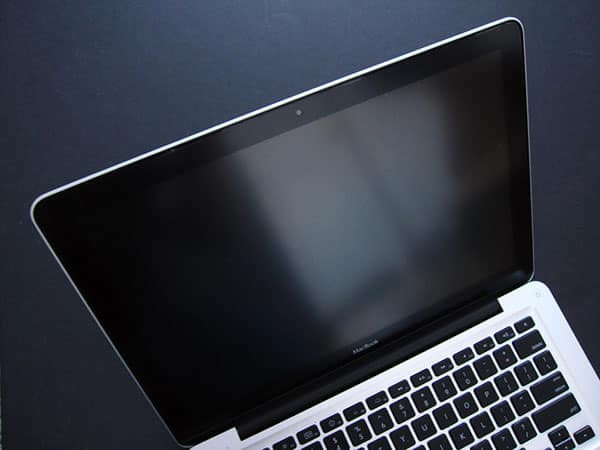
Using the film has been almost ideal. Reflectivity is cut very significantly, making the glossy screen look far closer to the prior-generation matte MacBook Pro, and enabling us to continue working even in unobstructed sunlight. Visibility of the on-screen text and graphics is not significantly impacted, as shown in our photo, and should you decide you prefer to go back to a glossy screen, you can always remove the film—something that can’t be said for the more expensive monitor-swapping solutions.
The MacBook continues to open and close exactly as it should, despite the film, except for one somewhat unusual scenario. With the film installed, if the MacBook is placed inside a vertical mount such as Power Support’s Docking Stand, the magnet-sealed hinge can and sometimes does pop open to the extent of the dock’s opening. Our suspicion is that thinner film would prevent this from happening, but it also happens only 40-50% of the time, and never when the MacBook is in an orientation other than upside down and standing on its back. Whether this is a practical concern or not for your needs is an open question; given our use of the Docking Stand, we find it to be only a small annoyance relative to the benefits of the film.
Xtand Pro: The Details
Just Mobile’s Xtand Pro is a different beast altogether. We’ve tried various solutions of its kind in the past: Rain Design’s iLap, Griffin’s Elevator and iCurve, and so on. Of the “lift MacBook up on an angle” mounts we’ve tried thus far, we definitely like Xtand Pro the most. However, at more than twice the price of Elevator, you’ll have to decide whether it’s worth paying such a premium for its cool styling and unique functionality.

Everyone knows that the go-to material for a metal MacBook accessory is matching aluminum. Griffin went out and made two simple, U-shaped and padded pieces of it and joined them with a clear plastic arm to create the relatively inexpensive Elevator; Just Mobile has instead formed an X-shaped MacBook tray, oval base, and connecting pipe completely from the material. Actually, you get two connecting pipes of different sizes, and two metal screws; all you need to do to assemble Xtand Pro is place the pipe of your choice between the base and the frame, tighten the matching screw in the bottom, and make sure everything’s aligned properly.

One of the two keys to Xtand Pro’s appeal is the fact that you can choose between those pipes.











