
iLoungeiLounge
  • News
    • Apple
      • AirPods Pro
      • AirPlay
      • Apps
        • Apple Music
      • iCloud
      • iTunes
      • HealthKit
      • HomeKit
      • HomePod
      • iOS 13
      • Apple Pay
      • Apple TV
      • Siri
    • Rumors
    • Humor
    • Technology
      • CES
    • Daily Deals
    • Articles
    • Web Stories
  • iPhone
    • iPhone Accessories
  • iPad
  • iPod
    • iPod Accessories
  • Apple Watch
    • Apple Watch Accessories
  • Mac
    • MacBook Air
    • MacBook Pro
  • Reviews
    • App Reviews
  • How-to
    • Ask iLounge
Font ResizerAa
iLoungeiLounge
Font ResizerAa
Search
  • News
    • Apple
    • Rumors
    • Humor
    • Technology
    • Daily Deals
    • Articles
    • Web Stories
  • iPhone
    • iPhone Accessories
  • iPad
  • iPod
    • iPod Accessories
  • Apple Watch
    • Apple Watch Accessories
  • Mac
    • MacBook Air
    • MacBook Pro
  • Reviews
    • App Reviews
  • How-to
    • Ask iLounge
Follow US

News › iOS 13

ArticlesiOS 13

How to download and install iOS 13 Beta

Last updated: Jul 22, 2019 11:12 pm UTC
By Haider Ali Khan
iOS 13 Beta

In this article, we at iLounge will guide you on how you can download and install the iOS 13 beta on your device. If you are new to this, don’t worry as it’s really easy as A, B, and C. I will do my best to keep this article short and easy to understand.


Take a backup before you upgrade

Before you upgrade your device to the iOS 13 Beta, we suggest you take your device’s backup via iCloud and iTunes. So in case something goes wrong, you don’t lose any of your data.
iOS 13 Beta

The new iOS version is still under development, so unexpected issues may come along. That’s why taking a backup is so important.

Apple has written a full guide to back up your iPhone, iPad and iPod devices here. So do have a read and make sure to have a backup of your device before proceeding.


Downloading the iOS 13 Beta
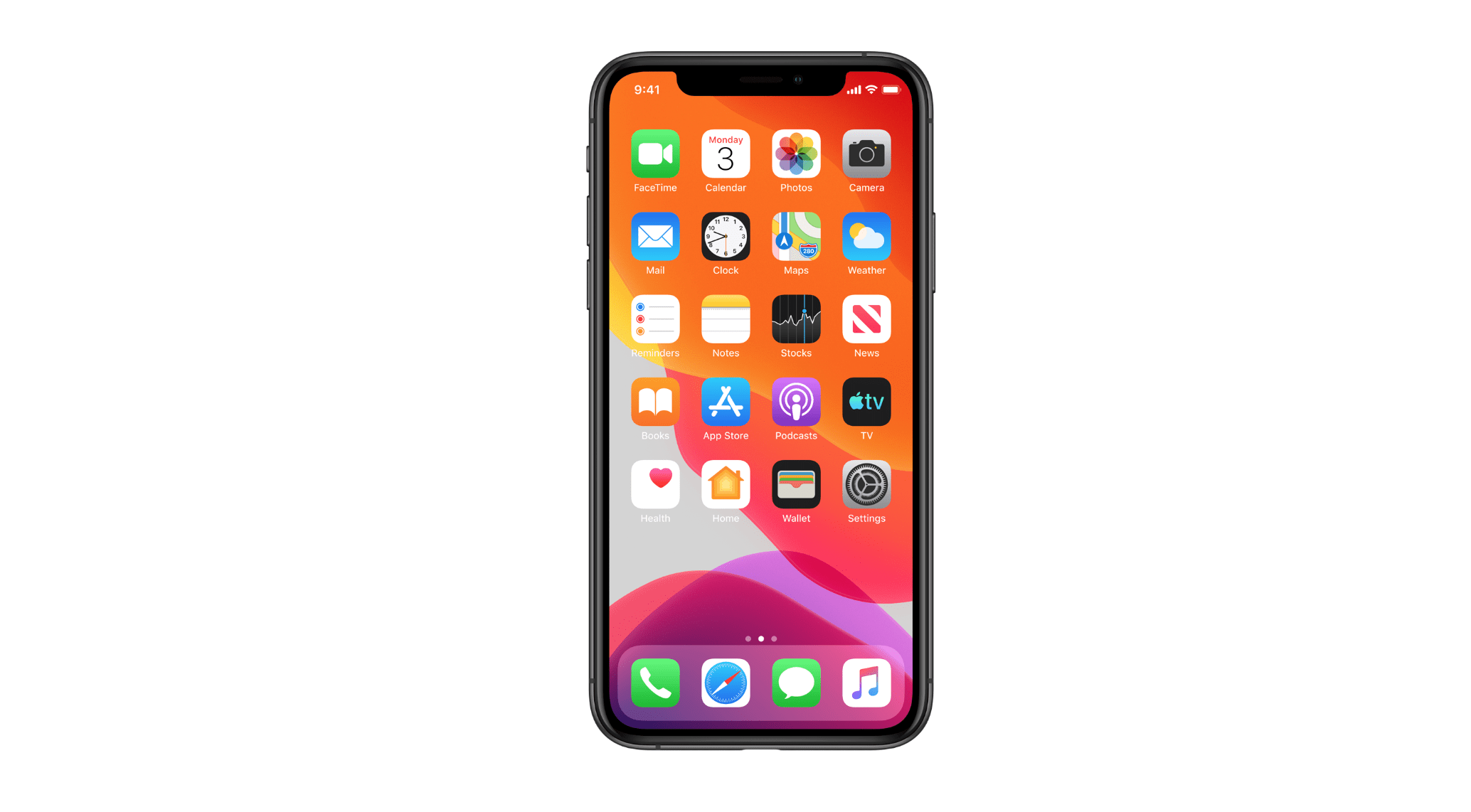
iOS 13 Beta on iPhone

If it’s your first time downloading an iOS in Beta, then you will need to sign up to Apple Beta Software Program. Don’t worry as the Beta program is free to join and there are approvals needed from Apple. Therefore, anyone can join.

To join Apple Beta Software Program and download the iOS 13 Beta, follow the steps below:

  1. Go to the Apple Beta Software Program webpage.
  2. Click on the blue “Sign up” button.
  3. Sign in to the Apple Beta Software Program with your Apple ID.
  4. Accept the Apple Beta Software Program Agreement.
  5. Scroll down and under “Get Started” section, click on the blue link where it says “enroll your iOS device”.
  6. Now on your iOS device, open “Safari” browser.
  7. Go to http://beta.apple.com/profile on your Safari browser to download the configuration profile for the iOS 13 Beta.
  8. After the configuration profile has been download, go to “Settings” and tap on the profile.
  9. Follow the instructions displayed to allow the installation.
  10. Now go to Settings > General > Software Update to install the iOS 13 Beta.

Downloading the software update will take some time. Therefore, we suggest you keep your device on charge. Once the update has downloaded, proceed with the installation just like you normally install a new iOS update.



Latest News
The Apple Watch Series 11 46mm GPS Is $100 Off
1 Min Read
Clamshell Style iPhone Being Looked Into By Apple
1 Min Read
Foldable iPhones May Have the Largest Battery Ever
1 Min Read
Apple and TSMC’s 10-Year Collaboration May Be Ending
1 Min Read
The 13-inch M5 iPad Pro 256GB Wi-Fi Is $149 Off
1 Min Read
M5 Pro and M5 Max Chips for the MacBook Pro could Roll Out with macOS 26.3
1 Min Read
Mac Ordering Process Revamped
1 Min Read
Check Signed By Steve Wozniak and Steve Jobs Sold For $2.4 Million
1 Min Read
The Anker 140W 4-Port GaN USB-C Charger is $35 Off
1 Min Read
No iPhone Air 2 This Year, according to Latest Report
1 Min Read
New Report Corroborates Split iPhone Release Dates
1 Min Read
Apple Losing More Researchers As They Plan To Release 2 Siri Versions
1 Min Read

iLounge logo

iLounge is an independent resource for all things iPod, iPhone, iPad, and beyond. iPod, iPhone, iPad, iTunes, Apple TV, and the Apple logo are trademarks of Apple Inc.

This website is not affiliated with Apple Inc.
iLounge © 2001 - 2025. All Rights Reserved.
  • Contact Us
  • Submit News
  • About Us
  • Forums
  • Privacy Policy
  • Terms Of Use
Welcome Back!

Sign in to your account

Lost your password?








