
iLoungeiLounge
  • News
    • Apple
      • AirPods Pro
      • AirPlay
      • Apps
        • Apple Music
      • iCloud
      • iTunes
      • HealthKit
      • HomeKit
      • HomePod
      • iOS 13
      • Apple Pay
      • Apple TV
      • Siri
    • Rumors
    • Humor
    • Technology
      • CES
    • Daily Deals
    • Articles
    • Web Stories
  • iPhone
    • iPhone Accessories
  • iPad
  • iPod
    • iPod Accessories
  • Apple Watch
    • Apple Watch Accessories
  • Mac
    • MacBook Air
    • MacBook Pro
  • Reviews
    • App Reviews
  • How-to
    • Ask iLounge
Font ResizerAa
iLoungeiLounge
Font ResizerAa
Search
  • News
    • Apple
    • Rumors
    • Humor
    • Technology
    • Daily Deals
    • Articles
    • Web Stories
  • iPhone
    • iPhone Accessories
  • iPad
  • iPod
    • iPod Accessories
  • Apple Watch
    • Apple Watch Accessories
  • Mac
    • MacBook Air
    • MacBook Pro
  • Reviews
    • App Reviews
  • How-to
    • Ask iLounge
Follow US

News › iPhone

iPhone

Using your iPhone as a Magnifying Glass

Last updated: May 16, 2021 2:01 pm UTC
By Jesse Hollington
Using your iPhone as a Magnifying Glass

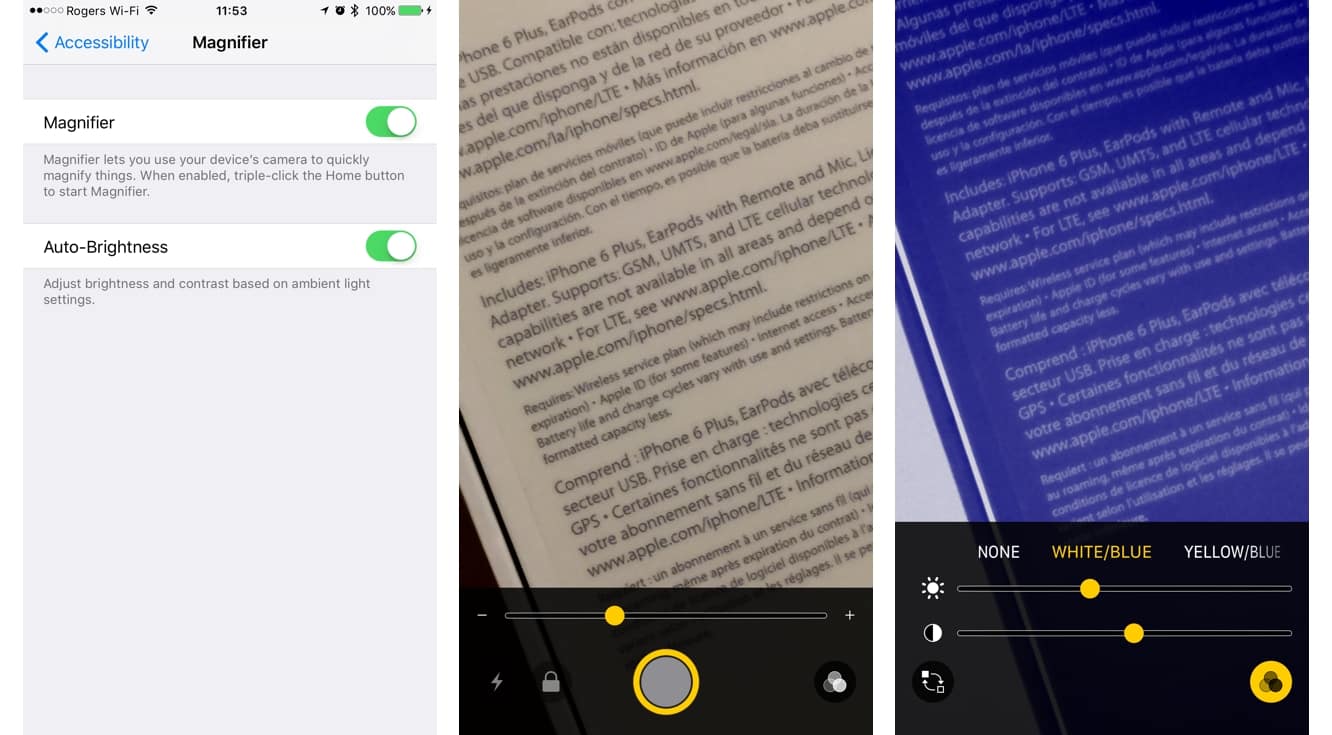
There’s a useful new accessibility enhancement in iOS 10 designed to help those who have trouble seeing small print — this new feature turns the iPhone camera into a virtual magnifying glass. Although you’ve been able to use the built-in zoom feature in the normal Camera app in a pinch (no pun intended), the new Magnifier feature not only provides quicker access — only a triple-click of the Home button is needed — but allows for a tighter zoom for even stronger magnification, as well as other controls to toggle the flash on for illumination, and to adjust brightness and contrast.

Using your iPhone as a Magnifying Glass

You can even access inverted and color-shifted views, which is useful for those with color blindness and other vision challenges.

Using your iPhone as a Magnifying Glass

Like other Accessibility options, the Magnifier feature can be enabled by going into the iOS 10 Settings app and selecting General, Accessibility. When enabled, it will automatically be assigned to a triple-click of the Home button.

If you’ve assigned other options to the Home button triple-click action, you’ll be prompted for which one to access each time you triple-click; you can choose which triple-click actions to make available under the Accessibility Shortcut option found at the bottom of the Accessibility settings.

.


Latest News
The AirPods Pro 3 is $20 Off
1 Min Read
Exynos 2600 Chip 2nm Process Revealed by Samsung
1 Min Read
New Celebrity Ad Campaign Featuring Travis Scott Released by Beats
1 Min Read
Australia Getting Hypertension Notification Feature
1 Min Read
The 14-inch MacBook Pro with M5 Chip 16GB RAM/512GB is $250 Off
1 Min Read
Noise and Static on AirPods Pro 3 Still Unfixed
1 Min Read
New iMac with 24-inch OLED Display May be Brighter With 600 Nits
1 Min Read
The 15-inch M4 MacBook Air 256GB Is $250 Off
1 Min Read
Internal Kernel Debug Kit from Apple Reveals Tests for a MacBook with A15 Chip
1 Min Read
Apple Currently In Talks With Suppliers for Chip Assembly & Packaging of iPhones in India
1 Min Read
Apple Allows Easier Battery Replacement For M5 MacBook Pro with 14-inch Display
1 Min Read
The Apple Watch SE 3 44mm GPS is $50 Off
1 Min Read

iLounge logo

iLounge is an independent resource for all things iPod, iPhone, iPad, and beyond. iPod, iPhone, iPad, iTunes, Apple TV, and the Apple logo are trademarks of Apple Inc.

This website is not affiliated with Apple Inc.
iLounge © 2001 - 2025. All Rights Reserved.
  • Contact Us
  • Submit News
  • About Us
  • Forums
  • Privacy Policy
  • Terms Of Use
Welcome Back!

Sign in to your account

Lost your password?









