
iLoungeiLounge
  • News
    • Apple
      • AirPods Pro
      • AirPlay
      • Apps
        • Apple Music
      • iCloud
      • iTunes
      • HealthKit
      • HomeKit
      • HomePod
      • iOS 13
      • Apple Pay
      • Apple TV
      • Siri
    • Rumors
    • Humor
    • Technology
      • CES
    • Daily Deals
    • Articles
    • Web Stories
  • iPhone
    • iPhone Accessories
  • iPad
  • iPod
    • iPod Accessories
  • Apple Watch
    • Apple Watch Accessories
  • Mac
    • MacBook Air
    • MacBook Pro
  • Reviews
    • App Reviews
  • How-to
    • Ask iLounge
Font ResizerAa
iLoungeiLounge
Font ResizerAa
Search
  • News
    • Apple
    • Rumors
    • Humor
    • Technology
    • Daily Deals
    • Articles
    • Web Stories
  • iPhone
    • iPhone Accessories
  • iPad
  • iPod
    • iPod Accessories
  • Apple Watch
    • Apple Watch Accessories
  • Mac
    • MacBook Air
    • MacBook Pro
  • Reviews
    • App Reviews
  • How-to
    • Ask iLounge
Follow US

News › iPad

iPadiPhoneiPod

Setting the order of items in the iOS Notification Center

Last updated: May 16, 2021 4:13 pm UTC
By Jesse Hollington
Setting the order of items in the iOS Notification Center

If you have a lot of iOS apps that regularly generate notifications, you may find it helpful to choose the order in which these notifications appear in your iOS Notification Centre.
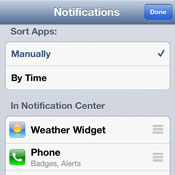

Setting the order of items in the iOS Notification Center

To do this, simply go into the Notifications section in the iOS Settings app, ensure the “Sort Apps” option is set to “Manually” and then tap the “Edit” button in the top right corner; you can then use the icons to the right of each app to drag and drop them further up or further down in the list.

The order in which notifications appear in the actual Notification Center will mirror whatever arrangement you specify here, allowing you to ensure that more important notifications such as missed phone calls, e-mails, and messages get priority placement over less critical items such as game updates.

Note that this method also allows you to move your Weather and Stocks widgets below actual notifications if you prefer.



Latest News
The Apple Watch Series 11 42mm GPS is $100 Off
1 Min Read
Apple Launching A New Education Hub In India Teaching Robotics and Swift Programming
1 Min Read
Women’s and Men’s Golf Added to Apple Sports
1 Min Read
Apple Adding Civilization VII and Other Games To Apple Arcade
1 Min Read
AirPods 4 ANC Is $59 Off
1 Min Read
Apple Using 2NM Process For Their M6 and A20 Chip
1 Min Read
iPhone 18 Models Will Not Have a Big Redesign
1 Min Read
Launch of MacBook Pro M5 Pro and M5 Max Models is Approaching
1 Min Read
Get the iPad Mini 7 256GB Wi-Fi at $99 Off
1 Min Read
Mozilla Now Allows Turning AI Features Off
1 Min Read
Barcelona Passeig de Gràcia Apple Store Temporarily Closing
1 Min Read
Apple’s Plans to Enter the Smart Glasses Market is Changing the Industry
1 Min Read

iLounge logo

iLounge is an independent resource for all things iPod, iPhone, iPad, and beyond. iPod, iPhone, iPad, iTunes, Apple TV, and the Apple logo are trademarks of Apple Inc.

This website is not affiliated with Apple Inc.
iLounge © 2001 - 2025. All Rights Reserved.
  • Contact Us
  • Submit News
  • About Us
  • Forums
  • Privacy Policy
  • Terms Of Use
Welcome Back!

Sign in to your account

Lost your password?








