
iLoungeiLounge
  • News
    • Apple
      • AirPods Pro
      • AirPlay
      • Apps
        • Apple Music
      • iCloud
      • iTunes
      • HealthKit
      • HomeKit
      • HomePod
      • iOS 13
      • Apple Pay
      • Apple TV
      • Siri
    • Rumors
    • Humor
    • Technology
      • CES
    • Daily Deals
    • Articles
    • Web Stories
  • iPhone
    • iPhone Accessories
  • iPad
  • iPod
    • iPod Accessories
  • Apple Watch
    • Apple Watch Accessories
  • Mac
    • MacBook Air
    • MacBook Pro
  • Reviews
    • App Reviews
  • How-to
    • Ask iLounge
Font ResizerAa
iLoungeiLounge
Font ResizerAa
Search
  • News
    • Apple
    • Rumors
    • Humor
    • Technology
    • Daily Deals
    • Articles
    • Web Stories
  • iPhone
    • iPhone Accessories
  • iPad
  • iPod
    • iPod Accessories
  • Apple Watch
    • Apple Watch Accessories
  • Mac
    • MacBook Air
    • MacBook Pro
  • Reviews
    • App Reviews
  • How-to
    • Ask iLounge
Follow US

News › Apple TV

Apple TV

Reorganizing or Hiding Main Menu icons on the Apple TV

Last updated: May 16, 2021 4:15 pm UTC
By Jesse Hollington
Reorganizing or Hiding Main Menu icons on the Apple TV

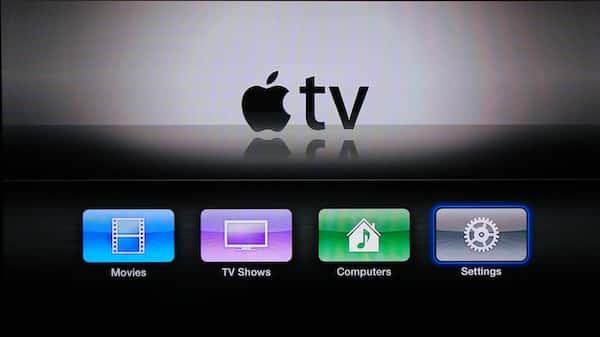
This week Apple released another Apple TV Software Update adding five more content providers for users in the U.S., including HBO GO, WatchESPN, Sky News, Qello, and Crunchyroll. However, if you’re not already an HBO or ESPN cable subscriber or a fan of music videos or Japanese Anime, you may find these new icons do little more than clutter up the nice Apple TV main screen.


The good news is that you can reorganize these icons to move them farther down or even hide them from the main screen entirely. To reorganize the icons, simply highlight the icon you want to move and hold down the center button on your Apple Remote until they all start jiggling; you can then simply use the direction arrows to move the icon almost anywhere else you want, although the first row is fixed—you can’t move icons into or out of this area.
Reorganizing or Hiding Main Menu icons on the Apple TV

Hiding icons uses a different method, requiring a quick visit into your device’s Parental Controls. Simply go into Settings, General, Parental Controls, scroll down to the list of items at the bottom and set each one to “Hide” to make them disappear from your Main Menu entirely.



Latest News
The 14-inch MacBook Pro with M5 Chip 16GB RAM/512GB is $250 Off
1 Min Read
Noise and Static on AirPods Pro 3 Still Unfixed
1 Min Read
New iMac with 24-inch OLED Display May be Brighter With 600 Nits
1 Min Read
The 15-inch M4 MacBook Air 256GB Is $250 Off
1 Min Read
Internal Kernel Debug Kit from Apple Reveals Tests for a MacBook with A15 Chip
1 Min Read
Apple Currently In Talks With Suppliers for Chip Assembly & Packaging of iPhones in India
1 Min Read
Apple Allows Easier Battery Replacement For M5 MacBook Pro with 14-inch Display
1 Min Read
The Apple Watch SE 3 44mm GPS is $50 Off
1 Min Read
20th Anniversary iPhone May Launch in Two Years
1 Min Read
Better Image Generation Capabilities and Apple Music Integration Coming to ChatGPT
1 Min Read
A20 Pro Chip Coming to Next Gen iPad Mini OLED
1 Min Read
Amazon has the AirTag 4 Pack Marked $29 off
1 Min Read

iLounge logo

iLounge is an independent resource for all things iPod, iPhone, iPad, and beyond. iPod, iPhone, iPad, iTunes, Apple TV, and the Apple logo are trademarks of Apple Inc.

This website is not affiliated with Apple Inc.
iLounge © 2001 - 2025. All Rights Reserved.
  • Contact Us
  • Submit News
  • About Us
  • Forums
  • Privacy Policy
  • Terms Of Use
Welcome Back!

Sign in to your account

Lost your password?








