
iLoungeiLounge
  • News
    • Apple
      • AirPods Pro
      • AirPlay
      • Apps
        • Apple Music
      • iCloud
      • iTunes
      • HealthKit
      • HomeKit
      • HomePod
      • iOS 13
      • Apple Pay
      • Apple TV
      • Siri
    • Rumors
    • Humor
    • Technology
      • CES
    • Daily Deals
    • Articles
    • Web Stories
  • iPhone
    • iPhone Accessories
  • iPad
  • iPod
    • iPod Accessories
  • Apple Watch
    • Apple Watch Accessories
  • Mac
    • MacBook Air
    • MacBook Pro
  • Reviews
    • App Reviews
  • How-to
    • Ask iLounge
Font ResizerAa
iLoungeiLounge
Font ResizerAa
Search
  • News
    • Apple
    • Rumors
    • Humor
    • Technology
    • Daily Deals
    • Articles
    • Web Stories
  • iPhone
    • iPhone Accessories
  • iPad
  • iPod
    • iPod Accessories
  • Apple Watch
    • Apple Watch Accessories
  • Mac
    • MacBook Air
    • MacBook Pro
  • Reviews
    • App Reviews
  • How-to
    • Ask iLounge
Follow US

News › iPhone

iPhone

Quickly marking your current location in Apple Maps

Last updated: May 16, 2021 1:26 pm UTC
By Jesse Hollington
Quickly marking your current location in Apple Maps

The new Maps app in iOS 10 will automatically keep track of where you parked your car (provided you have a Bluetooth or CarPlay connection to it), but there are also times when it’s handy to just quickly mark your current location so that you can easily find your way back to it later.


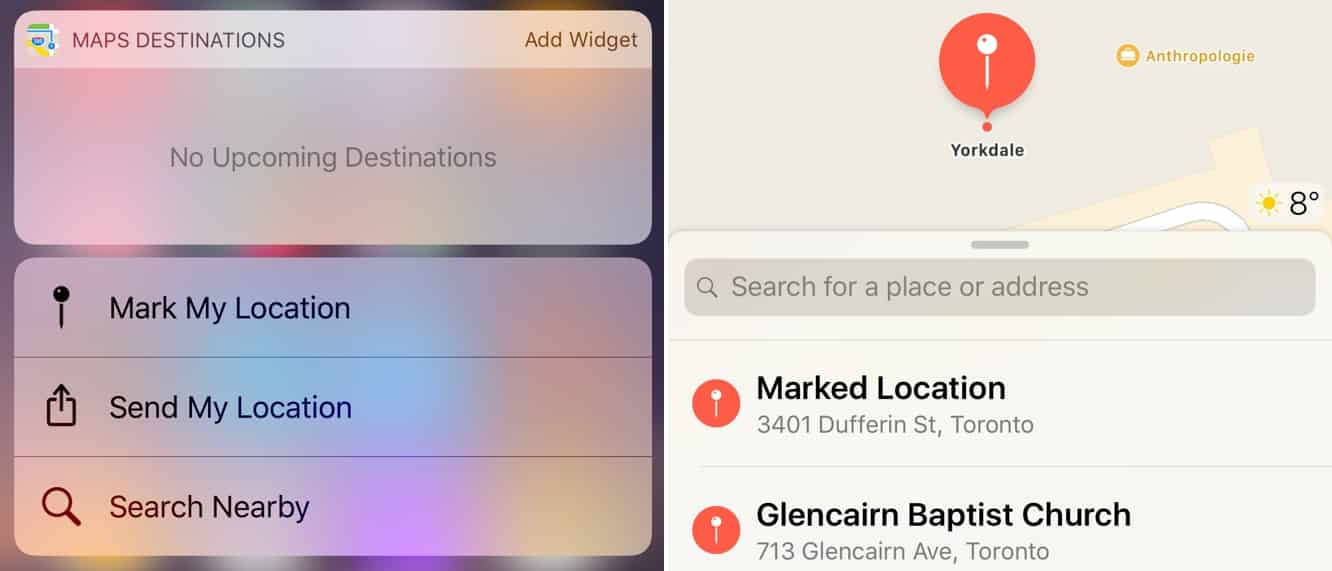
If you have a newer iPhone model with 3D Touch capabilities, there’s actually a really quick way to do this hidden right behind the Maps app icon on your home screen.
Quickly marking your current location in Apple Maps

Just push firmly on the Maps icon, and you’ll get the upcoming destinations widget along with an option to “Mark My Location.” Tap on this and Maps opens right up with a pin dropped onto the map wherever you happen be standing.

The marker will stay in place — so you can find it or get directions back to — it until you specifically clear it by using a swipe-to-delete action in the locations list or 3D Touching on it and choosing “Remove Marker” from the pop up menu.

.


Latest News
The Apple Watch Series 11 42mm GPS is $100 Off
1 Min Read
Apple Launching A New Education Hub In India Teaching Robotics and Swift Programming
1 Min Read
Women’s and Men’s Golf Added to Apple Sports
1 Min Read
Apple Adding Civilization VII and Other Games To Apple Arcade
1 Min Read
AirPods 4 ANC Is $59 Off
1 Min Read
Apple Using 2NM Process For Their M6 and A20 Chip
1 Min Read
iPhone 18 Models Will Not Have a Big Redesign
1 Min Read
Launch of MacBook Pro M5 Pro and M5 Max Models is Approaching
1 Min Read
Get the iPad Mini 7 256GB Wi-Fi at $99 Off
1 Min Read
Mozilla Now Allows Turning AI Features Off
1 Min Read
Barcelona Passeig de Gràcia Apple Store Temporarily Closing
1 Min Read
Apple’s Plans to Enter the Smart Glasses Market is Changing the Industry
1 Min Read

iLounge logo

iLounge is an independent resource for all things iPod, iPhone, iPad, and beyond. iPod, iPhone, iPad, iTunes, Apple TV, and the Apple logo are trademarks of Apple Inc.

This website is not affiliated with Apple Inc.
iLounge © 2001 - 2025. All Rights Reserved.
  • Contact Us
  • Submit News
  • About Us
  • Forums
  • Privacy Policy
  • Terms Of Use
Welcome Back!

Sign in to your account

Lost your password?









