
iLoungeiLounge
  • News
    • Apple
      • AirPods Pro
      • AirPlay
      • Apps
        • Apple Music
      • iCloud
      • iTunes
      • HealthKit
      • HomeKit
      • HomePod
      • iOS 13
      • Apple Pay
      • Apple TV
      • Siri
    • Rumors
    • Humor
    • Technology
      • CES
    • Daily Deals
    • Articles
    • Web Stories
  • iPhone
    • iPhone Accessories
  • iPad
  • iPod
    • iPod Accessories
  • Apple Watch
    • Apple Watch Accessories
  • Mac
    • MacBook Air
    • MacBook Pro
  • Reviews
    • App Reviews
  • How-to
    • Ask iLounge
Font ResizerAa
iLoungeiLounge
Font ResizerAa
Search
  • News
    • Apple
    • Rumors
    • Humor
    • Technology
    • Daily Deals
    • Articles
    • Web Stories
  • iPhone
    • iPhone Accessories
  • iPad
  • iPod
    • iPod Accessories
  • Apple Watch
    • Apple Watch Accessories
  • Mac
    • MacBook Air
    • MacBook Pro
  • Reviews
    • App Reviews
  • How-to
    • Ask iLounge
Follow US

News › iPhone

iPhone

Manually adjusting camera exposure in iOS 8

Last updated: May 16, 2021 4:04 pm UTC
By Jesse Hollington
Manually adjusting camera exposure in iOS 8

While being able to make exposure adjustments on your iPhone camera has been around since iOS 5, this option was limited to relying on the iPhone’s automated sensors for judging the optimal exposure; you could tap on a location to make the iPhone meter exposure based on that spot, but that was about as far as your adjustments went. Even third-party apps that provided exposure control had to use workarounds to accomplish this, instead of being able to adjust the exposure directly at the camera sensor level.

Manually adjusting camera exposure in iOS 8

The good news is that iOS 8 introduced the ability for a whole bunch of camera settings to be manually controlled, although most of these are only available through developer APIs, allowing third-party apps to let you take over and do things in an almost “full-manual” mode. While the built-in Camera app doesn’t provide all of this functionality, Apple has hidden away a manual exposure control option, allowing you to adjust the exposure to your preferences.

Manually adjusting camera exposure in iOS 8

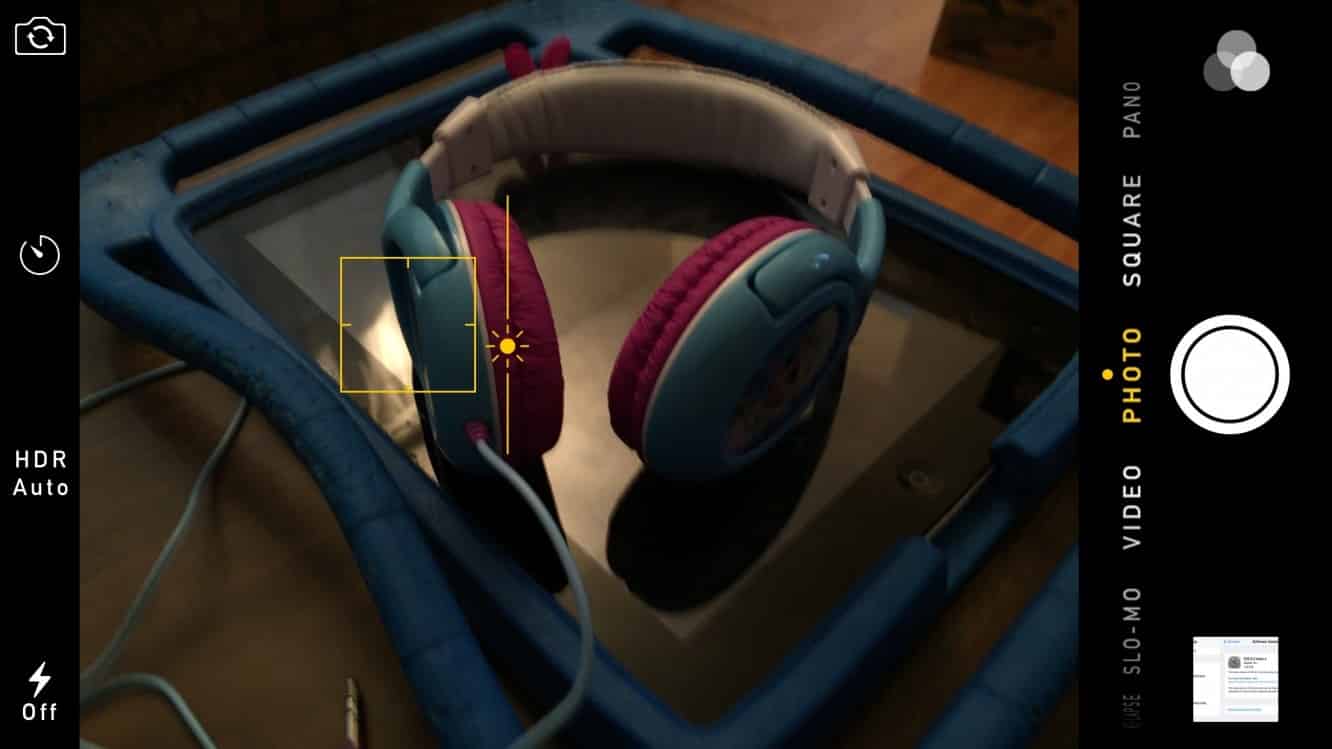
To do this, tap on the camera window in much the same way as you would to set the exposure metering point, and then release your finger and tap again in the exposure metering frame that appears.


You can then slide your finger up and down to set the exposure value manually — you should see a small starburst to the left of the exposure frame that will slide up and down a vertical line illustrating your exposure settings as you slide. In this case, much like the normal exposure metering feature, the setting will only be maintained for as long as lighting doesn’t dramatically shift, so if you move the iPhone to another scene, the camera will return to the default automatic weighted exposure mode.



Latest News
The Anker Prime 14in1 Thunderbolt 5 Dock is $60 Off
1 Min Read
iPhone 18 Pro Max May Have a Bigger Battery That’s The Best of Its Kind
1 Min Read
Apple Tightens Their Grip on the Market for Tablets As Demand For iPad Rises
1 Min Read
Teardown Video For AirTag 2 Shared By iFixit
1 Min Read
The Apple Watch Series 11 42mm GPS is $100 Off
1 Min Read
Apple Launching A New Education Hub In India Teaching Robotics and Swift Programming
1 Min Read
Women’s and Men’s Golf Added to Apple Sports
1 Min Read
Apple Adding Civilization VII and Other Games To Apple Arcade
1 Min Read
AirPods 4 ANC Is $59 Off
1 Min Read
Apple Using 2NM Process For Their M6 and A20 Chip
1 Min Read
iPhone 18 Models Will Not Have a Big Redesign
1 Min Read
Launch of MacBook Pro M5 Pro and M5 Max Models is Approaching
1 Min Read

iLounge logo

iLounge is an independent resource for all things iPod, iPhone, iPad, and beyond. iPod, iPhone, iPad, iTunes, Apple TV, and the Apple logo are trademarks of Apple Inc.

This website is not affiliated with Apple Inc.
iLounge © 2001 - 2025. All Rights Reserved.
  • Contact Us
  • Submit News
  • About Us
  • Forums
  • Privacy Policy
  • Terms Of Use
Welcome Back!

Sign in to your account

Lost your password?








