
iLoungeiLounge
  • News
    • Apple
      • AirPods Pro
      • AirPlay
      • Apps
        • Apple Music
      • iCloud
      • iTunes
      • HealthKit
      • HomeKit
      • HomePod
      • iOS 13
      • Apple Pay
      • Apple TV
      • Siri
    • Rumors
    • Humor
    • Technology
      • CES
    • Daily Deals
    • Articles
    • Web Stories
  • iPhone
    • iPhone Accessories
  • iPad
  • iPod
    • iPod Accessories
  • Apple Watch
    • Apple Watch Accessories
  • Mac
    • MacBook Air
    • MacBook Pro
  • Reviews
    • App Reviews
  • How-to
    • Ask iLounge
Font ResizerAa
iLoungeiLounge
Font ResizerAa
Search
  • News
    • Apple
    • Rumors
    • Humor
    • Technology
    • Daily Deals
    • Articles
    • Web Stories
  • iPhone
    • iPhone Accessories
  • iPad
  • iPod
    • iPod Accessories
  • Apple Watch
    • Apple Watch Accessories
  • Mac
    • MacBook Air
    • MacBook Pro
  • Reviews
    • App Reviews
  • How-to
    • Ask iLounge
Follow US

News › iPad

iPadiPhoneiPod

Dealing with troublesome autocorrect entries in iOS

Last updated: May 16, 2021 4:19 pm UTC
By Jesse Hollington
Dealing with troublesome autocorrect entries in iOS

If you’ve been using your iPhone, iPad, or iPod touch for a while, you’ve probably had an “autocorrect moment” where your device repeatedly insists on mistakenly “correcting” something you’re trying to type into some other obscure word. Most often this is the result of the device learning a word from past usage, and while iOS doesn’t offer any way to directly edit the autocorrect dictionary, there are a couple of ways to deal with this problem.


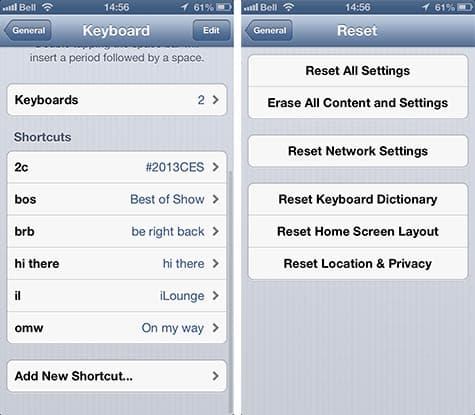
If you’re dealing with only one or two words that iOS is always getting wrong, you can override the autocorrect feature by defining keyboard shortcuts set to the correct word. To do this, simply go into your Settings app, select General, Keyboard and then scroll down to the “Shorcuts” section and use the “Add New Shortcut” button to create a new entry with the word that you do not want autocorrected.
Dealing with troublesome autocorrect entries in iOS

This also works to override the built-in autocorrect dictionary for less common words that you may find yourself using often but that your iPhone hasn’t yet learned properly.

On the other hand, if your autocorrect situation is a complete mess, you can simply reset the entire keyboard dictionary by choosing the “Reset Keyboard Dictionary” option found under General, Reset in the iOS Settings app. This will erase all of the learned autocorrect entries from your device, effectively allowing you to start from scratch.

.


Latest News
The Apple Watch Series 11 42mm GPS is $100 Off
1 Min Read
Apple Launching A New Education Hub In India Teaching Robotics and Swift Programming
1 Min Read
Women’s and Men’s Golf Added to Apple Sports
1 Min Read
Apple Adding Civilization VII and Other Games To Apple Arcade
1 Min Read
AirPods 4 ANC Is $59 Off
1 Min Read
Apple Using 2NM Process For Their M6 and A20 Chip
1 Min Read
iPhone 18 Models Will Not Have a Big Redesign
1 Min Read
Launch of MacBook Pro M5 Pro and M5 Max Models is Approaching
1 Min Read
Get the iPad Mini 7 256GB Wi-Fi at $99 Off
1 Min Read
Mozilla Now Allows Turning AI Features Off
1 Min Read
Barcelona Passeig de Gràcia Apple Store Temporarily Closing
1 Min Read
Apple’s Plans to Enter the Smart Glasses Market is Changing the Industry
1 Min Read

iLounge logo

iLounge is an independent resource for all things iPod, iPhone, iPad, and beyond. iPod, iPhone, iPad, iTunes, Apple TV, and the Apple logo are trademarks of Apple Inc.

This website is not affiliated with Apple Inc.
iLounge © 2001 - 2025. All Rights Reserved.
  • Contact Us
  • Submit News
  • About Us
  • Forums
  • Privacy Policy
  • Terms Of Use
Welcome Back!

Sign in to your account

Lost your password?









