
iLoungeiLounge
  • News
    • Apple
      • AirPods Pro
      • AirPlay
      • Apps
        • Apple Music
      • iCloud
      • iTunes
      • HealthKit
      • HomeKit
      • HomePod
      • iOS 13
      • Apple Pay
      • Apple TV
      • Siri
    • Rumors
    • Humor
    • Technology
      • CES
    • Daily Deals
    • Articles
    • Web Stories
  • iPhone
    • iPhone Accessories
  • iPad
  • iPod
    • iPod Accessories
  • Apple Watch
    • Apple Watch Accessories
  • Mac
    • MacBook Air
    • MacBook Pro
  • Reviews
    • App Reviews
  • How-to
    • Ask iLounge
Font ResizerAa
iLoungeiLounge
Font ResizerAa
Search
  • News
    • Apple
    • Rumors
    • Humor
    • Technology
    • Daily Deals
    • Articles
    • Web Stories
  • iPhone
    • iPhone Accessories
  • iPad
  • iPod
    • iPod Accessories
  • Apple Watch
    • Apple Watch Accessories
  • Mac
    • MacBook Air
    • MacBook Pro
  • Reviews
    • App Reviews
  • How-to
    • Ask iLounge
Follow US

News › Apps › Apple Music

Apple MusiciPadiPhoneiPod

Customizing the Library View in the iOS 10 Music app

Last updated: May 16, 2021 1:48 pm UTC
By Jesse Hollington
Customizing the Library View in the iOS 10 Music app

Apple made some arguably nice changes to its core Music app in iOS 10, departing from the Apple Music centric version that debuted with iOS 8.4 and putting the user’s own music library back front and center, where it belongs. One of the features that came back along with this, albeit in a slightly different form, was the ability to customize the main Library view to choose which organizational categories you want to see there.
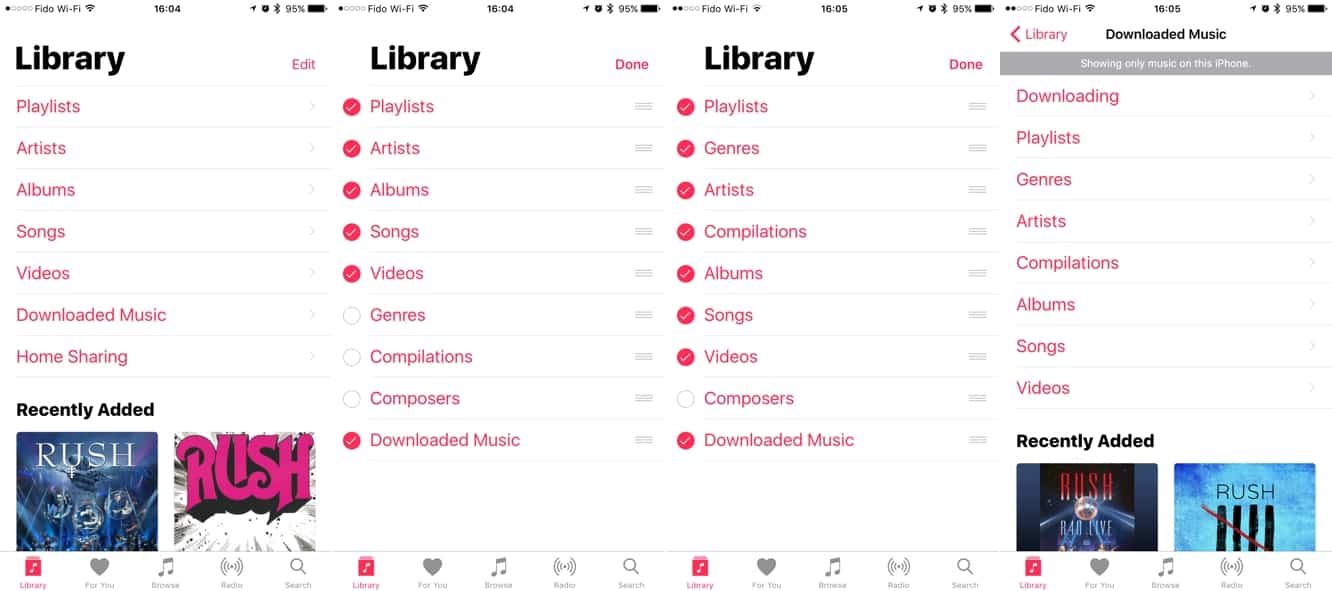

Customizing the Library View in the iOS 10 Music app

By default you’re given sections for Playlists, Artists, Albums, Songs, and Videos, as well as a Downloaded Music section to view only those tracks that have actually been downloaded to your device.

A Home Sharing section also appears here if you’ve enabled the Home Sharing feature in settings and a shared iTunes library is available on your local network. However, tapping the Edit button in the top-right corner allows you to customize the sections that appear in the list as well as the order they appear in. Genres, Compilations, and Composers can be added to the list, or any of the other sections shown can be removed simply by unchecking them; there are no specific sections shown here that must remain on the list, although you can’t hide them all — you have to leave at least one section checked, but it doesn’t matter which one.


Note that the Downloaded Music sub-section doesn’t provide an edit button of its own — it simply inherits which sections are shown and the order in which they appear in the main Library view. It’s also worth mentioning that Home Sharing cannot be removed, hidden, or sorted into a different position (although you can simply turn off Home Sharing in the Music section of your main iOS Settings app if you don’t want to use this feature). Further, if you choose to hide the Downloaded Music section, the Downloading section will dynamically appear on the main list, instead of in the Downloaded Music section, whenever there are tracks in the queue being downloaded onto your device from the cloud.



Latest News
The Apple Watch Series 11 46mm GPS Is $100 Off
1 Min Read
Clamshell Style iPhone Being Looked Into By Apple
1 Min Read
Foldable iPhones May Have the Largest Battery Ever
1 Min Read
Apple and TSMC’s 10-Year Collaboration May Be Ending
1 Min Read
The 13-inch M5 iPad Pro 256GB Wi-Fi Is $149 Off
1 Min Read
M5 Pro and M5 Max Chips for the MacBook Pro could Roll Out with macOS 26.3
1 Min Read
Mac Ordering Process Revamped
1 Min Read
Check Signed By Steve Wozniak and Steve Jobs Sold For $2.4 Million
1 Min Read
The Anker 140W 4-Port GaN USB-C Charger is $35 Off
1 Min Read
No iPhone Air 2 This Year, according to Latest Report
1 Min Read
New Report Corroborates Split iPhone Release Dates
1 Min Read
Apple Losing More Researchers As They Plan To Release 2 Siri Versions
1 Min Read

iLounge logo

iLounge is an independent resource for all things iPod, iPhone, iPad, and beyond. iPod, iPhone, iPad, iTunes, Apple TV, and the Apple logo are trademarks of Apple Inc.

This website is not affiliated with Apple Inc.
iLounge © 2001 - 2025. All Rights Reserved.
  • Contact Us
  • Submit News
  • About Us
  • Forums
  • Privacy Policy
  • Terms Of Use
Welcome Back!

Sign in to your account

Lost your password?








