
On August 19, 2008, we reviewed a collection of four different file storage applications for the iPhone and iPod touch in a roundup entitled iPhone Gems: Every File Storage App, Reviewed, updating it on August 22, 2008 with two new entries. This review contains a review of one application from that roundup; additional comparative details can be found in the original full story.
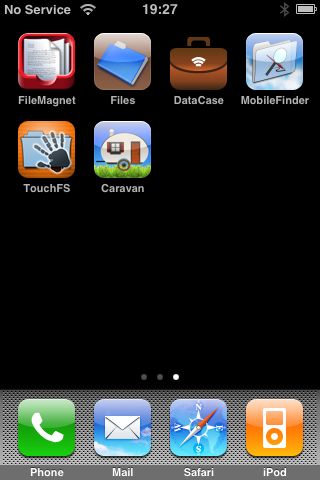
Though iPods have included this feature for years, Apple did away with Disk Mode—a way to store non-media files for transfer to a different computer—when it released the iPhone and iPod touch. Fortunately, as with other features missing from the iPhone and iPod touch in their native configuration, enterprising third-party developers have stepped in to fill the void, albeit in somewhat different ways than you may expect. New apps not only store and transport your files, but also let you actually view them on the device itself if they are in a supported format.
However, these tools don’t actually provide the old-style “Disk Mode” that the traditional iPod models do—rather than operating over USB and appearing as an external storage device, these applications all work over Wi-Fi using various network protocols. Your iPhone or iPod touch and your computer will need to be on the same Wi-Fi network if you want to transfer files to and from your device.
was the second offering to appear on the App Store, and takes a slightly different direction from FileMagnet. Rather than using a desktop application of its own, Files presents your device as a server using the WebDAV protocol. This allows you to connect to your device from Finder or Windows Explorer directly without requiring any other applications to be installed on your computer. When you first start Files, you are presented with a brief configuration screen where you must set a username and password which will be used to log on to your device from the desktop.

You may enter any values you like here—these do not correspond to any userids and passwords used anywhere else, they are simply what you will enter when connecting to the device itself.
Note that you may also enable “Guest” access to allow access to the “Public” folder without a username and password. When Guest access is enabled, users on your local Wi-Fi network will be able to connect to your Public folder with read/write access. Note that you may also set a Disk Quota on this screen. This limits the maximum amount of space that can be used by Files to store your data—the WebDAV share will simply appear as a file system of this particular size. This is useful for preventing your files from inadvertently taking up all of the remaining available space on your device.
Once you have specified these options and tapped the “Done” button, the main Files screen appears, providing the IP address of your iPhone or iPod touch that can be used to connect from your computer.

Connecting to Files is done in the same way as you would for any WebDAV server. In Mac OS X Finder, simply choose Go, Connect to Server and enter the URL shown by Files on your device.

When prompted, enter your user name and password, as specified on the Files setup screen.

Your device should then appear as a shared network resource in your Finder window.

For Windows users, the process is somewhat similar in concept, although slightly easier. You can simply enter the HTTP WebDAV URL provided by Files into your Windows Explorer or Internet Explorer address bar, and Windows will handle the rest of the connection details for you, again presenting your device as a shared folder. To access your public folder in Guest mode (if it is enabled), simply append the word “Public” to the end of the URL (eg, “http://192.168.100.191:8080/Public”). Once you have connected to your device, you would transfer and manage files in the same way you would with any other network share, using the normal tools in Finder or Windows Explorer.
Displaying your files on the device itself is relatively straightforward. The main Files window shows a listing of your top-level folder content, and any sub-folders that have been created through Windows Explorer or Finder are also displayed.

You can delete files directly from the device interface in the usual swipe-and-tap manner, but you cannot move files between folders or create new folders directly on the device—for this you will have to return to your Finder or Windows Explorer interface.
One additional feature that Files does offer is the ability to filter a large file listing. The small magnifying glass icon in the bottom-right corner will open a search field which can be used to search on the file names within the current folder. Note that this only searches on file names and not on any of the content in the files themselves.

As with FileMagnet, Files provides support for storing any type of file, and for viewing several file formats, although its format list is slightly more nuanced than FileMagnet’; specifically, iWork files need a little assistance working on the device. The developer’s notes on the App Store page suggests that you can ZIP an iWork document before transfer, but we initially could not get this to work in our testing—the format still showed as unsupported. Eventually, we found that using “filename.pages.ZIP” was the format Files would read. Other common formats such as JPG, PDF, HTML, text, and Microsoft Office documents are supported, as well as any video or audio file that could be synced to the device from iTunes.

As with FileMagnet, turning your device sideways will provide viewing in landscape mode, although like FileMagnet, this also only rotates the content and not the actual interface. One stand-out feature of Files’ viewing capabilities is its bookmarking feature. When viewing any file, you can add a bookmark to it at any position simply by tapping the small plus sign which appears in the bottom left corner of the file viewing window.

You can name these bookmarks, and then later return to them by tapping the Bookmarks button in the file viewer. These bookmarks remain in place as long as the file is on your device, however they are lost if you remove the file from your device, even if you copy it off to your computer and back on.











