
Following the release of the ColorStudio HD and iMarker two years ago, Griffin and Crayola have continued their collaboration to develop additional new kid-friendly drawing tools and apps for the iPad, expanding the single iMarker stylus into a series of DigiTools and companion apps that provide a whole new set of creative options for kids.
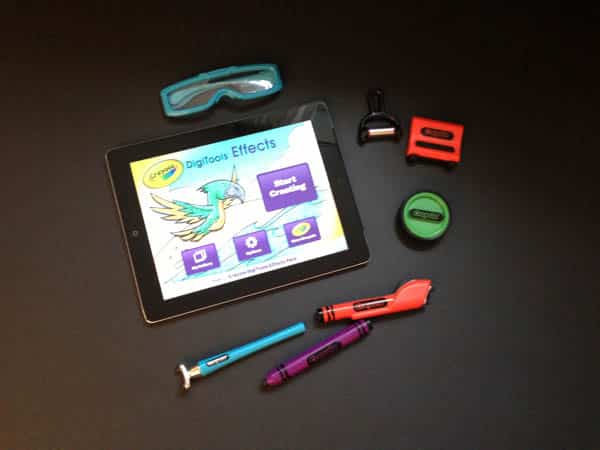
Available exclusively from the Apple Store, the Crayola DigiTools Ultra Pack combines seven tools into a single $50 package: a stamper, 3-D glasses, 3-D tool, color changer, crayon, rainbow roller, and airbrush. The tools can also be purchased from other retailers in three separate packs for $20 each: all three include the digital stamper, with the airbrush and rainbow roller included in the DigiTools Airbrush Kit, the 3-D glasses and 3-D tools in the DigiTools 3-D Pack, and the crayon and color changer in the DigiTools Effects Pack. A Deluxe Pack is also available for $40 that includes the 3-D tool, 3-D glasses, airbrush, crayon, and digital stamper. Each of these other packs include a carrying/storage case for the tools that is not included in the Ultra Pack.

The tools are color-coordinated by category—orange for the airbrush tools, blue for the 3-D tools, and purple for the effects tools, with each pair of tools corresponding to one of Crayola’s free DigiTools apps of the same name: Crayola DigiTools Airbrush, Crayola DigiTools 3-D, and Crayola DigiTools Effects. The green digital stamper tool is used in all three apps.

Unlike the iMarker, the DigiTools require no batteries or separate power—they’re basically just touchscreen styluses, and the single-tipped crayon is useful for pretty much any drawing app. This also allows the tools to be more solidly constructed, since there are no electronics or other sophisticated parts inside. The other DigiTools use multiple tips, which is where the magic comes in—the three DigiTools apps take advantage of the iPad’s multi-touch capabilities to read the multi-point input and respond to it appropriately.
For example, the digital stamper is used to stamp a selected image anywhere onto the canvas, which the app does by reading the contact from the three points arranged in a triangle on the back. The airbrush, rainbow roller, color changer, and 3-D tool all work in much the same manner in their various apps. This is a clever design choice that basically eliminates any special technology such as Bluetooth or audio feedback for the tools themselves, instead relying on the apps and the iPad touchscreen to interpret the interaction.

The companion apps can be used at a basic level to try them out, but are clearly designed to work best with the actual DigiTools in hand. When first loading up one of the apps, the user is prompted to unlock the full capabilities of the app by using the digital stamper to tap on a set of stars. Unfortunately, despite both the Apple Store and Griffin listing the tools as compatible with the iPad mini, this does not appear to be the case. As one might expect, the stars are smaller on the iPad mini screen compared to the size of the digital stamper tool, and presumably the apps aren’t reading the three-point digital stamp contact properly. This is something that could probably be easily solved via an app update, but despite several minor updates over the past few months, iPad mini support has not appeared and it’s particularly odd that these tools continue to be listed as iPad mini compatible; obviously as mere styluses, tools like the crayon work fine with any drawing app on the iPad mini, but this is clearly not what they are primarily designed for.

Once the appropriate app is unlocked, using the tools is simply a matter of creating a new drawing and selecting the tool from the palette at the bottom of the screen. As noted earlier, each app supports two of the specific tools plus the digital stamper.
The airbrush and crayon work pretty much as you would expect in their respective apps, while the rainbow roller is used to draw wide multi-colored ribbons in the Airbrush app and the color changer works in the Effects app to transform existing colors by rolling over sections of the drawing. In the 3-D app, the 3-D tool draws parallel lines in different colors that create a 3-D effect when viewed with the 3-D glasses; the app also moves with the accelerometer to accentuate the 3-D effect, and images added with the digital stamper also include similar 3-D renderings. All three apps provide a selection of background images as a base to start with and also include more standard drawing modes that can be used simply with a finger or the crayon tool.

In actual use the tools work reasonably well, although we found the drawing tools seemed to require a bit more pressure on the screen than we would have expected in some cases. While the digital stamper seems to work fine with light contact, we sometimes had to press a bit harder to see results when drawing. This really doesn’t seem to be a huge problem once you get used to it, but some users may be hesitant to apply even slightly heavier pressure to their iPad screen. Note that this seemed to work noticeably better when using the iPad on a flat surface such as a table or even a lap as opposed to attempting to hold it or use it with a stand, and applying direct 90-degree contact rather than trying to use the tools at more of an angle. Once we had adjusted to it, the issue went away, and while one of our younger toddlers struggled early on, she seemed to be quite thrilled with it once she figured it out and had no more real problems after that either.
With the exception of the 3-D glasses, which use only a basic thin plastic viewer, the other tools are all solidly built and clearly able to withstand typical exposure to a toddler. The tips do not specifically attract dirt or dust and do not seem to require any routine cleaning beyond occasionally brushing them off.











