
A relatively new player in the iOS ecosystem, Grid Connect’s ConnectSense Smart Outlet ($80) provides a more unique HomeKit outlet solution, giving you two independently-controlled outlets in a single package while also throwing in controllable status LEDs and a 2.4A USB charging port. As with other HomeKit accessories we’ve looked at, ConnectSense provides its own companion iOS app for setting up and configuring the device, but as a HomeKit accessory, the outlets can be controlled by any third-party HomeKit-compatible app or by using Siri voice commands.
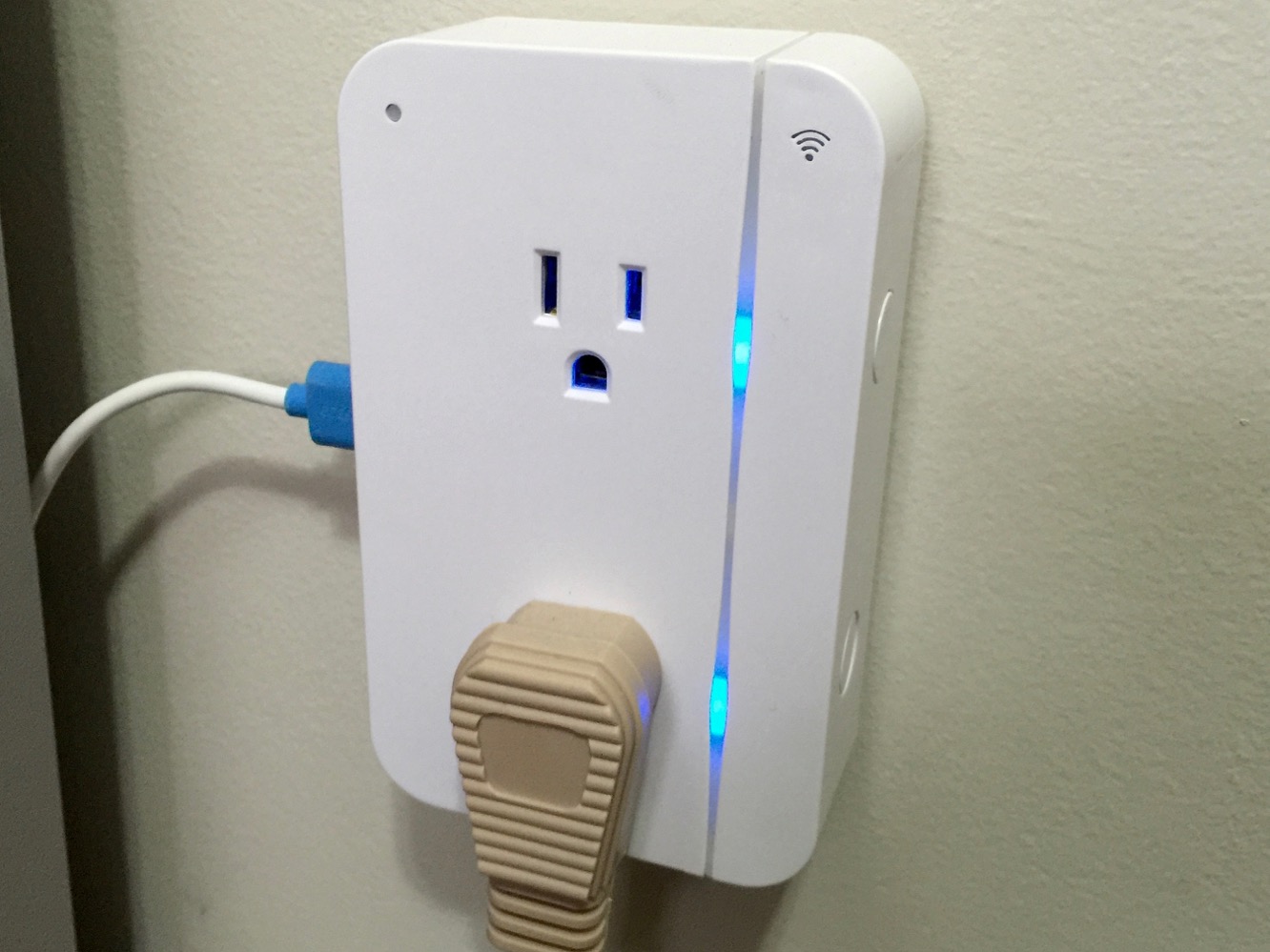
On the surface, the ConnectSense Smart Outlet looks like a typical multi-outlet extender that fits over an existing standard North American AC outlet to provide extra sockets and/or USB charging ports. A single plug is designed to connect to the upper outlet of a standard pair, and the Smart Outlet should basically cover most standard outlets entirely, essentially becoming the outlet. The left side of the outlet provides a single USB port capable of putting out 2.4A of charging current, allowing you to recharge an iPhone or iPad at maximum speed. Two buttons on the right hand side allow manual control of each outlet.

Green status LEDs in the top left and right corners provide pairing and Wi-Fi status during setup, but shouldn’t illuminate during normal operation. A blue status LED to the right of each outlet indicates power status — however, as an added bonus you can adjust the brightness of these LEDs through the ConnectSense app and some other HomeKit-enabled apps, although they’re both controlled as a pair and don’t seem to be accessible via Siri voice commands.
As mere status LEDs, however, we don’t think this is a serious limitation, and in fact were quite pleased to see that they could be adjusted at all, since many other accessories that provide fixed status LEDs don’t offer this capability.

By now, the HomeKit setup process has become almost routine for us, and despite each accessory providing its own app, the process remains consistent — most likely something mandated by Apple — so the ConnectSense Smart Outlet is no different. You plug it in, open up the ConnectSense app, add the discovered device and then go through the process of joining it to the same Wi-Fi network as your iOS device, and then scanning or entering the HomeKit accessory code. Once the ConnectSense Smart Outlet has been added, you’ll get two device entries in the app, as each outlet is controlled independently. As with other smart outlets we’ve looked at, you’ll likely want to assign a role to each of the outlets so that you can control them more effectively with Siri and other HomeKit apps. The ConnectSense app gives you a wide collection of pre-defined roles to choose from, ranging from basic lamps to aquariums and Christmas trees.
Assigning a role is particularly important if you want to be able to include a connected appliance in a generic group such as “lights” for issuing commands to Siri like “turn off all the lights.”

Since it’s using the standard HomeKit APIs, the ConnectSense app can also be used to control and monitor other HomeKit devices on your network, and configure rooms, zones, service groups, and scenes. Similarly, the ConnectSense Smart Outlet will also be accessible from just about any other HomeKit app designed to provide outlet control, but due to its dual-outlet nature, it will appear a bit differently in some apps. For example, Elgato’s Eve app had no problem recognize the two outlets as independent devices, whereas the iDevices Connected app only includes a control on the main devices screen for the primary outlet, forcing you to go down one level deeper to control the second outlet (in much the same way the night light on iDevices Switch is controlled).
Siri control works pretty much as expected here, with each outlet having an assignable name and role for issuing voice commands. The two outlets default to names of “Outlet one” and “Outlet two” however they can easily be customized to refer to devices more appropriately, such as “tree lights” or “floor lamp” (although Siri does seem to have some problems with plural forms, since it kept wanting to tell that the “tree lights is on.”) As noted earlier, the status LEDs are not controllable via Siri, but chances are you won’t be changing them that often. Further, the USB charging port is not controllable at all — it simply remains on at all times while the ConnectSense Smart Outlet is plugged in — but this is logical since the port is primarily intended for charging an iPhone or iPad. It’s still worth noting for those edge cases where somebody might want to plug in something else, like a USB-based lighting accessory.











