
iLoungeiLounge
  • News
    • Apple
      • AirPods Pro
      • AirPlay
      • Apps
        • Apple Music
      • iCloud
      • iTunes
      • HealthKit
      • HomeKit
      • HomePod
      • iOS 13
      • Apple Pay
      • Apple TV
      • Siri
    • Rumors
    • Humor
    • Technology
      • CES
    • Daily Deals
    • Articles
    • Web Stories
  • iPhone
    • iPhone Accessories
  • iPad
  • iPod
    • iPod Accessories
  • Apple Watch
    • Apple Watch Accessories
  • Mac
    • MacBook Air
    • MacBook Pro
  • Reviews
    • App Reviews
  • How-to
    • Ask iLounge
Font ResizerAa
iLoungeiLounge
Font ResizerAa
Search
  • News
    • Apple
    • Rumors
    • Humor
    • Technology
    • Daily Deals
    • Articles
    • Web Stories
  • iPhone
    • iPhone Accessories
  • iPad
  • iPod
    • iPod Accessories
  • Apple Watch
    • Apple Watch Accessories
  • Mac
    • MacBook Air
    • MacBook Pro
  • Reviews
    • App Reviews
  • How-to
    • Ask iLounge
Follow US

News › Apps

Apps

How-To: Remove, Limit, Or Fix Adobe Flash On Your Mac

Last updated: May 14, 2021 7:09 pm UTC
By Jeremy Horwitz
How-To: Remove, Limit, Or Fix Adobe Flash On Your Mac

People freaked out when Apple flatly refused to let the iPhone and iPod touch support Adobe’s Flash plug-in, forcing the companies into a messy public battle over Flash’s power consumption and stability. Four years later, it’s long past obvious that Apple was right, particularly since Flash is now wreaking havoc on Macs with OS X Lion installed. Here are some quick tips for removing, limiting, or sandboxing Adobe Flash so that your Mac doesn’t lock up or lose half of its battery life. We’d recommend that you dump Flash altogether, but if you can’t do that, we have some tips to (try to) fix it, as well.

How-To: Remove, Limit, Or Fix Adobe Flash On Your Mac

Uninstall Flash. If you’re experiencing random Mac lockups, there’s a possibility that Flash is somehow responsible—last year, Apple reportedly blamed Flash for the majority of Mac crashes, and things haven’t gotten any better since then.

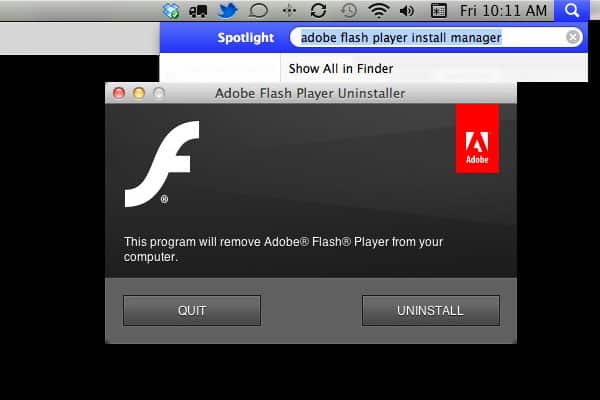
Purging Flash from your machine will require you to look in your Applications > Utilities folder for a file called Adobe Flash Player Install Manager—the program loads up as Adobe Flash Player Uninstaller. (You can also use Spotlight to search for the app.) There’s a nice, shiny Uninstall button there, and after hitting it, you’ll need to confirm that you want to remove Flash. You’ll be glad that you did; MacBooks will generally see big battery life boosts, and desktop machines won’t lock up or experience Safari crashes as often.


Limit Flash. If you need to keep Flash on your machine but don’t want to auto-load it every time a web page requests it, download the new Safari 5.1-compatible application ClickToFlash. This extension displays placeholder Flash blocks where Flash could be loaded, enabling you to manually decide whether to risk slowing down or destabilizing your machine.

Sandbox Flash. If you want to keep a Flash-ready browser around for the (increasingly rare) situations in which it’s needed, install Google’s Chrome browser, which keeps its own version of Flash in a “sandbox” so that you won’t hang up the rest of your system if Flash crashes. The only problem here is that Chrome’s version of Flash may be a generation behind the latest release—this matters because Adobe keeps releasing new versions of Flash all the time in a never-ending effort to reduce crashes.

Update Flash. If for whatever reason you need to keep Flash installed in your main Safari browser, don’t be surprised if it’s quietly responsible for causing complete OS X system lockups or Safari-specific crashes. Here’s where you can get the latest version of Flash, which as of this writing appears to still be causing OS X errors. While you’re at it, update Adobe AIR, which has been having problems of its own.



Latest News
The 14-inch MacBook Pro with M5 Chip 16GB RAM/512GB is $250 Off
1 Min Read
Noise and Static on AirPods Pro 3 Still Unfixed
1 Min Read
New iMac with 24-inch OLED Display May be Brighter With 600 Nits
1 Min Read
The 15-inch M4 MacBook Air 256GB Is $250 Off
1 Min Read
Internal Kernel Debug Kit from Apple Reveals Tests for a MacBook with A15 Chip
1 Min Read
Apple Currently In Talks With Suppliers for Chip Assembly & Packaging of iPhones in India
1 Min Read
Apple Allows Easier Battery Replacement For M5 MacBook Pro with 14-inch Display
1 Min Read
The Apple Watch SE 3 44mm GPS is $50 Off
1 Min Read
20th Anniversary iPhone May Launch in Two Years
1 Min Read
Better Image Generation Capabilities and Apple Music Integration Coming to ChatGPT
1 Min Read
A20 Pro Chip Coming to Next Gen iPad Mini OLED
1 Min Read
Amazon has the AirTag 4 Pack Marked $29 off
1 Min Read

iLounge logo

iLounge is an independent resource for all things iPod, iPhone, iPad, and beyond. iPod, iPhone, iPad, iTunes, Apple TV, and the Apple logo are trademarks of Apple Inc.

This website is not affiliated with Apple Inc.
iLounge © 2001 - 2025. All Rights Reserved.
  • Contact Us
  • Submit News
  • About Us
  • Forums
  • Privacy Policy
  • Terms Of Use
Welcome Back!

Sign in to your account

Lost your password?








