You’ve probably already read about the soon-to-be-expired TiVo Lifetime Service deal posted here a couple of weeks ago: if not, this is the weekend you should take advantage of it, because the offer ends on April 15th. If you did (like many other iLoungers have!), or already had a TiVo, you’ll want to read this next part: preparing your TiVo to connect to your home computer network in anticipation of the release of TiVo to Go for the iPod.
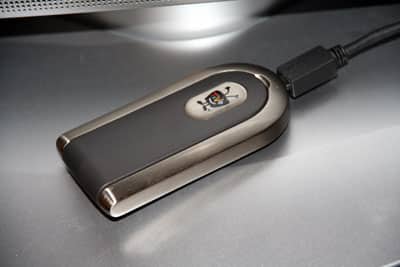
I don’t have the statistics here to quantify this, but my sense is that home networks started to grow in popularity when broadband cable and satellite modems became available, and that lower-cost, easier-to-use wired and wireless routers have helped that process along in recent years. Today, computer networking is common, but it also says a lot that all the current game consoles and handhelds (save Game Boy Advance) now have ways to get online; Xboxes, Sony PSPs and Nintendo DSes even include Ethernet or wireless features straight out of the box. Other devices can join networks, too, and so relatively late in the game – basically, at the end of 2005 – TiVo decided to offer its own Wireless G USB Network Adapter ($50, available through Amazon.com) for its Series 2 DVRs. It’s made from metal and plastic, looks sharp, and includes a black 6-foot USB cable that connects to one of two USB ports on any Series 2 TiVo. Mine finally arrived off of a backorder list this week. 
TiVo was far from the first to sell a network adapter for its own boxes, and if you do a few searches online, you’ll realize what a mess was caused by the company’s earlier reliance on third parties to release compatible parts. The TiVo web site makes you wade through a weird list of certain serial numbered adapters that work with certain TiVo units, so confusing that you can’t order any third-party adapter online with full confidence, or walk into your average Circuit City and know for sure that the random box you pick up is supported.
For example, if you’re thinking of getting a D-Link DWL-G120, make sure it’s version B2, because C and B1 won’t necessarily work. How about Netgear’s WG111? You’ll need to check and see if the WG111’s serial number starts with WG72 or 130. It gets worse – buy one of the “working” adapters and you still might have problems; even if it works, you may only get 2/3 the transfer speed of the TiVo-branded Adapter, which has a new Broadcom chipset inside, and toggles between 802.11g or 802.11b based on the network it finds in your home. 
I went through the research process a couple of weeks ago, and ultimately decided that the TiVo Adapter was the smarter way to go – for wireless at least. (Wired adapters are only modestly less expensive, and I’d prefer not to have cables running through my rooms or walls.) TiVo’s price was only slightly higher than the others, and it was guaranteed to work, quite possibly better than the others. Plus, it looks nice: a plastic antenna top flips out of a heavy metal and plastic base, all parts at least vaguely cosmetically matching those of my home entertainment center. I took delivery of my Adapter on the same day as a friend received his, and since I’ve had a few people ask for my opinions on the setup and user experience, I’ve posted them at Read More below.
My friend’s setup experience was easier than mine: he reported that he just plugged the Wireless G Network Adapter into his TiVo, and after a few setup screens, it worked – one mid-installation power outage in his home later, at least, he was able to verify that it was doing just fine. This is fairly easy to determine without even having a TV on: when the Adapter is flipped open, there are two lights immediately next to each other, and if they’re both on, the device is powered up (left) and linked in to your network (right).

His is the most common version of the setup story I’ve heard.
My setup was a bit trickier: it was quickly apparent that the Adapter and TiVo were talking to each other properly – TiVo displayed the MAC address of the Adapter as soon as it was connected with its included USB cable to one of the two USB ports on TiVo’s back, and the Adapter’s power light was on. But the network light was flashing, suggesting that the connection hadn’t been made. So the obvious next step was to enter the setup menu, which appeared under Settings > Phone & Network.

I had to pick my network (easy), configure my router to assign dynamic rather than any static IP addresses (intermediate difficulty), go through WEP password settings (easy), and then repeat the process about 15 times (annoying). I can’t explain why, but I kept getting N10 “can’t connect to your network” errors, despite the fact that two computers were connected to the network using the same settings. Eventually, after clearing all of the settings and starting one last time, something clicked, and the connection was made. At that point, I switched the TiVo over to Network mode rather than Phone mode, and tested my settings. They worked. All in all, the experience for me was only as painful as connecting any other non-Mac device I’ve owned to my network, maybe a little better, though certainly with fewer steps to screw up.