
iLoungeiLounge
  • News
    • Apple
      • AirPods Pro
      • AirPlay
      • Apps
        • Apple Music
      • iCloud
      • iTunes
      • HealthKit
      • HomeKit
      • HomePod
      • iOS 13
      • Apple Pay
      • Apple TV
      • Siri
    • Rumors
    • Humor
    • Technology
      • CES
    • Daily Deals
    • Articles
    • Web Stories
  • iPhone
    • iPhone Accessories
  • iPad
  • iPod
    • iPod Accessories
  • Apple Watch
    • Apple Watch Accessories
  • Mac
    • MacBook Air
    • MacBook Pro
  • Reviews
    • App Reviews
  • How-to
    • Ask iLounge
Font ResizerAa
iLoungeiLounge
Font ResizerAa
Search
  • News
    • Apple
    • Rumors
    • Humor
    • Technology
    • Daily Deals
    • Articles
    • Web Stories
  • iPhone
    • iPhone Accessories
  • iPad
  • iPod
    • iPod Accessories
  • Apple Watch
    • Apple Watch Accessories
  • Mac
    • MacBook Air
    • MacBook Pro
  • Reviews
    • App Reviews
  • How-to
    • Ask iLounge
Follow US

News

News

iPod nano 4G and 120GB iPod classic Diagnostic Modes

Last updated: May 15, 2021 1:41 pm UTC
By Jeremy Horwitz
iPod nano 4G and 120GB iPod classic Diagnostic Modes

From past experience, most readers don’t seem to care much about the iPods’ hidden diagnostic modes, but since we’ve been playing around with them, we figured that a few pictures and details might be of interest to some of you.

iPod nano 4G and 120GB iPod classic Diagnostic Modes

Apple has been tossing diagnostic modes into iPods for years; the only model that doesn’t let you access diagnostics is the iPod touch, which like the iPhone has an icon-based hardware diagnostic screen, but completely hides it away. On Click Wheel iPods, including the fourth-generation iPod nano and 120GB iPod classic, you access this mode by holding down the center and Menu buttons at the same time until the iPod resets to an Apple logo screen, then immediately holding the center and reverse track buttons until the iPod boots into the Diagnostic screen shown below.


iPod nano 4G and 120GB iPod classic Diagnostic Modes

The iPod nano’s version of this screen has 10 menu options, while the classic’s starts with 2, expanding to 7 when you select “manual” test mode.

Click on the title of this article for a list of what’s vaguely interesting inside.

iPod nano 4G and 120GB iPod classic Diagnostic Modes

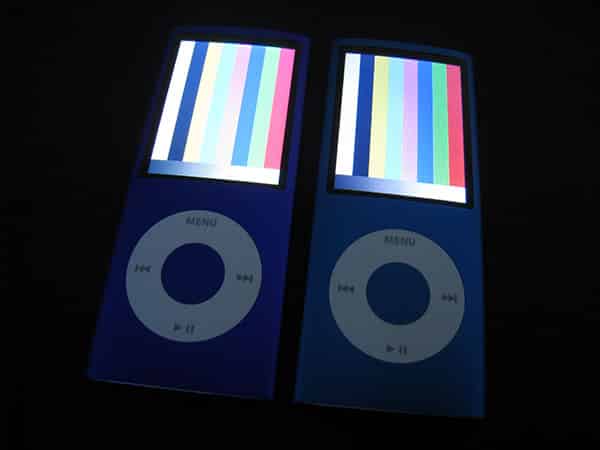
Both devices let you check and see if the iPod hardware is working by using button presses to select from numerous unusual phrases and technical abbreviations. The nano’s test screen lets you check its power management, deep sleep mode, headphone port, video-out, LCD screen, accessory port, memory, Click Wheel, accelerometer, and general “About” statistics. Perhaps the most interesting mode is the LCD test, which lets you try test patterns like the ones above; most of the other tests are there to see if there are specific problems with a given part of the nano.


iPod nano 4G and 120GB iPod classic Diagnostic Modes

iPod nano 4G and 120GB iPod classic Diagnostic Modes

The iPod classic’s menu lets you test all of the same components, seven of which are within an NTF section of the menus, with memory, IO, power, accessories, and “SysCfg” (About) under the main menu, along with a Reset command.

There are also hard disk tests, which let you see the drive’s SMART data and specifications. Note that our photos of the 120GB classic are taken alongside photos of the 160GB classic, which uses older firmware but basically looks identical.


iPod nano 4G and 120GB iPod classic Diagnostic Modes

iPod nano 4G and 120GB iPod classic Diagnostic Modes

Boring? Yes. But if you’re looking for a way to put up a colored TV test pattern on your iPod’s screen, this is the easiest way to do it.



Latest News
The AirPods Pro 3 is $20 Off
1 Min Read
Exynos 2600 Chip 2nm Process Revealed by Samsung
1 Min Read
New Celebrity Ad Campaign Featuring Travis Scott Released by Beats
1 Min Read
Australia Getting Hypertension Notification Feature
1 Min Read
The 14-inch MacBook Pro with M5 Chip 16GB RAM/512GB is $250 Off
1 Min Read
Noise and Static on AirPods Pro 3 Still Unfixed
1 Min Read
New iMac with 24-inch OLED Display May be Brighter With 600 Nits
1 Min Read
The 15-inch M4 MacBook Air 256GB Is $250 Off
1 Min Read
Internal Kernel Debug Kit from Apple Reveals Tests for a MacBook with A15 Chip
1 Min Read
Apple Currently In Talks With Suppliers for Chip Assembly & Packaging of iPhones in India
1 Min Read
Apple Allows Easier Battery Replacement For M5 MacBook Pro with 14-inch Display
1 Min Read
The Apple Watch SE 3 44mm GPS is $50 Off
1 Min Read

iLounge logo

iLounge is an independent resource for all things iPod, iPhone, iPad, and beyond. iPod, iPhone, iPad, iTunes, Apple TV, and the Apple logo are trademarks of Apple Inc.

This website is not affiliated with Apple Inc.
iLounge © 2001 - 2025. All Rights Reserved.
  • Contact Us
  • Submit News
  • About Us
  • Forums
  • Privacy Policy
  • Terms Of Use
Welcome Back!

Sign in to your account

Lost your password?








