
As an avid e-book reader I have amassed quite a collection of e-books over the past few years. When the iPad first debuted with its open support for the ePub format I began enthusiastically converting much of my existing catalog of e-books into the ePub format using Calibre so that I would be able to read them on my iPad. The appearance of iBooks 1.1 on the App Store yesterday with its support for iPhone and iPod touch devices promised to improve this reading experience further by allowing me to read my e-books on my other iOS devices and seamlessly sync reading positions between them, providing a very Kindle-like experience but with the nicer UI and more advanced features of the iBooks application.
Unfortunately, after updating to iBooks 1.1 I discovered that I could no longer use the dictionary for any of my own converted titles. Tapping on a word and asking for a dictionary lookup, which worked fine in the prior version of iBooks, now resulted in a pop-up window with the message: “Dictionary not available for this language.”
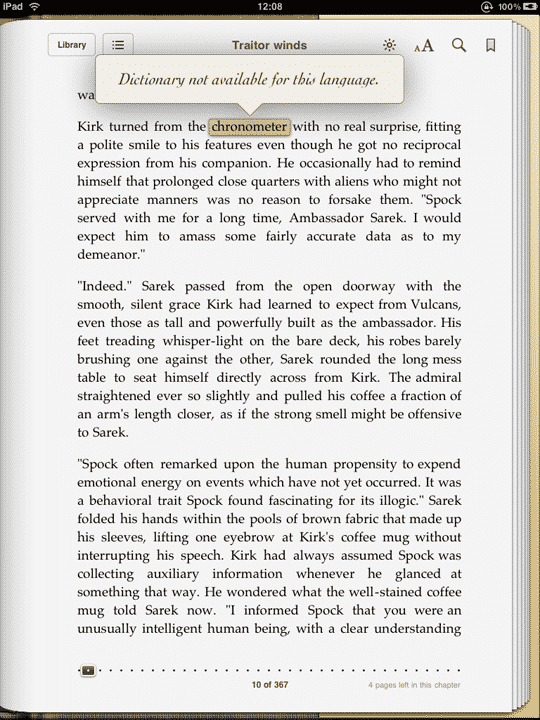
The few e-books that I had downloaded from the free Project Gutenberg collection on the iBookstore did not have this problem, only the e-books that I had converted myself. A bit of investigation on the Mobileread forums revealed that in some cases Calibre does not store a correct language identifier when converting files to an ePub format, nor does it provide any easy way to actually specify a language identifier yourself.
In fact, it appears that Calibre writes the language into the ePub output files as “UND,” presumably for “Undefined.” Of course, since iBooks 1.1 has no dictionary available for a language code of “UND” it simply says so. Likewise, iTunes has no way of setting the language for an ePub title. It appears that iBooks 1.0.x either didn’t care about the language specified in the e-book or at least “fell back” to a default dictionary if it didn’t have one available for a given language.
The solution to the problem is actually somewhat simple if you’re willing to dig under the hood a bit. ePub files are actually just ZIP files containing the various components that make up the text and other metadata for the file, which means that you can grab any of your ePub titles and take them apart yourself. Inside the ePub zip file is an XML file named content.opf which contains the metadata for that particular title, including the language definition.
You can extract this file using any common zip utility and edit it with a text or XML editor. You basically just need to change the information between the dc:language tags from “UND” to something like “en” for English, then save the file and put it back into the ePub archive.

If you’re using a Mac, you can easily accomplish this from the Terminal command line by using the built-in unzip command to extract just the content.opf file, edit it using TextEdit using open -e and then put it back using the zip command, as shown below.

You can get the actual path to your ePub file from within iTunes by right-clicking and choosing the Show in Finder option from the context menu. This will open a Finder window to the folder containing the e-book. From the Finder window, you can simply drag-and-drop the ePub file directly into the Terminal window to paste in the path to the file at the current cursor position:


Once you’ve edited the content.opf file and put it back into the ePub package, simply re-copy the e-book back onto your devices.











