
I am smack dab in the center of Apple’s target demographic for the just-released Magic Trackpad—a MacBook Pro user for years, huge fan of Apple’s trackpads, and a consistent purchaser of Apple’s desktop mice. Note that I used the word “purchaser” rather than “lover” for that last one. I loved the one-button Apple (“Pro”) Mouse, but was less thrilled by its subsequent replacements: I was a day one purchaser and rapid abandoner of the Mighty Mouse, as well as a day one purchaser who just sorta learned to live with the Magic Mouse. Apple makes beautiful mice and great trackpads, but hasn’t made a truly great mouse in a while. So a desktop-ready trackpad just made sense when the first pictures of the Magic Trackpad leaked out of China. Unlike Wacom’s earlier multi-touch tablets for Macs, the Magic Trackpad looked perfect—elegant, metallic, and big. I waited nearly two months after that leak for it to actually be introduced, then bought it the day it went on sale. For $69. That’s a lot of money, and $20 more than the basic Wacom Bamboo Touch, but basically par by Apple pointing device standards. It’s arguably worth the investment if the experience is great.
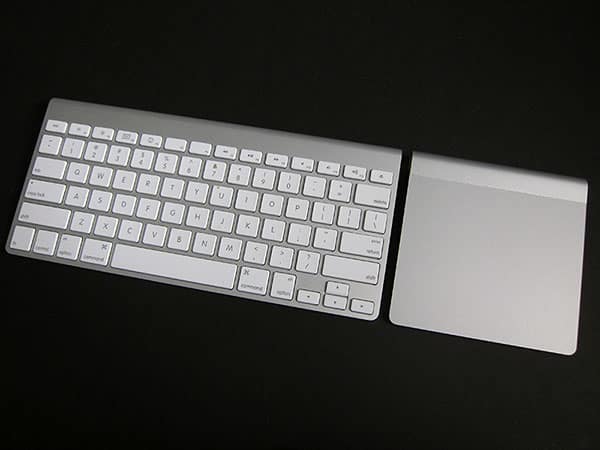
So how is it? My initial reaction is that it has the potential to become great, which is incidentally how I felt about the Magic Mouse after spending some time with it. The Magic Mouse is Apple’s best-looking mouse, ever. As a one-button solution, if you’re okay with the low profile and modest hand adjustment you need to go through to accommodate it, it might even come close to greatness. Except that the batteries need to be replaced all the time, which is ridiculous. And the multi-touch surface on top doesn’t really support gestures I care about, while the inertial scrolling still creates major problems with applications I use, such as Adobe’s Photoshop and InDesign.
It’s a gorgeous mouse with software issues that never seemed to get fixed.

On paper, the Magic Trackpad was supposed to solve all that. It’s a bigger version of the MacBook Pro trackpad that I love—except for the occasional errant right button clicks that happen because there’s no dedicated right button on the uniform, matte glass surface. Did I mention that I love that glass surface? It feels great, looks great, and so should be even better on the Magic Trackpad because there’s more of it. Apple built the Trackpad to exactly match the height and depth of the Apple Wireless Keyboard—not the wired version, which I use daily and think is even better than Apple’s mice. In concept, the big Magic Trackpad should have enough space for dedicated left and right button surfaces, so no more errors, right?

Well, that depends. In one of those classically “huh?” Apple engineering decisions that will take a little time to fully appreciate or curse (see, e.g., the now-discontinued Mighty Mouse’s scroll ball), Magic Trackpad’s button—and it does appear to be a button, singular—is actually underneath the unit in the form of two gray rubber dots that would otherwise just be keeping the thing in place on a flat surface. If you’re using the Magic Trackpad on a totally uniform desk, and most people probably will, that’s no problem: clicking on the surface works and feels just like it does on a MacBook, more sensitive at the bottom than the top. On my particular desk, though, which just happens to have a grid of holes that are oddly sized to perfectly fit the ones on the Trackpad’s bottom, the clicks won’t register at all if the Trackpad’s sitting or shifted to the wrong space. Most of the time, I use my computers and accessories just like anyone else, but because my desk’s a little unusual, this is one of the rare situations where that’s not the case. Solution: slide Magic Trackpad further down my desk where there’s less wrist support. There, it works without issues. Unless I push it upwards, or the pads collect dirt like the Mighty Mouse’s scroll ball. Again, it’ll take a little time to know whether this happens; I’m betting that it won’t.

The other surprise of Magic Trackpad is that the larger touch surface isn’t yet translating into more accurate control over my computer.
It might look square from a distance, but the surface is actually a little over 5 inches wide and around 4.3 inches deep, with an extra near inch for the twin AA battery compartment in the back. That’s more than enough room to extend past my centered fingers on either side, while providing adequate room for multi-finger gesturing, two-finger scrolling, and so on. Unfortunately, Apple still doesn’t offer the sort of touch surface user customization that would make the most of this trackpad. I’ve set the System Preferences panel to recognize right clicks as “bottom right corner”—one of only two choices (“bottom left corner”) Apple offers. Five inches turns out to be quite a distance for fingers to travel just to make a right click. Using the MacBook’s former “two-finger tap/click” gesture tends to introduce accidental right clicks into my workflow with some frequency. It’s here on Magic Trackpad and causes the same errors. I’ve turned it off for now.


Back when the Magic Mouse was released, my hope was that Apple would update the drivers with better gesture support, hopefully adding an expert user mode that offered precise control over what portion of the top surface would be recognized as a right click—or just a “left side means left click, right means right click” feature. That never happened. Apple released the Magic Mouse, offered a bugfix that was supposed to stop nasty-quick battery drain, and then left it alone. A third-party tool or two came out and demonstrated that the Magic Mouse’s surface was a really sophisticated sensor that could be programmed to do a lot more, or just work better. Apple hasn’t taken up that cause.

For the past several years, Apple has been using a problem analysis methodology that essentially relies upon users to complain—loudly and in great numbers—before the company will consider the possibility that something’s not right with one of its products. These days, Apple resolves problems only when people (a) report them in huge numbers through Mac OS X’s or iTunes’ bug reporting tools, or (b) call into AppleCare at a rate of, say, 0.55% of the entire userbase while simultaneously picketing Consumer Reports’ offices.











