

iTunes 11, released in November 2012, made a number of major changes to Apple’s Mac and PC media player/store application. Apple significantly streamlined the graphical interface from previous editions, redesigned the MiniPlayer, and created tighter integration between iCloud and the iTunes Store.
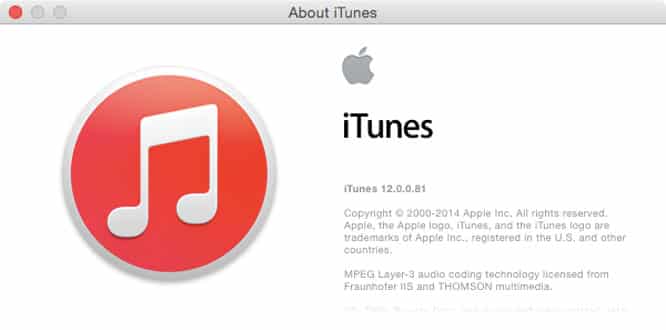

Other than a new red dock icon—replacing the blue one first introduced in iTunes 10—that went without mention during Apple’s Worldwide Developers Conference, the event came and went without any mention of an update to iTunes. Then, on July 21, 2014, along with the fourth beta release of the upcoming OS X Yosemite, a beta version of iTunes 12 popped up in the Mac App Store for developers.
Without any advance signaling from Apple, the changes in iTunes 12 came as a surprise. While the app’s core remains pretty much the same as before, iTunes 12’s top control bar has been completely redesigned, now matching the look of iOS 7 and iOS 8 even more closely. Today, we take a look an initial look at what’s new. Because this is pre-release software, and only the first release at that, there are bound to be changes over time before the final version ships. But for now, here’s what you can generally expect when iTunes 12 becomes available this fall.
A New Look

Although the jump isn’t as dramatic as iTunes 11 was in relation to iTunes 10, it’s obvious from the first time iTunes 12 launches that Apple’s graphical design team has been making changes, especially at the top of the iTunes window.
Almost all of the controls are still present, and in the same position as they have been in the past. Starting on the left, there are tracking and play buttons—Genius Shuffle has been removed here, although not from the app altogether—followed by the volume slider and AirPlay controls. In the middle you have the Now Playing window, displaying the same information as before.
New in iTunes 12 is a constant link to your iTunes account, denoted with a small silhouette and your first name to the right. Clicking here gives you access to Wish List, Redeem, and Account Info, as well as the ability to sign in or out. As in iTunes 11, the download icon in iTunes 12 appears on the right only when a download is in progress.

While that’s all still there, the design is now much flatter. Instead of gradients and textures, there are just a few shades of gray: one for the background, another for the buttons, and a third for the search bar. The shapes are simpler, too. For example, instead of the Now Playing window looking as if it’s set into the bar, with rounded corners, it’s now simply divided from the rest of the controls by straight lines with no depth. These design tweaks mirror changes introduced in iOS 7.
The other big point worth noting is that the old “legacy” iTunes user interface is entirely gone with this version. Perhaps as a concession to long-time iTunes users, iTunes 11 bridged the gap by allowing users to turn the old sidebar back on, but with iTunes 12, that’s gone and the new interface is the only game in town. It’s probably not surprising considering that iTunes 11 was clearly headed in that direction, but this is definitely something that will take some getting used to for many legacy iTunes users.
A New Way to Access Your Content

In iTunes 11, different content categories are reached from a drop-down “Library” menu underneath the play controls. To switch from Music to Podcasts, for example, you’d click here and then select the proper listing.
iTunes 12 changes that. Icons representing the different categories are now lined up in a row, right next to an icon that allows you to switch between the library on your Mac or PC and any computers you have set up through Home Sharing. Now you can save a click by just hitting the correct icon, rather than having to activate the drop down menu first. Users can choose which icons are displayed, so the icons that you frequently access can be readily available, and the others are hidden behind a “…” icon until you need them.
In the center, there are still ways to switch the view of the content below, but the options have been changed. Music, for example, now only displays four options to select: My Music, Playlists, Radio, and iTunes Store. Despite the type of content you choose, iTunes Store will be an option at the far right of the list, taking you to the corresponding section. The iTunes Store is now effectively more “integrated” into the app, and no longer appears as a standalone entity. It’s kind of an interesting design change that brings the iTunes Store further into the content areas, rather than leaving it as a separate place within the app. The actual store itself looks unchanged, at least for now; Apple may modify the Store later. Further to the right—all the way over—some categories offer extended sorting options via a drop down menu. In the case of Music, for example, you can switch between Albums by Artist, Song List, and more.
A New “Get Info” Screen


One of the features of iTunes that’s seen the fewest changes over the years is the Get Info screen; this is the first time in iTunes’ history that it’s been totally redesigned.











