
A new version of this article is now available.
Please see our new Complete Guide to iPod, iPhone and Apple TV Video Conversion (Windowss).
Now that Apple has released the fifth-generation iPod “with video,” thinner and complete with a larger screen than previous models, it’s easier than ever to carry and watch video files wherever you go. Average people, however, still need special tools to prepare movies for the new iPod. which can play MPEG-4 and H.264 format videos with AAC audio tracks.
We’ve previously released two guides to help Mac owners learn how to transform video content into iPod-ready formats. Now we’ve put together a collection of tips – spread across this article’s Parts 0 and 1 on DVD ripping, and a second article’s Parts 2 and 3 on conversion and iTunes/iPod transferring to help PC users do the same. Since there are many different programs that can convert iPod videos, we recommend that you keep things simple as a beginner – learn the basics first, then branch out to the more technical aspects. The resolution and bit rate of the video files you can use on the iPod are limited to the technical specifications put out by Apple, discussed in this earlier article.
As with our earlier guides, please be aware of this disclaimer. iLounge is read by people in countries all over the world. The legality of DVD-to-iPod ripping varies based on your country of residence. iLounge does not in any way endorse violation of the valid rights of copyright holders, and strongly recommends that you consult your country’s copyright and fair use laws before copying any video content to your iPod. We take no responsibility for your actions, and assume that you will only rip DVDs that you are entitled to rip under the laws of your country, such as DVDs you created yourself.
| Part 0: What You’ll Need to Know Before You Begin |
A “ripper” is software that extracts content from a DVD – the first step to transferring a DVD to your iPod for portable viewing. There are many different rippers available for Windows users, all free of charge, so we’ll just mention a few of them, and look at how the best one operates.
Why would you care about using more than one ripping program? Sometimes a DVD will have a problem with one program or another, so you may want to try a different DVD ripper as a backup.
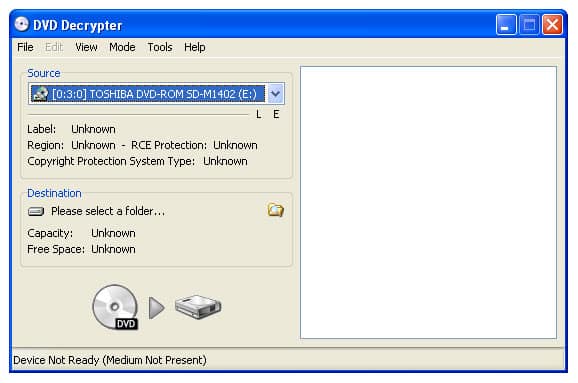
* DVD Decrypter is the program we’ll look at in detail below. The latest version we’ve seen is 3.5.4.0.
* DVDFAB Decrypter is another option. The latest version we’ve seen is 2.9.7.2.
* DVDShrink is a third option. The latest version we’ve seen is 3.2.0.15.
These rippers create files called “VOBs,” which contain all of the video data originally found on the DVD. Sometimes, the rippers will create a large number of separate VOBs, which you’ll prefer to store as just one file. In that case, a program called VOBMerge can help. It’s used to merge multiple .VOB files into one.
As a final pre-ripping pointer, we should mention that if you are using an external hard drive or a second internal hard drive to hold some of the movie files, you’ll want to make sure in advance that it is formatted in Microsoft’s NTFS disk format – most Windows XP drives are – and not the older FAT32 format. FAT32 has a 4.7Gb limitation, and even if you have a larger hard disk, you may get an error message claiming that “The file could not be transferred because there is not enough room on the hard drive.” NTFS formatted hard drives do not have this limitation, and assuming you have enough free space, will easily hold large movie files.
| Part 1: The Ten-Step Guide to Ripping a DVD Movie with DVD Decrypter | |
| Step 1. | Download and install DVD Decrypter. |
| Step 2. | Create an empty folder on your desktop called DVD Files, then load the DVD Decrypter program. |
| Step 3. | Put a DVD in the drive, and wait for it to load. |
| Step 4. | Click on Mode on the toolbar, then click IFO. |
| Step 5. | Click Tools > Settings > IFO Mode Tab. |
| Step 6. | Under Options, set File Splitting to NONE, then click OK to close. |
| Step 7. | Next, click the Stream tab, and check the Enable Stream Processing box. |
| Step 8. | Then check the first box – Video – and select the language of your choice. For English, check the Audio box right under Video. Uncheck all the other subtitle language boxes since they are not needed. |
| Step 9. | Next, set your Destination by clicking on the folder icon, and choose the DVD Files folder on your desktop. |
| Step 10. | Finally, click the green arrow between the DVD icon and the HD icon. Wait for the ripping process to complete.
When it’s done, a small box will open to tell you that it’s Successfully Completed. You’ll have a .VOB format file on your computer, ready to be converted with Part 2 of this tutorial. |
DVD Decrypter Option Two: Three Alternate Steps to Ripping Individual Episodes or Sections from a DVD
If you’re ripping from a DVD with separate chapters – each containing one episode of a multi-episode series, for example – you can extract one individual episode by replacing Steps 9 and 10 above with these new steps.
| Step 9. | Click on the “+” next to each entry in the main Input window (it will become a “-” as shown below) to find and highlight the first entry for the first episode. |
| Step 10. | Click on the folder icon to set the destination of the output file, choosing the DVD Files folder on your desktop. |
| Step 11. | Finally, click on the green arrow between the DVD icon and the HD icon to start the ripping process. When it’s done, a small box will open to tell you that it’s Successfully Completed. You’ll have a .VOB format file on your computer, ready to be converted with Part 2 of this tutorial. |
DVD Decrypter Option Three: Ripping All of the Episodes or Sections From a DVD
File Mode is the DVD Decrypter tool that’s used to rip an entire DVD. It’s especially good if you want to rip all of the episodes of a series off of one DVD; you will have to set the program up a little differently to use it. Start with steps 1-3 of the installation process above, then substitute these new Steps 4-7 for the rest of the process.
| Step 4. | Go to DVD Decrypter’s toolbar, pick Mode, and click on File. |
| Step 5. | You’ll find that the settings are already set to extract the entire DVD as individual files. Don’t change anything. |
| Step 6. | Set the location for the files to be saved – the folder DVD Files on your desktop – and click the green arrow to start the ripping. |
| Step 7. | When the rip finishes, you’ll see that there is more than one .VOB file. You will need to convert all of them individually (with Part 2 below) to make each of the episodes viewable on the iPod, or use the next optional step to merge them together into one file. |
Merging .VOB Files After Ripping
Let’s say you’ve ripped a bunch of individual episodes from a series using one of the last two optional steps, but don’t want to have them sitting on your iPod as separate files. This is where VOBMerge comes in. It will join all of the .VOBs together into one large movie that can be opened once and watched in its entirety.











