
Q: I’m contemplating buying a new Retina MacBook Pro with a solid state drive that is much smaller than I’m used to. Since my iTunes library takes up a lot of space I need to move the library to another disk. However, it would be a pain to have to connect the external disk every time I do a wireless sync with my iPhone and iPad. I do use iTunes Match, so that can handle my music, but I’m wondering if there is a painless way of keeping music and films on an external drive with podcasts, apps and anything else needed to sync an iOS device on the internal drive?
– Dean
A: Unfortunately, while there’s no easy way to split a library in this manner without reimporting pieces, there is a fairly simple workaround for using a laptop while keeping your iTunes content on an external drive.
The first and most important point to keep in mind is that iTunes will never remove anything from an iPod or iOS device as long as it remains listed in the iTunes library, regardless of whether the actual content is available or not. What this means in practical terms is that as long as your iTunes library remains on the internal hard drive you can continue to sync your iPhone and iPad even when the external drive is disconnected. You obviously won’t be able to actually add any content from the external drive, but iTunes will otherwise ignore the fact that the underlying content is unavailable, leaving the content that is already on your devices alone.
The second feature of iTunes that is useful in this scenario is that if the iTunes Media folder is unavailable when you start iTunes (e.g.
on an external hard drive that is disconnected), iTunes reverts to using the default iTunes Media folder location—~/Music/iTunes/iTunes Media on your internal hard drive. Not only will any new content that you download or import be placed in this location, but you can actually keep additional copies of content here from your “real” iTunes Media folder on the external hard drive and iTunes will find it and use it from this location whenever the external hard drive is disconnected.
So with those two points in mind, what you can do is transfer your entire iTunes Media folder from your existing computer to an external hard drive, following the instructions in our tutorial on Transferring your iTunes Library. You can then copy the rest of your “iTunes” folder over to the new Retina MacBook Pro, either by copying it via the external hard drive or simply as part of your normal migration; be sure to exclude the “iTunes Media” sub-folder when copying to the new MacBook, as you’ve already transferred this to the external hard drive.
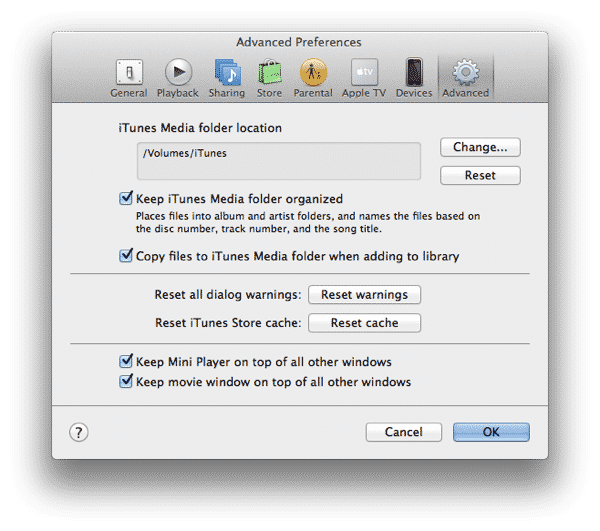
As long as you don’t rename the external hard drive, you can plug it into the new MacBook and iTunes will be able to find your content there automatically. Check the Advanced pane in your iTunes Preferences on the new MacBook Pro and ensure that the iTunes Media folder is set to the external hard drive. This should automatically be the case if you did a full migration to the new MacBook, since your iTunes preference files would have come over during this process. If you’ve setup the MacBook as a new computer and simply copied the iTunes database over, however, you will need to check these preferences and reconfigure them manually.
If you shut down iTunes, disconnect the external hard drive, and then restart iTunes, you should see that the iTunes Media folder path will have reverted to its default location under ~/Music/iTunes.

This is a temporary condition, however; if you remount the external hard drive, and restart iTunes, the path will resume pointing to the external hard drive.
With your external hard drive disconnected, any new content you download gets placed in the default “iTunes Media” folder on your local hard drive. You can also take specific content with you simply by copying it from the iTunes Media folder on the external drive to the corresponding location within the iTunes Media folder on the internal drive and iTunes will continue to find it in that location, even when the external drive is unavailable, both for direct access and syncing with your iPhone or iPad.
If you are downloading new content while on the go (e.g. podcasts, new music/video purchases, etc), you can easily add this to the external hard drive when you return home simply by confirming that the iTunes Media folder path is set to the external hard drive and then using the same Consolidate option that you originally used to move your entire library to the external drive. iTunes will copy any files that are not in the proper iTunes Media folder (e.g. those on your internal hard drive) over to that location.











