
Q: My son registered his iPod on his grandmother’s computer and purchased songs and videos. We now have a home computer, and he used gift cards to purchase songs on our home computer as well, which then deleted the songs and videos he had purchased on his grandmother’s computer. We also copied songs from CD’s on the home computer, but when we went back to his grandmother’s computer to load the songs and videos he had originally purchased back onto the iPod all of the new songs copied from the CD were deleted. Is it possible to remove the registration from one computer and register on our home computer?
– Laura
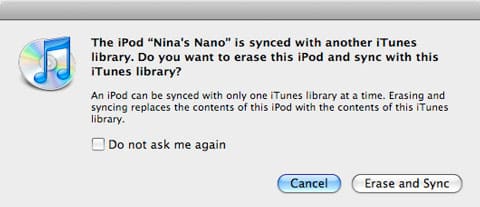
A: You’ve run into a fairly common issue with iTunes and the iPod’s automatic synchronization feature. Basically, in automatic synchronization mode, your iPod will mirror the content of whichever library you’re syncing with. This means that not only is any content you’ve added to that library added to your iPod, but also that any content that doesn’t already exist in that library is removed from your iPod, in order to keep things matched up between your computer’s iTunes library and your iPod. In this mode, think of your iPod as an extension of your main iTunes library, rather than a library of its own.
Normally, when you connect an iPod to a different iTunes library, you should receive a warning message noting that your iPod is associated with a different iTunes library and providing you with the option to either cancel the sync operation or erase all of the content on your iPod and sync it with the new iTunes library.
As the option implies, selecting “Erase and Sync” from the above dialog box will erase all of the content on your iPod and replace it with the content in your current iTunes library. If you have content on your iPod that you wish to keep, you should instead choose the “Cancel” option, which will not make any changes to your iPod, but will leave it connected and appearing in iTunes so you can adjust its settings.
Fortunately, there are a couple of ways you can deal with your specific situation. If your son is regularly going to use his iPod on both his grandmother’s computer and your home computer, you should set the iPod to manual mode, so that it does not automatically sync with either library. In manual mode, the iPod essentially becomes its own separate library, distinct from the library on your computer.
Instead of automatically adding content that you add to your computer, you must transfer this content onto your iPod manually via iTunes by dragging and dropping tracks and playlists from your iTunes library onto your iPod icon.
To set your iPod to manual mode, simply connect it to your iTunes library and select it from the “Devices” list on the left-hand side of the iTunes window. From the Summary screen that appears, click the checkbox next to the option labelled “Manually manage my music and videos” and click the “Apply” button.

This will set the iPod to manual mode and you can then manage the content on it directly via iTunes by clicking on the small triangle which appears to the left of your iPod icon to see the categories and playlists stored directly on the iPod itself.
On the other hand, if you want to continue using automatic synchronization, and do not expect that your son will be frequently using his iPod on more than one computer, you can instead transfer the content from the iPod back to your home computer before you sync the iPod. If you are dealing only with content that was purchased from the iTunes Store, you can transfer this content back via iTunes itself; simply ensure that your computer is authorized for the same iTunes Store account that was used to purchase the content in the first place, and when you connect the iPod, the normal warning dialog box should provide a third option: Transfer Purchases.











