
iLoungeiLounge
  • News
    • Apple
      • AirPods Pro
      • AirPlay
      • Apps
        • Apple Music
      • iCloud
      • iTunes
      • HealthKit
      • HomeKit
      • HomePod
      • iOS 13
      • Apple Pay
      • Apple TV
      • Siri
    • Rumors
    • Humor
    • Technology
      • CES
    • Daily Deals
    • Articles
    • Web Stories
  • iPhone
    • iPhone Accessories
  • iPad
  • iPod
    • iPod Accessories
  • Apple Watch
    • Apple Watch Accessories
  • Mac
    • MacBook Air
    • MacBook Pro
  • Reviews
    • App Reviews
  • How-to
    • Ask iLounge
Font ResizerAa
iLoungeiLounge
Font ResizerAa
Search
  • News
    • Apple
    • Rumors
    • Humor
    • Technology
    • Daily Deals
    • Articles
    • Web Stories
  • iPhone
    • iPhone Accessories
  • iPad
  • iPod
    • iPod Accessories
  • Apple Watch
    • Apple Watch Accessories
  • Mac
    • MacBook Air
    • MacBook Pro
  • Reviews
    • App Reviews
  • How-to
    • Ask iLounge
Follow US

How-to › Ask iLounge

Ask iLoungeiCloudiPadiPhoneiPod

Using a single iCloud account for Find My iPhone

Last updated: May 16, 2021 4:19 pm UTC
By Jesse Hollington
Using a single iCloud account for Find My iPhone

Q: My wife and I and both of our teenage kids have iPhones with separate Apple IDs, as well as a couple of iPads and an iPad mini between us. I’m wondering if there’s a way to setup the Find My iPhone app to track the locations for all of our Apple IDs in one place rather than having to constantly switch between accounts. It would be great if I could see all of the information on a single map, but I’d settle for just an easy way to save different Apple IDs in the Find My iPhone app. Any suggestions?


– Yves
Using a single iCloud account for Find My iPhone

A: The Find My iPhone app only works with a single Apple ID at a time, and does not provide a way to consolidate the location information from more than one Apple ID.

The good news, however, is that you can setup a separate, common iCloud account solely for the Find My iPhone feature on all of your devices without affecting the primary iCloud account that is used for other features such as backups, Photo Stream, contacts, calendars, and so forth.


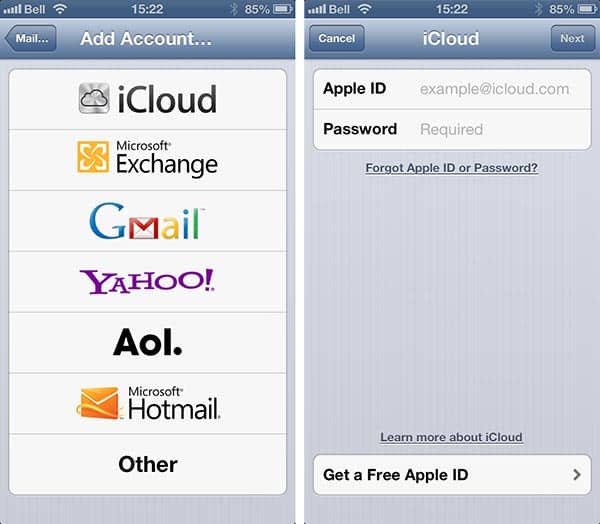
Essentially, you simply add a second iCloud account to each device, which can either be your own iCloud account or a brand new iCloud account created specifically for this purpose.

To do this, simply go into your iOS Settings app, and select Mail, Contacts, Calendars and add a new iCloud account.

From here you can either enter an existing Apple ID or create a new, separate Apple ID. If you’re the only one who will be using Find My iPhone you may prefer to simply use your own Apple ID to keep things simpler, but keep in mind that the second account can be enabled for calendar, contacts, and e-mail, so if you’re concerned about keeping this information private you may prefer to create a new, empty iCloud account instead.


One you’ve entered an Apple ID, you will be shown a list of services that can be enabled for a secondary iCloud account.

Note that not all iCloud services are available for your second iCloud account—features such as Photo Stream, Documents & Data, and iCloud Backups can only be used with the first iCloud account configured on your iOS device.


Using a single iCloud account for Find My iPhone

You should turn OFF all of the services shown here as you do not actually want to sync other data, and then toggle ON the “Find My iPhone” service. You will be shown a prompt indicating that this will disable “Find My iPhone” for the primary account, since this feature can only be used with a single iCloud account at a time.

Once you’ve done this, these devices will use this alternate iCloud account for the Find My iPhone feature, and you can log into the Find My iPhone app using that particular account in order to track all of your devices in one place. Just remember that the Find My iPhone feature also includes the ability to remotely erase devices, so you will want to choose a secure password for it and be careful who you give access to.



Latest News
The 14-inch MacBook Pro with M5 Chip 16GB RAM/512GB is $250 Off
1 Min Read
Noise and Static on AirPods Pro 3 Still Unfixed
1 Min Read
New iMac with 24-inch OLED Display May be Brighter With 600 Nits
1 Min Read
The 15-inch M4 MacBook Air 256GB Is $250 Off
1 Min Read
Internal Kernel Debug Kit from Apple Reveals Tests for a MacBook with A15 Chip
1 Min Read
Apple Currently In Talks With Suppliers for Chip Assembly & Packaging of iPhones in India
1 Min Read
Apple Allows Easier Battery Replacement For M5 MacBook Pro with 14-inch Display
1 Min Read
The Apple Watch SE 3 44mm GPS is $50 Off
1 Min Read
20th Anniversary iPhone May Launch in Two Years
1 Min Read
Better Image Generation Capabilities and Apple Music Integration Coming to ChatGPT
1 Min Read
A20 Pro Chip Coming to Next Gen iPad Mini OLED
1 Min Read
Amazon has the AirTag 4 Pack Marked $29 off
1 Min Read

iLounge logo

iLounge is an independent resource for all things iPod, iPhone, iPad, and beyond. iPod, iPhone, iPad, iTunes, Apple TV, and the Apple logo are trademarks of Apple Inc.

This website is not affiliated with Apple Inc.
iLounge © 2001 - 2025. All Rights Reserved.
  • Contact Us
  • Submit News
  • About Us
  • Forums
  • Privacy Policy
  • Terms Of Use
Welcome Back!

Sign in to your account

Lost your password?








