
Q: Does iLounge have any tips for traveling with regard to iTunes Match? I ask because connectivity to the “cloud” is not assured when traveling, even domestically: airport and hotel Wi-Fi often is often unreliable, aircraft Wi-Fi is next to non-existent, and 4G/LTE isn’t an option in flight. Without an Internet connection, the “Cloud” is out of reach, and iTunes Match becomes worthless.
– Farnsworth
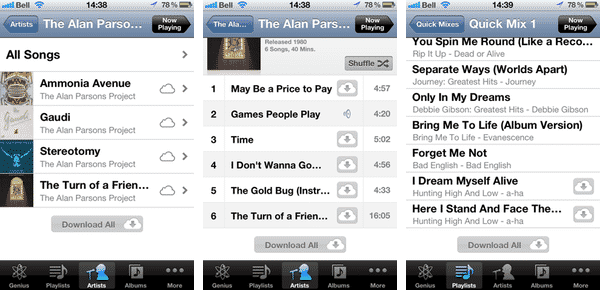
A: Using iTunes Match without data coverage is actually somewhat similar in principle to copying or syncing your content from an iTunes library directly. In short, without an active data connection you’ll only be able to access that content that is stored locally on your device or computer.
With iOS devices, content you play via iTunes Match is downloaded and kept on your device unless you manually remove it; playback starts as soon as the track begins downloading, but after that the local copy is used. This is done not only to provide offline access, but to save the bandwidth that would be required to repeatedly download the same tracks over a metered cellular data connection. This means, however, that any track you have listened to on your device—even partially—will already be there and can be played without the need to go back to the cloud for it. For many users, this means that the majority of their favourite songs will automatically be available on their device when out of data coverage without any real effort on their part.
New music purchased from iTunes on an iOS device is also downloaded and stored locally, and will be downloaded automatically to other devices that share the same iTunes account and have Automatic Downloads enabled. Likewise, tracks purchased from the iTunes Store on your computer can be automatically downloaded to your iOS devices in the same manner.
You can also download individual tracks manually simply by tapping on the small iCloud icon that appears to the right of each track name. In addition, under artists, albums, and playlists you should see a “Download All” button at the bottom of the album or track lists that can be used to download everything in that category. Note that this option only appears if there are two or more tracks in the listing that haven’t already been downloaded.
Although perhaps not always as fast or convenient as transferring content onto your device via iTunes, these options nonetheless provide the same ability to keep a subset of your music library stored directly on your device. The only difference is that you need to download the content directly onto your device over-the-air—a process that will usually be much slower than syncing your content on from iTunes over a USB connection. The upside, however, is that you can do this anywhere that a Wi-Fi or suitable cellular data connection is available, so while you may not have access to your full library everywhere you go, access will still likely be more convenient than having to return to your main iTunes library at home or tote it around with you on a laptop.
You can tell which tracks have been copied to your device simply by looking for the absence of the iCloud button beside the track name. You can play any of these tracks without a data connection as they’re stored on your device, however if you’re out of data coverage and try to access a track that’s not on your device you’ll get a message advising you that a cellular or Wi-Fi connection is required to play the track.

If you know you’re going to be out of data coverage for a while and don’t want to see all of these extra unplayable tracks, you can simply turn off the Show All Music option under Settings, Music on your iOS device. This will display only those tracks which have been downloaded to your device, although unfortunately it doesn’t do the same for your playlists—all of your playlists are always available on your device regardless of whether any of the tracks in them are. You’ll obviously need to toggle the option back ON, however, if you want to download or play any additional tracks from your iCloud library.

The use of playlists—and particularly Smart Playlists—can be a big advantage to getting your device loaded up before a trip. Depending on how many playlists you want to take with you, it may be as easy as simply going into them and selecting the “Download All” button at the bottom of each one. If you have a lot of playlists, however, you may find it cumbersome to go into each one and download the content manually.











