
iLoungeiLounge
  • News
    • Apple
      • AirPods Pro
      • AirPlay
      • Apps
        • Apple Music
      • iCloud
      • iTunes
      • HealthKit
      • HomeKit
      • HomePod
      • iOS 13
      • Apple Pay
      • Apple TV
      • Siri
    • Rumors
    • Humor
    • Technology
      • CES
    • Daily Deals
    • Articles
    • Web Stories
  • iPhone
    • iPhone Accessories
  • iPad
  • iPod
    • iPod Accessories
  • Apple Watch
    • Apple Watch Accessories
  • Mac
    • MacBook Air
    • MacBook Pro
  • Reviews
    • App Reviews
  • How-to
    • Ask iLounge
Font ResizerAa
iLoungeiLounge
Font ResizerAa
Search
  • News
    • Apple
    • Rumors
    • Humor
    • Technology
    • Daily Deals
    • Articles
    • Web Stories
  • iPhone
    • iPhone Accessories
  • iPad
  • iPod
    • iPod Accessories
  • Apple Watch
    • Apple Watch Accessories
  • Mac
    • MacBook Air
    • MacBook Pro
  • Reviews
    • App Reviews
  • How-to
    • Ask iLounge
Follow US

How-to › Ask iLounge

ArticlesAsk iLoungeiPhone

Transferring recorded videos from iPhone to PC

Last updated: May 16, 2021 4:19 pm UTC
By Jesse Hollington
Transferring recorded videos from iPhone to PC

Q: I have recently been “elected” to do some video recordings for a friend working for an admirable environmental cause. Is there a way that I can download the videos from her iPhone 4S to my PC for editing/processing? I have seen several “explanations” online which assume that the iPhone will show up on my computer as a video device or external storage device when connected by USB, but that simply does not happen. I have tried via iTunes as well, with no luck. She needs to have a presentation ready soon, including excerpts from her public presentation, and I am really stuck for a solution. Any guidance that you can provide will be greatly appreciated!


– Anonymous
Transferring recorded videos from iPhone to PC

A: The explanation that the iPhone should be accessible when connected via USB is essentially the correct one, and this is the most straightforward way to copy the original, full-resolution photos and videos off of an iPhone or other iOS device.

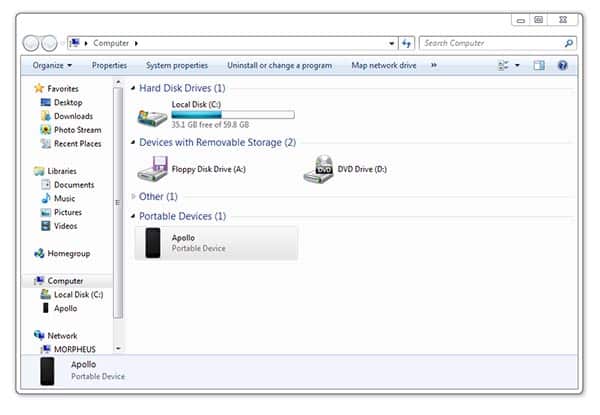
Specifically, an iPhone should appear as a camera device, using the Picture Transfer Protocol (PTP). This means that it will not show up as a removable storage device, but should appear as a camera from which photos and videos can be imported in most photo or video processing apps. It should also appear, when connected, at the top level of Windows Explorer or in “My Computer” as a camera or portable device. Note that iTunes has nothing to do with this process, and actually cannot be used to import photos and videos from an iPhone.


Transferring recorded videos from iPhone to PC

For security reasons the iPhone will not show up as a camera if it is locked with a passcode; you will need to turn the screen on and enter the passcode before connecting the iPhone to the USB port on your computer—if you’ve already connected it, disconnect it, unlock it, and then reconnect it while still unlocked.

Once connected, you should be able to simply browse into the iPhone via Windows Explorer, find the files you want, and copy them off from there. Windows may also offer to import the content for you automatically as soon as it detects the iPhone, depending on your configuration.


If you’ve tried these steps and the iPhone is not appearing properly on your computer, then the most likely cause is a configuration problem such as a conflict with another device driver that you have installed, such as a camera or scanner driver. You can troubleshoot this problem if you wish by uninstalling any unnecessary device drivers that you may have in Windows, or try using a different computer to see if you can transfer the videos there.

Alternatively, if troubleshooting the problem requires too much effort, you can look to third-party apps that can transfer your photos over Wi-Fi, but you will want to ensure that these do so in native resolution, rather than downsampling the videos.



Latest News
The 14-inch MacBook Pro with M5 Chip 16GB RAM/512GB is $250 Off
1 Min Read
Noise and Static on AirPods Pro 3 Still Unfixed
1 Min Read
New iMac with 24-inch OLED Display May be Brighter With 600 Nits
1 Min Read
The 15-inch M4 MacBook Air 256GB Is $250 Off
1 Min Read
Internal Kernel Debug Kit from Apple Reveals Tests for a MacBook with A15 Chip
1 Min Read
Apple Currently In Talks With Suppliers for Chip Assembly & Packaging of iPhones in India
1 Min Read
Apple Allows Easier Battery Replacement For M5 MacBook Pro with 14-inch Display
1 Min Read
The Apple Watch SE 3 44mm GPS is $50 Off
1 Min Read
20th Anniversary iPhone May Launch in Two Years
1 Min Read
Better Image Generation Capabilities and Apple Music Integration Coming to ChatGPT
1 Min Read
A20 Pro Chip Coming to Next Gen iPad Mini OLED
1 Min Read
Amazon has the AirTag 4 Pack Marked $29 off
1 Min Read

iLounge logo

iLounge is an independent resource for all things iPod, iPhone, iPad, and beyond. iPod, iPhone, iPad, iTunes, Apple TV, and the Apple logo are trademarks of Apple Inc.

This website is not affiliated with Apple Inc.
iLounge © 2001 - 2025. All Rights Reserved.
  • Contact Us
  • Submit News
  • About Us
  • Forums
  • Privacy Policy
  • Terms Of Use
Welcome Back!

Sign in to your account

Lost your password?








