
iLoungeiLounge
  • News
    • Apple
      • AirPods Pro
      • AirPlay
      • Apps
        • Apple Music
      • iCloud
      • iTunes
      • HealthKit
      • HomeKit
      • HomePod
      • iOS 13
      • Apple Pay
      • Apple TV
      • Siri
    • Rumors
    • Humor
    • Technology
      • CES
    • Daily Deals
    • Articles
    • Web Stories
  • iPhone
    • iPhone Accessories
  • iPad
  • iPod
    • iPod Accessories
  • Apple Watch
    • Apple Watch Accessories
  • Mac
    • MacBook Air
    • MacBook Pro
  • Reviews
    • App Reviews
  • How-to
    • Ask iLounge
Font ResizerAa
iLoungeiLounge
Font ResizerAa
Search
  • News
    • Apple
    • Rumors
    • Humor
    • Technology
    • Daily Deals
    • Articles
    • Web Stories
  • iPhone
    • iPhone Accessories
  • iPad
  • iPod
    • iPod Accessories
  • Apple Watch
    • Apple Watch Accessories
  • Mac
    • MacBook Air
    • MacBook Pro
  • Reviews
    • App Reviews
  • How-to
    • Ask iLounge
Follow US

How-to › Ask iLounge

Ask iLoungeiPodiTunes

Transferring podcasts from a secondary computer

Last updated: May 16, 2021 5:26 pm UTC
By Jesse Hollington
Transferring podcasts from a secondary computer

Q: My iPod is set to sync automatically with my iTunes library at home, and this works well. Occasionally I’d like to be able to add a podcast episode to my iPod from work. How can I do so without affecting my regular iPod settings and running the risk of iTunes removing my iPod library?


– Vince
Transferring podcasts from a secondary computer

A: Depending upon how you normally manage your iPod content and specifically your podcasts, there are some different ways to accomplish this.

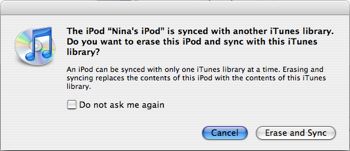
If you’re only looking to add the occasional podcast from work, but still want to automatically sync the majority of your content from your home computer, including podcasts, you can simply switch your iPod into “Manual” mode when you connect it to your work computer. When you first connect your iPod to a new computer, you should be presented with a dialog box similar to the following:


This is warning you that your iPod has already been associated with another iTunes library for automatic synchronization, and asking you if you want to erase the content of your iPod and replace it with the content in the current library.

Simply select the “Cancel” button, and your iPod will remain connected. Once you have done this, you can switch the iPod into manual mode by selecting the “Manually manage my music and playlists” and clicking the “Apply” button:


Transferring podcasts from a secondary computer

This will set the iPod into manual management mode, which means that it will no longer automatically sync with any iTunes library. However, this also means that you can now drag and drop any content you want to load onto your iPod directly from iTunes, including podcast episodes.


When you return home, your iPod will remain in manual mode (the setting stays with the iPod, not the computer itself), and you will therefore have to UN-check the “Manually manage music and videos” option if you want to return to automatic synchronization. Of course, since you’re automatically syncing with your home library, anything you added to the iPod while in manual mode will be removed unless you’ve also copied it to your home iTunes library.

For podcasts, however, this really shouldn’t be a problem, since you can easily download it again (and if you subscribe to the same podcasts at home, your computer will probably already have a copy).


Alternatively, you can also automatically sync all of your podcasts from your work computer. If you look closely, you’ll see that the “Manually manage my music and videos” option doesn’t say anything about podcasts—this is because the manual option doesn’t include podcasts. Although you can drag and drop your podcasts to your iPod like you would any other audio file, podcast subscriptions are actually synchronized separately from the rest of your content. As we explained in last week’s Ask iLounge column about syncing Calendars and Contacts, automatic sync only applies to Music, Movies, and TV Shows.



Latest News
The Apple Watch Series 11 46mm GPS Is $100 Off
1 Min Read
Clamshell Style iPhone Being Looked Into By Apple
1 Min Read
Foldable iPhones May Have the Largest Battery Ever
1 Min Read
Apple and TSMC’s 10-Year Collaboration May Be Ending
1 Min Read
The 13-inch M5 iPad Pro 256GB Wi-Fi Is $149 Off
1 Min Read
M5 Pro and M5 Max Chips for the MacBook Pro could Roll Out with macOS 26.3
1 Min Read
Mac Ordering Process Revamped
1 Min Read
Check Signed By Steve Wozniak and Steve Jobs Sold For $2.4 Million
1 Min Read
The Anker 140W 4-Port GaN USB-C Charger is $35 Off
1 Min Read
No iPhone Air 2 This Year, according to Latest Report
1 Min Read
New Report Corroborates Split iPhone Release Dates
1 Min Read
Apple Losing More Researchers As They Plan To Release 2 Siri Versions
1 Min Read

iLounge logo

iLounge is an independent resource for all things iPod, iPhone, iPad, and beyond. iPod, iPhone, iPad, iTunes, Apple TV, and the Apple logo are trademarks of Apple Inc.

This website is not affiliated with Apple Inc.
iLounge © 2001 - 2025. All Rights Reserved.
  • Contact Us
  • Submit News
  • About Us
  • Forums
  • Privacy Policy
  • Terms Of Use
Welcome Back!

Sign in to your account

Lost your password?








