
iLoungeiLounge
  • News
    • Apple
      • AirPods Pro
      • AirPlay
      • Apps
        • Apple Music
      • iCloud
      • iTunes
      • HealthKit
      • HomeKit
      • HomePod
      • iOS 13
      • Apple Pay
      • Apple TV
      • Siri
    • Rumors
    • Humor
    • Technology
      • CES
    • Daily Deals
    • Articles
    • Web Stories
  • iPhone
    • iPhone Accessories
  • iPad
  • iPod
    • iPod Accessories
  • Apple Watch
    • Apple Watch Accessories
  • Mac
    • MacBook Air
    • MacBook Pro
  • Reviews
    • App Reviews
  • How-to
    • Ask iLounge
Font ResizerAa
iLoungeiLounge
Font ResizerAa
Search
  • News
    • Apple
    • Rumors
    • Humor
    • Technology
    • Daily Deals
    • Articles
    • Web Stories
  • iPhone
    • iPhone Accessories
  • iPad
  • iPod
    • iPod Accessories
  • Apple Watch
    • Apple Watch Accessories
  • Mac
    • MacBook Air
    • MacBook Pro
  • Reviews
    • App Reviews
  • How-to
    • Ask iLounge
Follow US

How-to › Ask iLounge

ArticlesAsk iLoungeiPodiTunesMac

Transferring music on iPod touch from multiple computers

Last updated: May 16, 2021 5:09 pm UTC
By Jesse Hollington
Transferring music on iPod touch from multiple computers

Q: Is it possible to connect my iPod to someone elses PC or Mac and add their non-DRM protected music (ie ripped personal cds) to my iPod touch?


– LP
Transferring music on iPod touch from multiple computers

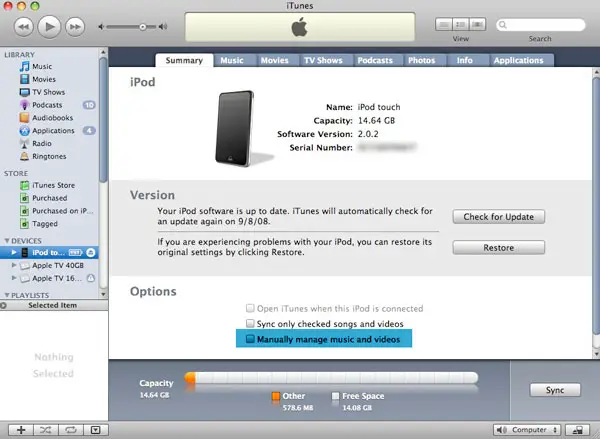
A: Yes, this is definitely possible through “Manual mode.” Like the traditional iPod models, the iPod touch supports a manual transfer mode where the iPod touch does not actually sync with iTunes, and you can drag-and-drop content from any library you happen to connect your iPod touch to. In this mode, even iTunes Store purchases can be transferred from an authorized computer onto your iPod touch, subject to certain limitations—notably that you may only have content from up to five different iTunes Store accounts on a single iPod.


To enable manual mode, simply connect your iPod touch to your computer and select it from the iTunes Devices list on the left-hand side of the iTunes window. On the main “Summary” screen which appears, simply click the box labelled “Manually manage my music and videos” and click the “Apply” button to enable manual mode.

Transferring music on iPod touch from multiple computers

Once manual mode has been enabled, the iPod touch will no longer sync your audio and video content with your main iTunes library, nor will it try to sync with any other iTunes library.


Instead, you will add content to your iPod yourself by dragging it from the main iTunes library onto the iPod touch in your Devices list. Likewise, any content you want to remove from your iPod will have to be done manually by expanding the iPod touch in the Devices list and managing it in the same way that you would manage content in your main iTunes library. For all intents and purposes, the iPod touch becomes an independent “library.”

In this mode, you can of course connect your iPod touch to any other computer running iTunes and transfer content onto it in much the same way.


Note that other types of content such as Info items (Calendars/Contacts/Bookmarks), Podcasts, Photos, and Applications will still be synced automatically, however, if any of these are selected. These types of content can only be synchronized automatically from a single computer, although podcasts can be transferred manually like any other type of audio track.

Keep in mind that if you add content from several other computers and then wish to return to automatic synchronization, any content you have added will be removed from your iPod unless it is already in your iTunes library. Returning to automatic synchronization “re-mirrors” your iPod with the content of your iTunes library, so any content that does not exist in the main iTunes library is removed from the iPod. If you want to return to using automatic synchronization and do not want to lose this content, you will need to transfer it into your iTunes library. See our iPod 201 article, Copying Content from your iPod to your Computer for more information on some methods for doing this.

An important note for our other readers: Despite the similarities between the iPod touch and iPhone, “Manual mode” on the iPhone currently does not work in this manner.



Latest News
The 14-inch MacBook Pro with M5 Chip 16GB RAM/512GB is $250 Off
1 Min Read
Noise and Static on AirPods Pro 3 Still Unfixed
1 Min Read
New iMac with 24-inch OLED Display May be Brighter With 600 Nits
1 Min Read
The 15-inch M4 MacBook Air 256GB Is $250 Off
1 Min Read
Internal Kernel Debug Kit from Apple Reveals Tests for a MacBook with A15 Chip
1 Min Read
Apple Currently In Talks With Suppliers for Chip Assembly & Packaging of iPhones in India
1 Min Read
Apple Allows Easier Battery Replacement For M5 MacBook Pro with 14-inch Display
1 Min Read
The Apple Watch SE 3 44mm GPS is $50 Off
1 Min Read
20th Anniversary iPhone May Launch in Two Years
1 Min Read
Better Image Generation Capabilities and Apple Music Integration Coming to ChatGPT
1 Min Read
A20 Pro Chip Coming to Next Gen iPad Mini OLED
1 Min Read
Amazon has the AirTag 4 Pack Marked $29 off
1 Min Read

iLounge logo

iLounge is an independent resource for all things iPod, iPhone, iPad, and beyond. iPod, iPhone, iPad, iTunes, Apple TV, and the Apple logo are trademarks of Apple Inc.

This website is not affiliated with Apple Inc.
iLounge © 2001 - 2025. All Rights Reserved.
  • Contact Us
  • Submit News
  • About Us
  • Forums
  • Privacy Policy
  • Terms Of Use
Welcome Back!

Sign in to your account

Lost your password?








