
Q: I am a long-suffering PC user who is about to switch to an Apple iMac. I have an extensive music collection, which I manage via iTunes. I have used an external harddrive to hold the music and keep the iTunes library and database files on there as well. The drive is FAT32 formatted, so I know it will be compatable with the iMac without the need for reformatting.
I have a lot of complicated playlists in iTunes that I don’t want to lose when I switch to the iMac. Despite lots of poking around on iLounge and the net, I can’t find anything on making the switch and converting the iTunes library from PC to Mac.
Is it possible to convert the library data, or will I need to start from scratch and simply import everything and recreate the playlists?
– Lou
A: The only real obstacle in transferring an iTunes library from a PC to a Mac (or vice-versa) is that the way in which files are organized and referenced on the drives differs between operating systems. In short a Mac doesn’t use drive letters, as it is a Unix-based filesystem.
Although the iTunes Library database structure is identical in both the Mac and PC versions of iTunes, the problem is that the full path is normally stored to each media file that is in your library. A Mac won’t necessarily know how to locate a file with a path that begins with “D:\Music” for instance, since it has no concept of what a “D:” drive is.
The good news is that there is a way around this, however. The key point is that if iTunes cannot locate a track at its specified location, iTunes will fall back to looking for it in the default location for that track, based on the information in the iTunes database.
This will essentially be in your iTunes Music Folder, in an ARTIST/ALBUM type of directory structure.
So, for example, let’s say you had a track named “Bastille Day” on an album by “Rush” named “Caress of Steel” that is stored at “D:\Music Files\Rush\Bastille Day.mp3.” If your D: drive doesn’t exist (which it wouldn’t on a Mac), iTunes will fall back to looking for a file named “Rush\Caress of Steel\Bastille Day.mp3” under your iTunes Music Folder path (as defined in iTunes’ advanced preferences). Note that this organization might be slightly different for albums that are tagged as “Part of a Compilation” or for TV Shows, Movies, or Podcasts, which are all stored somewhat differently.
Regardless, however, if you simply pre-organize all of your media content into iTunes’ own organizational structure by using the “Consolidate Library” function prior to transferring your iTunes library to your Mac, then it should be able to locate all of your tracks after you connect your external hard drive to your Mac, provided you update the “iTunes Music Folder” path in your Mac’s iTunes preferences to reflect the parent folder on the external hard drive.
Basically, the steps are as follows:
- In iTunes on your Windows PC, confirm that your iTunes Music Folder path, under Edit, Preferences, Advanced is set to an appropriate folder on your external hard drive.
- Select Advanced, Consolidate Library
- Once this process completes, copy your iTunes Library database from your My Music\iTunes folder on your Windows PC onto the external hard drive.
- Move the external hard drive to the iMac
- Copy your iTunes library database from step 3 back to your iMac, into your Music/iTunes folder.
- Start iTunes on the Mac, set the iTunes Music Folder path on your Mac (see iTunes, Preferences, Advanced) to the same music folder on the external hard drive.
More instructions on how to organize your library onto an external hard drive can be found in our recently-updated Guide to Managing your iTunes Library on an External Hard Drive.
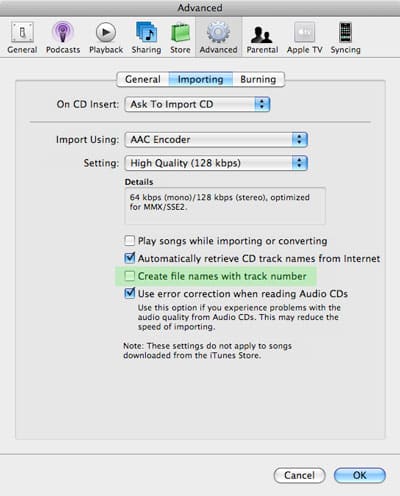
One thing to look out for in this process is the setting Create file names with track number found under iTunes’ Burning preferences tab:

This setting determines whether iTunes will expect tracks to have a track number at the front of each filename or not.











