
iLoungeiLounge
  • News
    • Apple
      • AirPods Pro
      • AirPlay
      • Apps
        • Apple Music
      • iCloud
      • iTunes
      • HealthKit
      • HomeKit
      • HomePod
      • iOS 13
      • Apple Pay
      • Apple TV
      • Siri
    • Rumors
    • Humor
    • Technology
      • CES
    • Daily Deals
    • Articles
    • Web Stories
  • iPhone
    • iPhone Accessories
  • iPad
  • iPod
    • iPod Accessories
  • Apple Watch
    • Apple Watch Accessories
  • Mac
    • MacBook Air
    • MacBook Pro
  • Reviews
    • App Reviews
  • How-to
    • Ask iLounge
Font ResizerAa
iLoungeiLounge
Font ResizerAa
Search
  • News
    • Apple
    • Rumors
    • Humor
    • Technology
    • Daily Deals
    • Articles
    • Web Stories
  • iPhone
    • iPhone Accessories
  • iPad
  • iPod
    • iPod Accessories
  • Apple Watch
    • Apple Watch Accessories
  • Mac
    • MacBook Air
    • MacBook Pro
  • Reviews
    • App Reviews
  • How-to
    • Ask iLounge
Follow US

How-to › Ask iLounge

Ask iLoungeiPhoneiTunes

Transferring data to a new iPhone 5 without iCloud

Last updated: May 16, 2021 4:26 pm UTC
By Jesse Hollington
Transferring data to a new iPhone 5 without iCloud

Q: I am planning to purchase a new iPhone 5, but my old phone is 3GS. How do I transfer my data over if I don’t have iCloud on the 3GS?


– Diana
Transferring data to a new iPhone 5 without iCloud

A: Although iCloud can provide the advantage of a mostly “PC free” transfer of data between iOS devices, the older tried-and-true method of synchronizing via iTunes continues to be supported even with iOS 6 and the iPhone 5. In fact, even for iCloud users, the iTunes-based method is generally faster, since you’re transferring data from your computer using a direct USB connection rather than downloading it from the Internet. Further, iCloud will only restore your settings, data and applications onto your iOS device—media content such as music and videos will still need to be loaded back on via iTunes (unless you’ve also subscribed to iTunes Match for your music).


The basic process for migrating between iOS devices is relatively straightforward, particularly if you already have all of your media and apps stored in your iTunes library.

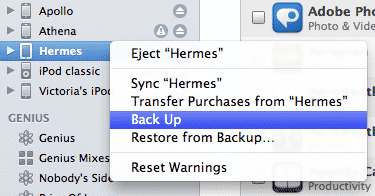
Right before you setup your new iPhone 5, simply connect your old iPhone to your computer and back it up using iTunes. A backup should be performed automatically each time you sync your iPhone with iTunes, but you can also force a manual backup at any time simply by right-clicking on your iPhone in the Devices listing in iTunes and choosing “Back Up” from the context menu that appears.


This backup will include all of your application data and device settings, along with a list of the applications and media content stored on your iPhone; in order to save space and transfer time, the backup does not include the actual apps and media content, since this is presumably available in your iTunes library and can be copied back from there.

You can then connect your iPhone 5 to iTunes when prompted during the initial setup process and restore the backup from there. The first time you connect your new iPhone, iTunes will offer you an opportunity to restore from a previous backup; simply choose the backup you just made from your iPhone 3GS.


Transferring data to a new iPhone 5 without iCloud

This will restore all of your data and settings after which your iPhone will reboot and begin resyncing your applications and media content (e.g. music, videos, podcasts, etc) from your iTunes library. Once this process has completed, your iPhone 5 should basically have all of the same settings, apps and data from your original iPhone 3GS, although you may need to re-enter some of your passwords for things like e-mail accounts due to the secure, hardware-specific way in which this data is stored on iOS devices.


Note that if you have not been keeping your media content or apps in iTunes, you will need to copy these items into your library separately from your old iPhone, since as discussed above the standard iTunes backups do not include this content—the backup process expects that the originals can simply be retransferred from your library. For apps and media purchased from the iTunes Store, you can do this using the “Transfer Purchases” feature found on the File menu in iTunes; music from other sources that’s not in your iTunes library will need to be copied back using third-party utilities.



Latest News
The Apple Watch Series 11 46mm GPS Is $100 Off
1 Min Read
Clamshell Style iPhone Being Looked Into By Apple
1 Min Read
Foldable iPhones May Have the Largest Battery Ever
1 Min Read
Apple and TSMC’s 10-Year Collaboration May Be Ending
1 Min Read
The 13-inch M5 iPad Pro 256GB Wi-Fi Is $149 Off
1 Min Read
M5 Pro and M5 Max Chips for the MacBook Pro could Roll Out with macOS 26.3
1 Min Read
Mac Ordering Process Revamped
1 Min Read
Check Signed By Steve Wozniak and Steve Jobs Sold For $2.4 Million
1 Min Read
The Anker 140W 4-Port GaN USB-C Charger is $35 Off
1 Min Read
No iPhone Air 2 This Year, according to Latest Report
1 Min Read
New Report Corroborates Split iPhone Release Dates
1 Min Read
Apple Losing More Researchers As They Plan To Release 2 Siri Versions
1 Min Read

iLounge logo

iLounge is an independent resource for all things iPod, iPhone, iPad, and beyond. iPod, iPhone, iPad, iTunes, Apple TV, and the Apple logo are trademarks of Apple Inc.

This website is not affiliated with Apple Inc.
iLounge © 2001 - 2025. All Rights Reserved.
  • Contact Us
  • Submit News
  • About Us
  • Forums
  • Privacy Policy
  • Terms Of Use
Welcome Back!

Sign in to your account

Lost your password?








