
Q: If I have 20GB of apps to transfer from my iPhone 4S to my new iPhone 5, would it be best to purchase more iCloud storage and do
it via iCloud or backup and restore through iTunes on my computer? I’m worried about the computer backup taking up too much space on my hard drive, but if that way is better, should I use an external hard drive for the backup? Is backup and restore faster through my computer as opposed to using iCloud? Thanks!
– Cathleen
A: As a rule, backing up and restoring via your computer is always the better way to go. Not only is this significantly faster—consider the time it takes to download a file over the Internet versus copying it to a USB drive—but you end up with a local copy of all of your data and apps and don’t have to deal with potential Internet connectivity problems.
Regardless of the method, however, it’s important to keep in mind that only your application data is backed up to iTunes or iCloud, not the applications themselves. When restoring from iCloud, the applications are simply re-downloaded from the App Store onto your device; when restoring from iTunes, the apps are copied back onto your device from your iTunes library.
So if you have 20GB worth of applications, you won’t require 20GB of storage in your iCloud account as you’re only backing up application data. How much data that is will depend on what you’re doing with your apps, but in the majority of cases, it’s pretty small.
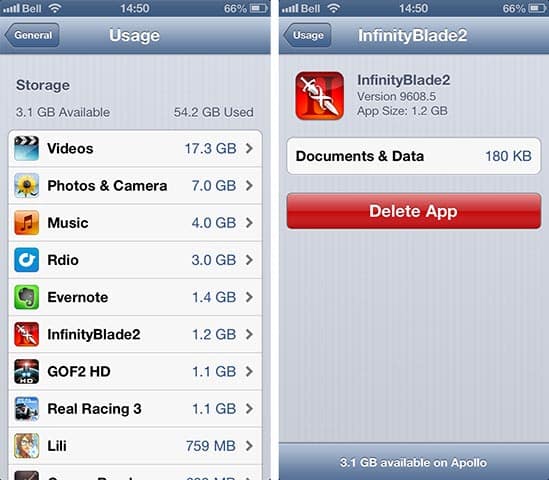
On sway to find out how much data an app is using is by going into your iPhone Settings app, and selecting General, Usage and then selecting an individual app—the “App Size” represents how big the application itself is, while “Documents & Data” indicates the data for that application which is normally backed up to iCloud or iTunes.
However, even this doesn’t always tell the full story, as many apps cache data that doesn’t need to be backed up since it can be re-downloaded via their own cloud services. For example, if you use apps like Rdio or Spotify they can store documents and music locally on your iPhone, but these are explicitly marked as data that does not get backed up to iCloud or iTunes, since it can be re-downloaded from these services following a restore.
If you have iCloud backups enabled, you can see how much data is actually being backed up to your iCloud account by going into the iCloud section in your Settings app, choosing Storage & Backup, choosing Manage Storage and selecting your device from the list. Not only does this show the size of any current iCloud backups, but an option for “Next Backup Size” will appear here after a few seconds to indicate how much space will be required for your next iCloud backup.

Note that you can turn off the backup for specific apps here if you find that there’s more data than you have space available and they contain data that you know you don’t need backed up.
Camera Roll is often a good example of this; many users transfer their photos to their computer but don’t take the time to go through and delete them from their iPhone. If you’ve already copied your photos off your iPhone, then there’s no reason to waste time and storage space backing them up.
Transferring to a new iPhone via iTunes on your computer is a slightly different matter, as it will depend on whether your apps are already in your iTunes library on your computer or not. If they are, then it’s really just a matter of making a standard backup and then restoring onto the new iPhone, which is unlikely to take up that much space for the reasons already discussed above. If not, then you will have to transfer those apps onto your computer, and will need the storage space for that. Unfortunately, there’s no easy way to point your iTunes backup to an external hard drive, but you can move your iTunes Media folder over there, which will include any apps that you transfer back over from your iPhone.











