
Hopefully, your iTunes Applications list isn’t anything like ours: over the past six months, we’ve tested thousands of applications, watching as our “iPhone and iPod touch Apps” collections have swelled to massive, unwieldy proportions. The rapid growth of the App Store has surprised even Apple: even if the average number of apps is estimated at five per user, it’s obvious that neither iTunes 8.0 nor the pocket devices have interfaces meant to simultaneously handle the dozens of apps many serious users are buying. iTunes today offers only an oversized, ever-scrolling matrix-style view of app icons, plus a terrible text-based list for synchronization, while the iPhone OS currently leaves users to swipe their way through pages of 16 app icons at a time, plus the ones on the bottom dock. Between iTunes and the devices it connects to, it’s just not convenient to keep everything installed at once.
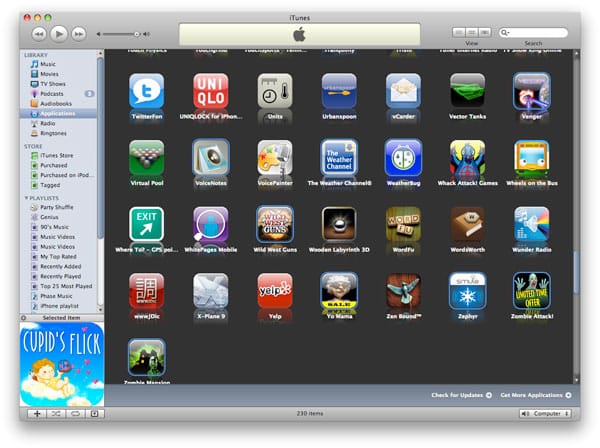
So, unlike our music and movie libraries, which we keep almost entirely in iTunes, we find ourselves purging the Applications library every few months to remove all of the programs that have little chance of being used again soon. That huge collection of virtual lighter apps. Those D-rated games. And that Halloween pumpkin-carving app. But wait—mightn’t we want to pull out Carve3D again when it’s closer to October 31? Simply deleting it from iTunes wouldn’t be a great idea, right?
Correct. So here are a few ways you can trim down your iTunes Applications library without losing your apps altogether—until, of course, Apple releases a version of iTunes with better application management.
No matter which one you pick, we strongly recommend that you start by synchronizing your iPhone or iPod touch with your computer first, to be sure you have the most recent versions of your apps backed up before you continue.

Method #1: Purge files directly from the Mac Finder or Windows Explorer. Quit iTunes, then locate your iTunes Music folder—under Music > iTunes > iTunes Music on a Mac, C:\Documents and Settings\

The only problem with this method: when you reload iTunes, any apps you’ve moved out of your Mobile Applications folder will still appear to be in the Applications library. If you use the arrow keys on your keyboard, you can scroll manually through the list—we recommend left to right rather than up to down—and anything that isn’t still accessible to iTunes will be transformed into a generic black and white application icon. You can then highlight all of those files at the same time and delete them manually by right-clicking on any one of the icons. Note that this method will not necessarily eliminate apps that have merely been copied into a different folder on the same Mac; using the archive or second disk transfer tip above will avoid this. You can find information on the current location of an app by using the Get Info feature in iTunes, accomplished with a right-click on the app icon in question.

Method #2: Purge files directly from the iTunes Applications list. While you’re running iTunes, you can select multiple application icons at the same time, drag and drop to copy the applications into a folder on your computer, and then—without deselecting the applications that have been copied—right-click on an icon to delete them. This method is probably the least problematic in every way except speed: you get to see not just the name of the app you’re deleting, but also the icon, which may help users with large app libraries jog their memories. That Amaze.ipa app you saw in the Mobile Applications folder? Oh, that’s aMaze!, a 3-D labyrinth game. Which Blackjack game is that one? Ah, Blackjack 21, the one I want to keep.


The problem here: this method is precise, but slow. Slogging through all the icons one by one takes a while, and you may well want to make a couple of passes through a big collection to be sure you’re removing everything you don’t want to keep around any more.

Method #3: The big purge. Close iTunes, find that Mobile Applications folder, make a copy of it, then re-open iTunes, select everything under iPhone and iPod touch apps, then right-click to delete it all. Everything will be cleared out, and you can go into your Mobile Applications folder copy to select which apps you want to add back in again.

The problem here: iTunes may not properly handle synchronization of your iPhone or iPod touch’s currently installed apps while this process is underway. If you have a large library, you can be pretty sure that you’ve forgotten to re-add something that’s on your iPhone or iPod, and that iTunes will want to erase the app from your device if you don’t transfer it back.











