
While the iPod is best known as a music player, many people have discovered the pleasures of listening to audiobooks and other spoken-work content while they commute, jog or work out. Audiobooks are simply recordings of books, either complete or abridged, that are read out loud and recorded. Sometimes the author reads the book, as is the case in former President Bill Clinton’s My Life, and the late Douglas Adams’ Hitchhiker’s Guide to the Galaxy. Other books are read by well-known actors, such as John Lithgow’s reading of Michael Crichton’s Disclosure and Joe Mantegna’s readings of mysteries by Robert B. Parker, but in most cases these books are read by professional readers you may or may not know. No matter who reads, the goal is always the same: to make a book sound at least as compelling as it is on paper.
You can buy audiobooks in several ways: in your local bookstore (on cassette or CD), or on-line from either the iTunes Music Store or from Audible.com. Audible is also present in Germany and France, and will be opening Audible UK on June 15, 2005.
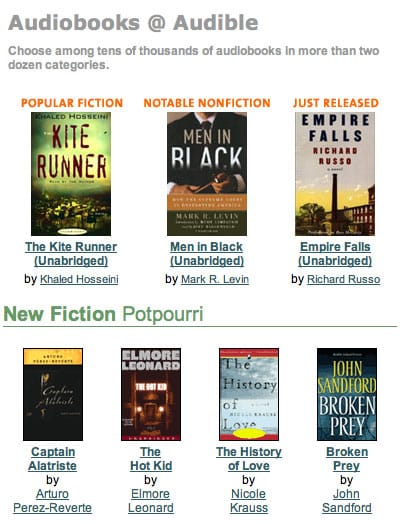
If you purchase audiobooks on CD, you can import them into iTunes and listen to them on your iPod like any other type of digital audio – see Ripping Your Own Audiobooks below. But if you buy audiobooks from the iTunes Music Store or Audible.com, the process is even easier: the audiobooks are generally created as one or two files that last as long as 10 hours each, which makes them easy both to listen to and manage in your iTunes Library.
Buying Audiobooks On-Line
Audiobooks can be expensive – in many cases they cost more than paper books – so it’s a good idea to know what your options are. Audible.com provides the same quality of audiobook content that the iTunes Music Store sells, so there is little difference besides Audible’s broader selection of non-book audio programs and its monthly subscription plans. While you can only buy individual titles from the iTunes Music Store, Audible offers a monthly subscription that includes either one book a month for $15 or any two audiobooks for $22 a month. Audiobook fans will recognize this as a great deal; you spend more than that for most individual audiobooks on CD or from the iTunes Music Store. However, if you only want a single audiobook without a monthly subscription, check both places: on some titles, the iTunes Music Store is much cheaper than Audible.
(In addition to audiobooks, you can also subscribe to periodicals and radio programs with Audible: for example, you can regularly receive audio editions of Forbes, the Harvard Business Review, The New York Times Audio Digest and The Wall Street Journal, to save time reading the printed editions. You can also buy subscriptions to recorded radio shows such as All Things Considered, This American Life, and The BBC Newshour. Audible has recently added audio programming for major sports events such as NFL play-by-play – just in case you’ve missed a game and want to hear it all after the fact.)
But if you don’t want to make a commitment, or only listen to audiobooks occasionally, you can buy individual books from either Audible or the iTunes Music Store. To check out the selection available from the iTunes Music Store, go to the store’s main page and click Audiobooks in the column on the left; this takes you to the main audiobook page. It’s as easy to buy an audiobook as it is to buy any song, though the download will take a bit longer: audiobooks from the iTunes Music Store or Audible consume about 14 MB of iPod/iTunes space per hour.
 The main audiobook page on the iTunes Music Store.
When you buy audiobooks from the iTunes Music Store, they are automatically added to your library, and you can then organize them as you wish.
When you buy from Audible, you can choose from several “formats” that correspond to different bit rates – the higher the number, the better the quality. We’d advise that you choose the best available format for your purchases; the other formats are meant for low-capacity players, and even the longest Audible audiobook will fit on the smallest-capacity iPod. After you download the audiobook from Audible, just double-click it to add it to your iTunes library, or use iTunes’ File > Add to Library option.
 Choose a format, then click Download to start downloading your audiobook.
Audible has one big advantage over the iTunes Music Store: you can always download your audiobooks again in case you lose them. With the iTunes Music Store, you must back up your downloads immediately, since you won’t be able to download them again. Audible keeps a Library of your new audiobooks, ones you’ve listened to, and others that you’ve archived. You can also easily access any subscription programs from this Library.
Keeping your Place
Both Audible and the iTunes Music Store provide audiobooks in a special “bookmarkable” format. This is one feature that makes the iPod a superior device for listening to audiobooks. When you listen to an audiobook on your iPod, then stop – to go to work, listen to some music, or do something else – the iPod creates a “bookmark” in the file. When you return to this file, you don’t have to fast-forward to where you think you left off; just press Play, and the audiobook continues from your last location.
When you sync your iPod to your computer, these bookmarks get transferred so you can listen to more of the audiobook with iTunes, through your computer’s speakers. When you stop, iTunes saves a new bookmark. Sync your iPod, and that bookmark gets transferred to the iPod. Assuming you sync, you’ll always be able to pick up where you left off.
Ripping Your Own Audiobooks
If you already have audiobooks on CD, you can rip them to use in iTunes and on your iPod. To get the most out of these audiobooks, you need to choose a format for importing, join any tracks on the CD, and make the files bookmarkable. We look here at all three of these actions.
1. Choosing a format for importing. By default, iTunes uses 128 kbps AAC for importing music.
But spoken word recordings don’t need the same high level of quality as music does – people don’t mind a hint of scratchiness in a voice, so when you are going to rip audiobooks, you can change the format to save space. Open the iTunes preferences (iTunes > Preferences on Mac; Edit > Preferences on Windows, and click the Importing tab.
 The Importing preferences in iTunes.
If the Import Using menu doesn’t show AAC Encoding, click that menu and select AAC Encoding. (If you want to listen to your audiobooks on other devices that can’t play AAC files, choose MP3, but you won’t be able to create bookmarkable files with this format.) Next, from the Setting menu, select Custom. From the Stereo Bit Rate menu, select 64 kbps. This is the same bit rate that Audible and the iTunes Music Store use. Leave the other settings as they are. (After you finish ripping your audiobooks, reset the format to is original settings; you don’t want to rip music at this bit rate.)
2. Join tracks and import your CD. Insert a CD containing an audiobook in your computer, and iTunes in most cases will find the appropriate information about the disc and its contents. While most audiobooks have many files, it is better to join them into a single track – this allows you to make these tracks bookmarkable and listen to your audiobooks more easily on the iPod. To do this, select all the tracks on the CD (Command-A on Mac; Control-A on Windows), then select Advanced > Join CD Tracks. iTunes displays the tracks with a bracket showing that they are joined.
 After you join tracks in iTunes, the CD appears as a single track.
Import the CD by clicking the Import button, and repeat this for all the CDs of your audiobook.
3. Make the Files Bookmarkable. The final thing to do is to make the tracks bookmarkable. If you’re on a Mac, check out this AppleScript which does this conversion in a jiffy. If you use Windows, locate the tracks (right-click on a track and select Show Song File), then change the files’ extensions from .m4a to .m4b. (If you don’t see extensions, select Tools > Folder Options, click the View tab and uncheck Hide Extensions.)
After you’ve done this, your audiobooks are ready to sync to your iPod. You can set up playlists for them, or just leave them in your library as they are.











