
iLoungeiLounge
  • News
    • Apple
      • AirPods Pro
      • AirPlay
      • Apps
        • Apple Music
      • iCloud
      • iTunes
      • HealthKit
      • HomeKit
      • HomePod
      • iOS 13
      • Apple Pay
      • Apple TV
      • Siri
    • Rumors
    • Humor
    • Technology
      • CES
    • Daily Deals
    • Articles
    • Web Stories
  • iPhone
    • iPhone Accessories
  • iPad
  • iPod
    • iPod Accessories
  • Apple Watch
    • Apple Watch Accessories
  • Mac
    • MacBook Air
    • MacBook Pro
  • Reviews
    • App Reviews
  • How-to
    • Ask iLounge
Font ResizerAa
iLoungeiLounge
Font ResizerAa
Search
  • News
    • Apple
    • Rumors
    • Humor
    • Technology
    • Daily Deals
    • Articles
    • Web Stories
  • iPhone
    • iPhone Accessories
  • iPad
  • iPod
    • iPod Accessories
  • Apple Watch
    • Apple Watch Accessories
  • Mac
    • MacBook Air
    • MacBook Pro
  • Reviews
    • App Reviews
  • How-to
    • Ask iLounge
Follow US

How-to

How-to

Ten Step Guide to iPhone Custom Ringtones in GarageBand ‘08

Last updated: May 15, 2021 3:50 pm UTC
By Jeremy Horwitz
Ten Step Guide to iPhone Custom Ringtones in GarageBand ‘08

It was one of Apple’s worst decisions of 2007: even if you owned a song and wanted to use it as an iPhone ringtone, you couldn’t. Instead, the only custom ringtones you could play were ones sold at a ridiculous price through iTunes, or ones that required hacks and third-party applications to create. Today, Apple has fixed its prior bad call, releasing version 4.1.1 of the iLife ‘08 application GarageBand, an update that now lets you create your own custom iPhone ringtones. Now that Apple has released both GarageBand ‘08 and iTunes 7.5, which stopped trying to block ringtones created by third-party applications, iPhone ringtone creation has never been so easy. Our ten step guide walks you through the process.

Ten Step Guide to iPhone Custom Ringtones in GarageBand ‘08

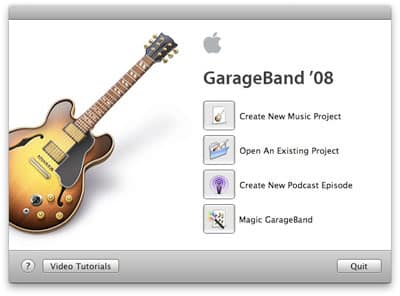
1. After opening GarageBand ‘08, choose Create New Music Project.


Ten Step Guide to iPhone Custom Ringtones in GarageBand ‘08

2. You’ll be presented with a dialog box to save your ringtone. Type the name as you’d like it to appear in iTunes and on the iPhone; it’ll save you a step later.


Ten Step Guide to iPhone Custom Ringtones in GarageBand ‘08

3. Drag and drop a song you own from iTunes into the main GarageBand window.

Assuming that it’s an unprotected track, such as any MP3 or an unprotected AAC file, it will take a moment to import. If it’s a protected track, such as an iTunes Store purchase, GarageBand won’t import it, letting you know with the dialog box below. (If you want, you can also delete the Grand Piano track that appears in GarageBand by hitting propeller and the delete key at the same time.)


Ten Step Guide to iPhone Custom Ringtones in GarageBand ‘08

4. If you try at this point to export the iTunes track as a ringtone, and it’s longer than 40 seconds, GarageBand will fail. You’ll get a dialog box telling you to adjust the song’s length. You do this by hitting the cycle button.


Ten Step Guide to iPhone Custom Ringtones in GarageBand ‘08

That’s the one in blue above.


Ten Step Guide to iPhone Custom Ringtones in GarageBand ‘08

5. At this point, iTunes will add a little yellow bar on top of your song. You can click in the center to slide it to your preferred 40 seconds of the song, or shorten it by clicking on one end of the bar and dragging it inward. Press the play button shown above to preview your ringtone.


Ten Step Guide to iPhone Custom Ringtones in GarageBand ‘08

6. We’ve shortened this ringtone to a better length that’s appropriate for looping on the iPhone. By default, the clip will play over and over until you answer the phone, so GarageBand does the same thing to give you a sense of how the loop will sound. Careful snipping can guarantee a better loop.


Ten Step Guide to iPhone Custom Ringtones in GarageBand ‘08

Ten Step Guide to iPhone Custom Ringtones in GarageBand ‘08

7. Then, go to the top of the screen to the Share menu, and pick Send Ringtone to iTunes. After a quick export, iTunes will have the ringtone ready for you to label.


Ten Step Guide to iPhone Custom Ringtones in GarageBand ‘08

It will initially be exported with some incorrect tag details. You could leave them the same, or click on each field in the iTunes main window and fix them.


Ten Step Guide to iPhone Custom Ringtones in GarageBand ‘08

8. Then it’s time to plug in your iPhone and sync the new ringtone. Once you’ve selected the iPhone in your Sources list, and the Ringtone tab, you can select all of your ringtones, or just the custom one you’ve created.



Latest News
The 14-inch MacBook Pro with M5 Chip 16GB RAM/512GB is $250 Off
1 Min Read
Noise and Static on AirPods Pro 3 Still Unfixed
1 Min Read
New iMac with 24-inch OLED Display May be Brighter With 600 Nits
1 Min Read
The 15-inch M4 MacBook Air 256GB Is $250 Off
1 Min Read
Internal Kernel Debug Kit from Apple Reveals Tests for a MacBook with A15 Chip
1 Min Read
Apple Currently In Talks With Suppliers for Chip Assembly & Packaging of iPhones in India
1 Min Read
Apple Allows Easier Battery Replacement For M5 MacBook Pro with 14-inch Display
1 Min Read
The Apple Watch SE 3 44mm GPS is $50 Off
1 Min Read
20th Anniversary iPhone May Launch in Two Years
1 Min Read
Better Image Generation Capabilities and Apple Music Integration Coming to ChatGPT
1 Min Read
A20 Pro Chip Coming to Next Gen iPad Mini OLED
1 Min Read
Amazon has the AirTag 4 Pack Marked $29 off
1 Min Read

iLounge logo

iLounge is an independent resource for all things iPod, iPhone, iPad, and beyond. iPod, iPhone, iPad, iTunes, Apple TV, and the Apple logo are trademarks of Apple Inc.

This website is not affiliated with Apple Inc.
iLounge © 2001 - 2025. All Rights Reserved.
  • Contact Us
  • Submit News
  • About Us
  • Forums
  • Privacy Policy
  • Terms Of Use
Welcome Back!

Sign in to your account

Lost your password?








