
iLoungeiLounge
  • News
    • Apple
      • AirPods Pro
      • AirPlay
      • Apps
        • Apple Music
      • iCloud
      • iTunes
      • HealthKit
      • HomeKit
      • HomePod
      • iOS 13
      • Apple Pay
      • Apple TV
      • Siri
    • Rumors
    • Humor
    • Technology
      • CES
    • Daily Deals
    • Articles
    • Web Stories
  • iPhone
    • iPhone Accessories
  • iPad
  • iPod
    • iPod Accessories
  • Apple Watch
    • Apple Watch Accessories
  • Mac
    • MacBook Air
    • MacBook Pro
  • Reviews
    • App Reviews
  • How-to
    • Ask iLounge
Font ResizerAa
iLoungeiLounge
Font ResizerAa
Search
  • News
    • Apple
    • Rumors
    • Humor
    • Technology
    • Daily Deals
    • Articles
    • Web Stories
  • iPhone
    • iPhone Accessories
  • iPad
  • iPod
    • iPod Accessories
  • Apple Watch
    • Apple Watch Accessories
  • Mac
    • MacBook Air
    • MacBook Pro
  • Reviews
    • App Reviews
  • How-to
    • Ask iLounge
Follow US

How-to › Ask iLounge

Ask iLoungeiPadMac

Syncing one iPad to multiple libraries

Last updated: May 16, 2021 4:55 pm UTC
By Jesse Hollington
Syncing one iPad to multiple libraries

Q: My family really loves the iPad we just purchased. It has a ton of pros, but the biggest con is that I can’t sync photo’s from both my wife’s iPhoto library and my iPhoto library. We have one iMac and we use different profiles. To me it’s not really a multi-user device that the entire family is supposed to share if you can’t get the family pictures and other content on it. The same goes for music or videos that either she or I have purchased from a separate iTunes account. Do you have any thoughts on this? Am I the only one who thinks this is odd? I haven’t read much news on this in the tech press. Thanks and best wishes.

Syncing one iPad to multiple libraries

– Marc

A: To be fair, the iPad isn’t really designed to be a multi-user device any more than a laptop computer is, and in fact the iPad syncs with iTunes in much the same manner as an iPod touch does. You’ll therefore find that you have most of the same options and issues with syncing.

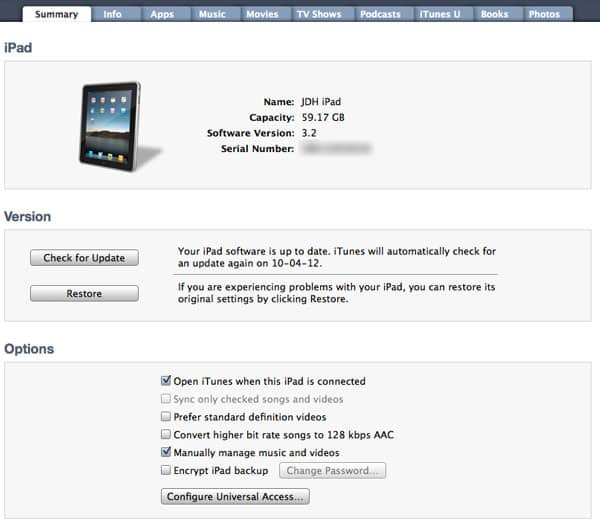
For your media content, you can set the iPad to manual mode by going into the “Summary” screen and selecting Manually manage music and videos. This works for the iPad in the same as it does for an iPod, and will allow you to manually add content to your iPad from more than one iTunes library simply by dragging and dropping the content to the iPad icon in iTunes. Note that you will lose the ability to automatically update ratings and play counts in manual mode, and will also need to ensure that you manually re-transfer tracks to your iPad whenever you make changes to the tags in iTunes.


Applications and photos are a different matter, unfortunately, as these always sync automatically regardless of the “Manual” setting in iTunes. Note that it doesn’t matter if content has been purchased with different accounts, as you can easily store content from up to five separate iTunes Store accounts on a single device, but rather that the content is stored in two separate libraries.

In this case, you will need to basically choose an iTunes library to be your “primary” library and transfer all of the applications that you want on your iPad into that library. Since you’re on the same iMac, this is really just a matter of physically copying the applications from the “Mobile Applications” folder in the secondary library folder and importing them into the primary iTunes library via drag-and-drop or using the Add to Library option on the File menu. You can then set up the iPad to sync applications from the “primary” iTunes library.


The same applies to photos—all of the photos you want on your iPad have to come from a single source: Either a single iPhoto or Aperture library or a single folder of photos on your computer. You basically need to pick a “primary” iPhoto library and ensure that all of the photos you want on your iPad are in that library.

Ultimately, however, unless you have a need to keep your photo and music content separately, consolidating your iTunes and iPhoto libraries may be the simplest solution in the long run. You can easily relocate your iTunes library to a shared folder such as /Users/Shared that can be accessed by both profiles on your iMac by following the instructions in our tutorial on Transferring your iTunes Library.



Latest News
The 14-inch MacBook Pro with M5 Chip 16GB RAM/512GB is $250 Off
1 Min Read
Noise and Static on AirPods Pro 3 Still Unfixed
1 Min Read
New iMac with 24-inch OLED Display May be Brighter With 600 Nits
1 Min Read
The 15-inch M4 MacBook Air 256GB Is $250 Off
1 Min Read
Internal Kernel Debug Kit from Apple Reveals Tests for a MacBook with A15 Chip
1 Min Read
Apple Currently In Talks With Suppliers for Chip Assembly & Packaging of iPhones in India
1 Min Read
Apple Allows Easier Battery Replacement For M5 MacBook Pro with 14-inch Display
1 Min Read
The Apple Watch SE 3 44mm GPS is $50 Off
1 Min Read
20th Anniversary iPhone May Launch in Two Years
1 Min Read
Better Image Generation Capabilities and Apple Music Integration Coming to ChatGPT
1 Min Read
A20 Pro Chip Coming to Next Gen iPad Mini OLED
1 Min Read
Amazon has the AirTag 4 Pack Marked $29 off
1 Min Read

iLounge logo

iLounge is an independent resource for all things iPod, iPhone, iPad, and beyond. iPod, iPhone, iPad, iTunes, Apple TV, and the Apple logo are trademarks of Apple Inc.

This website is not affiliated with Apple Inc.
iLounge © 2001 - 2025. All Rights Reserved.
  • Contact Us
  • Submit News
  • About Us
  • Forums
  • Privacy Policy
  • Terms Of Use
Welcome Back!

Sign in to your account

Lost your password?








