
Q: I have a Mac mini with an external hard drive containing all of my iTunes content which I currently sync with my iPod. I also have a MacBook Pro for personal use and don’t want to load it with all the same iTunes data as the Mac mini, however I would like to find a way to sync my iPod with the MacBook so I can get all of the contacts and calendar information, but also somehow still get the iTunes data on the Mini’s external drive. Can this be done using the Airport function on both machines?
– Cesar
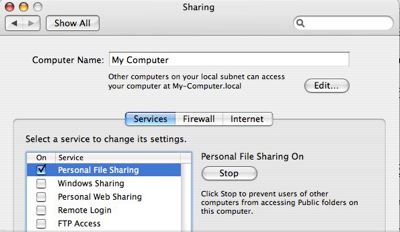
A: It is possible to access the iTunes content on your Mac mini from your MacBook simply by using file sharing. First go in to System Preferences on the Mac mini and ensure that you have Personal File Sharing enabled (under the Sharing Preferences):
You can then connect to the Mac mini’s external hard drive from the MacBook through Finder’s Network folder, which should allow your MacBook to see all of your iTunes music and video files. Go into iTunes Preferences and ensure that the “Copy files to iTunes Music folder when adding to library” option is turned OFF, so that iTunes will leave any files you import onto the MacBook in their original locations (in this case the external hard drive on the Mac mini).
You can then import the content from the Mac mini into your MacBook iTunes library as you normally would.
As a disadvantage, however, this method will not share playlists, ratings, or playcounts from the main library. It may also be considerably slower than connecting directly to your Mac mini, depending on the speed of your home network. There are ways in which you could even share the same library database between both machines, although this is somewhat more complicated to set up and maintain, and is not recommended as it can leave you open to corruption of the iTunes database unless you’re particularly careful to not leave iTunes running on both machines at the same time.
However, if the goal is just to get your contacts and calendar from your MacBook onto your iPod, there are a couple of simpler ways to approach this:
Firstly, if you’re managing the content on your iPod manually from the Mac mini, you can still sync your calendar and contacts from your MacBook automatically.
Manual mode only applies to Music, Movies, and TV Shows—other content such as Podcasts, Photos, Contacts/Calendars and Games are always synced automatically. In this case, simply connect your iPod to your MacBook and enable the settings to sync contact and calendar information as desired, ensuring that you leave the “manual” setting on the Summary tab untouched.
Further, since the automatic sync of contacts and calendars is set separately from the sync of your other media content, you could even leave your iPod set to automatically sync your music, videos and podcasts from your Mac mini, and your calendar and contacts from your MacBook. When you connect your iPod to your MacBook, you will receive a prompt similar to the following, warning you that your iPod is already associated with another iTunes library:

If you select Cancel iTunes will not touch your audio or video files at all, but you can still configure the calendar and contact information to sync with your iPod from the MacBook. This will work for subsequent sync operations as well.











