
iLoungeiLounge
  • News
    • Apple
      • AirPods Pro
      • AirPlay
      • Apps
        • Apple Music
      • iCloud
      • iTunes
      • HealthKit
      • HomeKit
      • HomePod
      • iOS 13
      • Apple Pay
      • Apple TV
      • Siri
    • Rumors
    • Humor
    • Technology
      • CES
    • Daily Deals
    • Articles
    • Web Stories
  • iPhone
    • iPhone Accessories
  • iPad
  • iPod
    • iPod Accessories
  • Apple Watch
    • Apple Watch Accessories
  • Mac
    • MacBook Air
    • MacBook Pro
  • Reviews
    • App Reviews
  • How-to
    • Ask iLounge
Font ResizerAa
iLoungeiLounge
Font ResizerAa
Search
  • News
    • Apple
    • Rumors
    • Humor
    • Technology
    • Daily Deals
    • Articles
    • Web Stories
  • iPhone
    • iPhone Accessories
  • iPad
  • iPod
    • iPod Accessories
  • Apple Watch
    • Apple Watch Accessories
  • Mac
    • MacBook Air
    • MacBook Pro
  • Reviews
    • App Reviews
  • How-to
    • Ask iLounge
Follow US

How-to › Ask iLounge

Ask iLoungeiTunes

Syncing iOS Apps with a different computer

Last updated: May 16, 2021 4:26 pm UTC
By Jesse Hollington
Syncing iOS Apps with a different computer

Q: My computer crashed. I want to be able to sync my iPod touch with my PC again. However, I am afraid of losing all my levels on Tiny Towers and other games when I start syncing. Is there a way to back up my apps and sync my old game progresses without losing any of the data?


– Greg
Syncing iOS Apps with a different computer

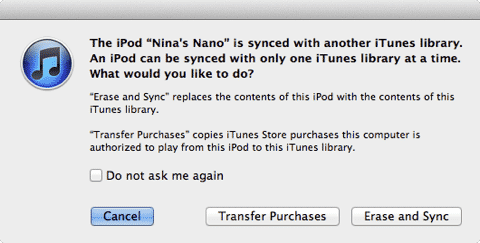
A: When you connect your iPod touch a new computer or a new iTunes library it will ask you whether or not you want to replace the content that is already on your device with the content in your library.

You can simply click “Cancel” here to prevent this from happening and your iPod touch will remain connected to your computer without actually synchronizing any information with your library. Alternatively, if your computer has already been authorized for the same iTunes Store account that was used to purchase the apps and media content on your iPod touch, you will also see a “Transfer Purchases” option that can be used to copy this information from your iPod touch back to your iTunes library.


This copies the raw applications and any purchased media content such as music and videos, but does not copy any application data; your application data is instead included in any backups made by iTunes or iCloud.

If your new computer is not already authorized for your iTunes Store account you can do this by selecting Authorize Computer from the Store menu in iTunes. You can also initiate the transfer of purchases by selecting the appropriate option from the iTunes File menu while your iPod touch is connected.


Unless you already have all of your applications in your iTunes library, you should take advantage of the “Transfer Purchases” option to copy this information over from your iPod touch. Performing a device backup to iTunes as part of this process is also highly recommended, as this will include your application data which can be restored from this backup just in case something goes wrong. See Backing up apps from an iPod touch for more information.

The key point is that as long as the applications themselves exist in your iTunes library, you can re-enable the “Sync Apps” feature without losing any of your application data as long as you ensure that the same apps are still selected for synchronization to your device.


When you first enable “Sync Apps” iTunes actually presents you with a somewhat scary warning dialog implying that iTunes is going to erase and reinstall all of your applications:


Syncing iOS Apps with a different computer

In reality what happens here, however, is that iTunes does a simple reconciliation to compare what’s already on your device with what’s selected for synchronization from your iTunes library. Anything that is already in both places is simply left alone and marked as “synced” while apps that are de-selected (or don’t exist in iTunes at all) will be removed, and any new apps that are selected will be added.

The catch here, of course, is that the apps must still be selected for synchronization to your device. If you enable the “Sync Apps” option with no apps selected, iTunes will go ahead and remove all of the apps on your device in order to match what you’ve selected (e.g. nothing).



Latest News
The 14-inch MacBook Pro with M5 Chip 16GB RAM/512GB is $250 Off
1 Min Read
Noise and Static on AirPods Pro 3 Still Unfixed
1 Min Read
New iMac with 24-inch OLED Display May be Brighter With 600 Nits
1 Min Read
The 15-inch M4 MacBook Air 256GB Is $250 Off
1 Min Read
Internal Kernel Debug Kit from Apple Reveals Tests for a MacBook with A15 Chip
1 Min Read
Apple Currently In Talks With Suppliers for Chip Assembly & Packaging of iPhones in India
1 Min Read
Apple Allows Easier Battery Replacement For M5 MacBook Pro with 14-inch Display
1 Min Read
The Apple Watch SE 3 44mm GPS is $50 Off
1 Min Read
20th Anniversary iPhone May Launch in Two Years
1 Min Read
Better Image Generation Capabilities and Apple Music Integration Coming to ChatGPT
1 Min Read
A20 Pro Chip Coming to Next Gen iPad Mini OLED
1 Min Read
Amazon has the AirTag 4 Pack Marked $29 off
1 Min Read

iLounge logo

iLounge is an independent resource for all things iPod, iPhone, iPad, and beyond. iPod, iPhone, iPad, iTunes, Apple TV, and the Apple logo are trademarks of Apple Inc.

This website is not affiliated with Apple Inc.
iLounge © 2001 - 2025. All Rights Reserved.
  • Contact Us
  • Submit News
  • About Us
  • Forums
  • Privacy Policy
  • Terms Of Use
Welcome Back!

Sign in to your account

Lost your password?








