
iLoungeiLounge
  • News
    • Apple
      • AirPods Pro
      • AirPlay
      • Apps
        • Apple Music
      • iCloud
      • iTunes
      • HealthKit
      • HomeKit
      • HomePod
      • iOS 13
      • Apple Pay
      • Apple TV
      • Siri
    • Rumors
    • Humor
    • Technology
      • CES
    • Daily Deals
    • Articles
    • Web Stories
  • iPhone
    • iPhone Accessories
  • iPad
  • iPod
    • iPod Accessories
  • Apple Watch
    • Apple Watch Accessories
  • Mac
    • MacBook Air
    • MacBook Pro
  • Reviews
    • App Reviews
  • How-to
    • Ask iLounge
Font ResizerAa
iLoungeiLounge
Font ResizerAa
Search
  • News
    • Apple
    • Rumors
    • Humor
    • Technology
    • Daily Deals
    • Articles
    • Web Stories
  • iPhone
    • iPhone Accessories
  • iPad
  • iPod
    • iPod Accessories
  • Apple Watch
    • Apple Watch Accessories
  • Mac
    • MacBook Air
    • MacBook Pro
  • Reviews
    • App Reviews
  • How-to
    • Ask iLounge
Follow US

How-to › Ask iLounge

Ask iLoungeiPhoneiTunes

Syncing and finding TV Shows on iPhone

Last updated: May 16, 2021 4:26 pm UTC
By Jesse Hollington
Syncing and finding TV Shows on iPhone

Q: I have followed every instruction on how to sync from my iTunes library to my iPhone 4S. There is no obvious menu choice on the iPhone showing TV shows. How can this be accomplished? Thanks!


– Joel
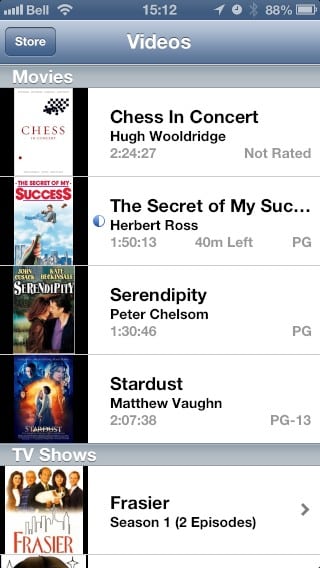
Syncing and finding TV Shows on iPhone

A: There is no specific “TV Shows” app or menu item on the iPhone; assuming that your TV Shows are in fact syncing properly to your iPhone, they will appear in the Videos app, alongside any Movies and Music Videos you’ve synced to your device. Rather than providing a top-level menu for content types, the Videos app instead simply presents Movies, TV Shows, Music Videos in separate sections, so you’ll need to scroll down past any movies that you have loaded onto your iPhone before you’ll see your TV Shows, and then down even further before you’ll see your Music Videos.


TV Shows are still grouped by season, and Music Videos grouped by artist when three or more videos are present. Video Podcasts are also included at the very bottom of the list unless the standalone Podcasts app is installed.

Note that this was a significant change for iPhone users in iOS 5, when Apple replaced the venerable “iPod” application—which included both music and videos in a single app—with the separate “Music” and “Videos” applications from the iPod touch. In the prior iPod application, TV Shows were clearly delineated in their own section, as was just about every other type content.


You can confirm that TV Shows are actually on your device by going into your Settings app and choosing General, Usage which will show a list of all of the applications on your device and the amount of storage being used by each. Tapping on the Videos section will display a list of your TV Shows, Movies, and Music Videos, sorted by the amount of space taken up by each, largest to smallest. You can also tap on an individual TV Show to see all of the episodes for that show that are stored on your device.


Syncing and finding TV Shows on iPhone

You can also delete individual episodes or an entire show from these screens either by tapping the “Edit” button in the top-right corner or simply swiping-to-delete.



Latest News
The Apple Watch Series 11 46mm GPS Is $100 Off
1 Min Read
Clamshell Style iPhone Being Looked Into By Apple
1 Min Read
Foldable iPhones May Have the Largest Battery Ever
1 Min Read
Apple and TSMC’s 10-Year Collaboration May Be Ending
1 Min Read
The 13-inch M5 iPad Pro 256GB Wi-Fi Is $149 Off
1 Min Read
M5 Pro and M5 Max Chips for the MacBook Pro could Roll Out with macOS 26.3
1 Min Read
Mac Ordering Process Revamped
1 Min Read
Check Signed By Steve Wozniak and Steve Jobs Sold For $2.4 Million
1 Min Read
The Anker 140W 4-Port GaN USB-C Charger is $35 Off
1 Min Read
No iPhone Air 2 This Year, according to Latest Report
1 Min Read
New Report Corroborates Split iPhone Release Dates
1 Min Read
Apple Losing More Researchers As They Plan To Release 2 Siri Versions
1 Min Read

iLounge logo

iLounge is an independent resource for all things iPod, iPhone, iPad, and beyond. iPod, iPhone, iPad, iTunes, Apple TV, and the Apple logo are trademarks of Apple Inc.

This website is not affiliated with Apple Inc.
iLounge © 2001 - 2025. All Rights Reserved.
  • Contact Us
  • Submit News
  • About Us
  • Forums
  • Privacy Policy
  • Terms Of Use
Welcome Back!

Sign in to your account

Lost your password?








