
iLoungeiLounge
  • News
    • Apple
      • AirPods Pro
      • AirPlay
      • Apps
        • Apple Music
      • iCloud
      • iTunes
      • HealthKit
      • HomeKit
      • HomePod
      • iOS 13
      • Apple Pay
      • Apple TV
      • Siri
    • Rumors
    • Humor
    • Technology
      • CES
    • Daily Deals
    • Articles
    • Web Stories
  • iPhone
    • iPhone Accessories
  • iPad
  • iPod
    • iPod Accessories
  • Apple Watch
    • Apple Watch Accessories
  • Mac
    • MacBook Air
    • MacBook Pro
  • Reviews
    • App Reviews
  • How-to
    • Ask iLounge
Font ResizerAa
iLoungeiLounge
Font ResizerAa
Search
  • News
    • Apple
    • Rumors
    • Humor
    • Technology
    • Daily Deals
    • Articles
    • Web Stories
  • iPhone
    • iPhone Accessories
  • iPad
  • iPod
    • iPod Accessories
  • Apple Watch
    • Apple Watch Accessories
  • Mac
    • MacBook Air
    • MacBook Pro
  • Reviews
    • App Reviews
  • How-to
    • Ask iLounge
Follow US

How-to › Ask iLounge

Ask iLoungeiTunes

Syncing a library larger than your iPod capacity

Last updated: May 16, 2021 5:12 pm UTC
By Jesse Hollington
Syncing a library larger than your iPod capacity

Q: I have a fifth-generation 30GB iPod, and my iTunes library has just exceeded 30GB. I tried syncing my ipod, and iTunes told me it couldn’t fit everything on the iPod. A popup dialog asked me if I wanted it to automatically load as much content as it could fit, but at that time I said no. Now I want to load the iPod with whatever it fits, but I cant find a way to do it. How do I get iTunes to ask me this question again, or otherwise automatically load my iPod to maximum capacity with only part of my library?


– Rafi
Syncing a library larger than your iPod capacity

A: Depending upon the model of iPod and version of iTunes, you can reset any iPod-related dialog box prompts that you may have missed by right-clicking on your iPod in the iTunes source list and choosing the Reset Warnings menu option.

However, all this option actually does is automatically create a playlist with the name of your iPod and then set your iPod sync setings to only sync this playlist. The selection of content that goes into this playlist is not particularly intuitive, and it remains a static playlist.


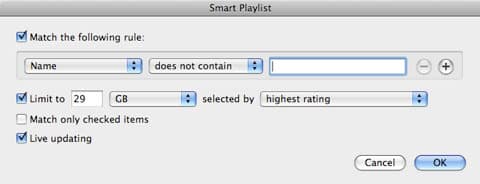
A better option is to create a smart playlist or series of smart playlists to provide a better selection of your preferred content, and simply limit the smart playlist(s) to the total capacity of your iPod. For example, you could create a basic smart playlist to fill your 30GB iPod with your highest-rated content:

In this case, “Name does not contain (blank)” is used as a palceholder since there must be at least one criteria. However, no song title should ever be empty in iTunes, so this will by default match ALL items, subject to the 29GB limitation.


Note, however, that you can provide much more detailed criteria, and even create several smart playlists. For example, a smart playlist such as the following could be used to select 4GB from your “Rock” genre that you hadn’t listened to in at least one week, with priority given to the older tracks in your library (“Least recently added”):


Syncing a library larger than your iPod capacity

Another useful tip is to use the “Rating” of a track, which can be set on the iPod itself, to automatically exclude tracks from being synchronized to your iPod. For example, the following Smart Playlist would exclude all tracks rated with only one star:


Syncing a library larger than your iPod capacity

Then, as you’re listening to tracks on the iPod itself, if you come across a track that you don’t like and want it removed from your iPod, just go to the rating screen and give it a one-star rating. On the next sync, that track will be automatically removed from your iPod, and replaced with another higher-rated or un-rated track

Multiple Smart Playlists could be created to add up collectively to the capacity of your iPod. You would then tell iTunes to only synchronize these specific playlists to your iPod by connecting your iPod, selecting it in iTunes, and choosing the “Music” tab from the main window:


Syncing a library larger than your iPod capacity

Choose “Sync Selected Playlists” and then just specify the playlists that you’ve created for transfer to your iPod and click the “Apply” button.



Latest News
The 14-inch MacBook Pro with M5 Chip 16GB RAM/512GB is $250 Off
1 Min Read
Noise and Static on AirPods Pro 3 Still Unfixed
1 Min Read
New iMac with 24-inch OLED Display May be Brighter With 600 Nits
1 Min Read
The 15-inch M4 MacBook Air 256GB Is $250 Off
1 Min Read
Internal Kernel Debug Kit from Apple Reveals Tests for a MacBook with A15 Chip
1 Min Read
Apple Currently In Talks With Suppliers for Chip Assembly & Packaging of iPhones in India
1 Min Read
Apple Allows Easier Battery Replacement For M5 MacBook Pro with 14-inch Display
1 Min Read
The Apple Watch SE 3 44mm GPS is $50 Off
1 Min Read
20th Anniversary iPhone May Launch in Two Years
1 Min Read
Better Image Generation Capabilities and Apple Music Integration Coming to ChatGPT
1 Min Read
A20 Pro Chip Coming to Next Gen iPad Mini OLED
1 Min Read
Amazon has the AirTag 4 Pack Marked $29 off
1 Min Read

iLounge logo

iLounge is an independent resource for all things iPod, iPhone, iPad, and beyond. iPod, iPhone, iPad, iTunes, Apple TV, and the Apple logo are trademarks of Apple Inc.

This website is not affiliated with Apple Inc.
iLounge © 2001 - 2025. All Rights Reserved.
  • Contact Us
  • Submit News
  • About Us
  • Forums
  • Privacy Policy
  • Terms Of Use
Welcome Back!

Sign in to your account

Lost your password?








