
iLoungeiLounge
  • News
    • Apple
      • AirPods Pro
      • AirPlay
      • Apps
        • Apple Music
      • iCloud
      • iTunes
      • HealthKit
      • HomeKit
      • HomePod
      • iOS 13
      • Apple Pay
      • Apple TV
      • Siri
    • Rumors
    • Humor
    • Technology
      • CES
    • Daily Deals
    • Articles
    • Web Stories
  • iPhone
    • iPhone Accessories
  • iPad
  • iPod
    • iPod Accessories
  • Apple Watch
    • Apple Watch Accessories
  • Mac
    • MacBook Air
    • MacBook Pro
  • Reviews
    • App Reviews
  • How-to
    • Ask iLounge
Font ResizerAa
iLoungeiLounge
Font ResizerAa
Search
  • News
    • Apple
    • Rumors
    • Humor
    • Technology
    • Daily Deals
    • Articles
    • Web Stories
  • iPhone
    • iPhone Accessories
  • iPad
  • iPod
    • iPod Accessories
  • Apple Watch
    • Apple Watch Accessories
  • Mac
    • MacBook Air
    • MacBook Pro
  • Reviews
    • App Reviews
  • How-to
    • Ask iLounge
Follow US

How-to › Ask iLounge

ArticlesAsk iLoungeiTunes

Storing music only on your iPod

Last updated: May 16, 2021 5:01 pm UTC
By Jesse Hollington
Storing music only on your iPod

Q: I have a 120GB iPod classic. I have loaded about half of my CD collection into iTunes and I am now running out of space on my PC’s hard drive. How do I get all of my collection onto the iPod if I don’t have enough space on my hard drive?


– Anonymous
Storing music only on your iPod

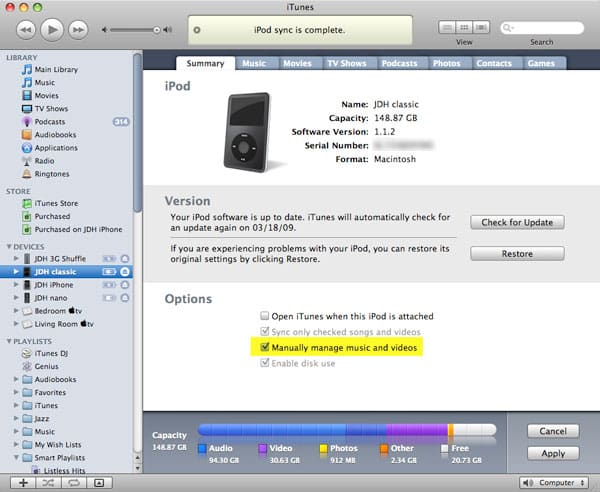
A: In this situation, you can set your iPod to manual mode and then transfer the content onto your iPod without leaving it on your computer. To do this, simply connect your iPod to iTunes, select it in the Devices listing, and ensure that you are viewing the “Summary” tab. You should see an option labelled “Manually manage music and videos.. Check this option, and click the “Apply” button in the bottom-right corner.

Storing music only on your iPod

From this point on, your iPod will no longer automatically sync music or videos with your iTunes library; instead it will be treated as a completely distinct library of its own. You can then add content to it by dragging it from your iTunes library to your iPod icon in the Devices list in iTunes. Once you have transferred the content to your iPod, you can safely delete it from your computer and it will remain on your device. In fact, if you have audio or video files on your computer that you want to transfer directly to your iPod, you ca. even drag them from a Windows Explorer or Mac Finder window and drop them directly on the iPod in your Devices list. This will save you the trouble of importing them into your iTunes library first.


In manual mode, you manage the content on your iPod directly, as you would in your iTunes library. Click the small triangle to the left of your iPod in the Devices list, and it will expand to show you the categories and playlists on your iPod.


Storing music only on your iPod

Clicking on a category or playlist will show you the content in that category and you will be able to manage it from there, including modifying track information and even deleting tracks directly from your iPod.


It should be noted that in manual mode, you can still choose to sync podcasts automatically from your iTunes library by configuring the settings on the “Podcasts” tab, and other information such as photos, contact/calendar info and games will continue to sync automatically regardless of the “Manual” setting, so you will need to leave this information on your computer so that it is not removed from the iPod during the sync process.

Note, however, that we do not recommend using your iPod as the only place you keep your content. The iPod is a portable device and can be easily lost or damaged and you would therefore risk losing all of your content in the process.



Latest News
The 14-inch MacBook Pro with M5 Chip 16GB RAM/512GB is $250 Off
1 Min Read
Noise and Static on AirPods Pro 3 Still Unfixed
1 Min Read
New iMac with 24-inch OLED Display May be Brighter With 600 Nits
1 Min Read
The 15-inch M4 MacBook Air 256GB Is $250 Off
1 Min Read
Internal Kernel Debug Kit from Apple Reveals Tests for a MacBook with A15 Chip
1 Min Read
Apple Currently In Talks With Suppliers for Chip Assembly & Packaging of iPhones in India
1 Min Read
Apple Allows Easier Battery Replacement For M5 MacBook Pro with 14-inch Display
1 Min Read
The Apple Watch SE 3 44mm GPS is $50 Off
1 Min Read
20th Anniversary iPhone May Launch in Two Years
1 Min Read
Better Image Generation Capabilities and Apple Music Integration Coming to ChatGPT
1 Min Read
A20 Pro Chip Coming to Next Gen iPad Mini OLED
1 Min Read
Amazon has the AirTag 4 Pack Marked $29 off
1 Min Read

iLounge logo

iLounge is an independent resource for all things iPod, iPhone, iPad, and beyond. iPod, iPhone, iPad, iTunes, Apple TV, and the Apple logo are trademarks of Apple Inc.

This website is not affiliated with Apple Inc.
iLounge © 2001 - 2025. All Rights Reserved.
  • Contact Us
  • Submit News
  • About Us
  • Forums
  • Privacy Policy
  • Terms Of Use
Welcome Back!

Sign in to your account

Lost your password?








