
iLoungeiLounge
  • News
    • Apple
      • AirPods Pro
      • AirPlay
      • Apps
        • Apple Music
      • iCloud
      • iTunes
      • HealthKit
      • HomeKit
      • HomePod
      • iOS 13
      • Apple Pay
      • Apple TV
      • Siri
    • Rumors
    • Humor
    • Technology
      • CES
    • Daily Deals
    • Articles
    • Web Stories
  • iPhone
    • iPhone Accessories
  • iPad
  • iPod
    • iPod Accessories
  • Apple Watch
    • Apple Watch Accessories
  • Mac
    • MacBook Air
    • MacBook Pro
  • Reviews
    • App Reviews
  • How-to
    • Ask iLounge
Font ResizerAa
iLoungeiLounge
Font ResizerAa
Search
  • News
    • Apple
    • Rumors
    • Humor
    • Technology
    • Daily Deals
    • Articles
    • Web Stories
  • iPhone
    • iPhone Accessories
  • iPad
  • iPod
    • iPod Accessories
  • Apple Watch
    • Apple Watch Accessories
  • Mac
    • MacBook Air
    • MacBook Pro
  • Reviews
    • App Reviews
  • How-to
    • Ask iLounge
Follow US

How-to › Ask iLounge

ArticlesAsk iLoungeiTunes

Storing artwork on an external hard drive

Last updated: May 16, 2021 5:25 pm UTC
By Jesse Hollington
Storing artwork on an external hard drive

Q: I have all of my iTunes files on an external hard drive connected to my laptop. However, all of my album artwork is being stored on my actual laptop hard drive. How do I change this? How can I transfer all of my artwork from my laptop hard drive to my external hard drive without confusing all the files? How can I make the default place for my artwork to be stored be on my external hard drive?


– Brandon
Storing artwork on an external hard drive

A: Although iTunes does create an “album artwork” folder in the same location as your iTunes library database, this is not necessarily the only place where album artwork is stored. Rather, this functions as a cache for any artwork you manually add, as well as the location for album artwork that is automatically downloaded through iTunes’ “Get Artwork” function.

Artwork that you manually add to the tracks themselves is actually placed in a tag within each track file. This means that no matter where you copy the song file, the artwork itself will always be available within the track.


Even if you were to import these tracks into a brand new iTunes library, the artwork will be included.

For manually added artwork, iTunes does cache the artwork within the “album artwork” folder, in a subdirectory called “local.”  This cache is intended to improve performance for artwork-intensive features like the new iTunes 7 “Coverflow” feature.

Note that this also applies to artwork that you download through third-party applications such as iArt. These applications use the same functions that you would if you were adding the artwork manually, and therefore the artwork will be stored within the tracks.


On the other hand, artwork that you download automatically through iTunes 7’s new “Get Artwork” feature is not embedded in the tracks themselves, but rather only stored in the “album artwork” folder, under the “download” sub-folder. Tracks with automatically downloaded artwork will not maintain this artwork if moved to a different iTunes library, since the artwork isn’t in the MP3/M4A file itself.

However, since the artwork was downloaded automatically, iTunes can easily re-retrieve the artwork as required, which at least partially eliminates the need to store the artwork within the track.


Note that if you’re using a Mac, you can embed all of your downloaded artwork into your track files by using the Embed Artwork AppleScript, which can be found at Doug’s AppleScripts site.

Embedding the artwork is the best way to preserve it for backup purposes, but if you do want to move the artwork directory to conserve disk space or maintain your iTunes data completely on the external hard drive, this is done by moving the entire iTunes library folder. Unfortunately there’s no way to move just the album artwork folder—you need to move the entire “iTunes” folder and all other associated files to the external hard drive in the process.

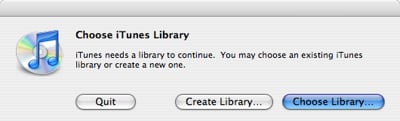
To do this, simply shut down iTunes and copy your “iTunes” folder (from directly under your “My Music” folder in Windows or your “Music” folder on a Mac) to a location on the external hard drive. Once you’ve done this, hold down the SHIFT key (Windows) or OPT key (Mac) while starting iTunes.



Latest News
The 14-inch MacBook Pro with M5 Chip 16GB RAM/512GB is $250 Off
1 Min Read
Noise and Static on AirPods Pro 3 Still Unfixed
1 Min Read
New iMac with 24-inch OLED Display May be Brighter With 600 Nits
1 Min Read
The 15-inch M4 MacBook Air 256GB Is $250 Off
1 Min Read
Internal Kernel Debug Kit from Apple Reveals Tests for a MacBook with A15 Chip
1 Min Read
Apple Currently In Talks With Suppliers for Chip Assembly & Packaging of iPhones in India
1 Min Read
Apple Allows Easier Battery Replacement For M5 MacBook Pro with 14-inch Display
1 Min Read
The Apple Watch SE 3 44mm GPS is $50 Off
1 Min Read
20th Anniversary iPhone May Launch in Two Years
1 Min Read
Better Image Generation Capabilities and Apple Music Integration Coming to ChatGPT
1 Min Read
A20 Pro Chip Coming to Next Gen iPad Mini OLED
1 Min Read
Amazon has the AirTag 4 Pack Marked $29 off
1 Min Read

iLounge logo

iLounge is an independent resource for all things iPod, iPhone, iPad, and beyond. iPod, iPhone, iPad, iTunes, Apple TV, and the Apple logo are trademarks of Apple Inc.

This website is not affiliated with Apple Inc.
iLounge © 2001 - 2025. All Rights Reserved.
  • Contact Us
  • Submit News
  • About Us
  • Forums
  • Privacy Policy
  • Terms Of Use
Welcome Back!

Sign in to your account

Lost your password?








