
iLoungeiLounge
  • News
    • Apple
      • AirPods Pro
      • AirPlay
      • Apps
        • Apple Music
      • iCloud
      • iTunes
      • HealthKit
      • HomeKit
      • HomePod
      • iOS 13
      • Apple Pay
      • Apple TV
      • Siri
    • Rumors
    • Humor
    • Technology
      • CES
    • Daily Deals
    • Articles
    • Web Stories
  • iPhone
    • iPhone Accessories
  • iPad
  • iPod
    • iPod Accessories
  • Apple Watch
    • Apple Watch Accessories
  • Mac
    • MacBook Air
    • MacBook Pro
  • Reviews
    • App Reviews
  • How-to
    • Ask iLounge
Font ResizerAa
iLoungeiLounge
Font ResizerAa
Search
  • News
    • Apple
    • Rumors
    • Humor
    • Technology
    • Daily Deals
    • Articles
    • Web Stories
  • iPhone
    • iPhone Accessories
  • iPad
  • iPod
    • iPod Accessories
  • Apple Watch
    • Apple Watch Accessories
  • Mac
    • MacBook Air
    • MacBook Pro
  • Reviews
    • App Reviews
  • How-to
    • Ask iLounge
Follow US

How-to › Ask iLounge

Ask iLoungeiCloudiTunes

Smart Playlist and iCloud Status field

Last updated: May 16, 2021 4:27 pm UTC
By Jesse Hollington
Smart Playlist and iCloud Status field

Q: I guess this has been part of iTunes since the debut of iCloud but I never noticed it until now. There seems to be a new rule added to Smart Playlists: iCloud Status, which can be set to is/is not Matched, Purchased, Uploaded, Ineligible, Local only, Error or Duplicate. Any idea what this does? The terms are pretty self-explanatory but what could one do with this?


– via iLounge Forums
Smart Playlist and iCloud Status field

A: This feature is designed to be used with Apple’s iTunes Match service, and the iCloud status will likely be entirely empty for users who have not subscribed to iTunes Match.

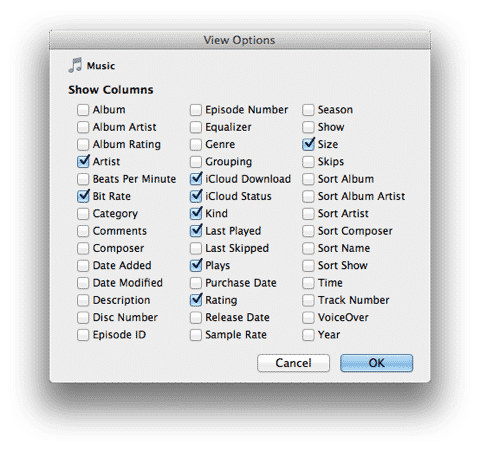
In addition to the Smart Playlist criteria, the iCloud Status column can also be added to any track listing by selecting it from the View, View Options menu.

When used in Smart Playlists, this field is generally only useful for tracking the status of your music collection in relation to iTunes Match; Smart Playlists can be used to get a listing of all tracks that were not successfully matched or see tracks where errors have occurred in the matching process.


The meanings of each status are as follows:

Matched: A track in your library was successfully matched to the corresponding track on the iTunes Store.

Purchased: The track is already in your iTunes Store purchase history, and therefore didn’t need to be matched or uploaded.

Uploaded: The track could not be matched to the iTunes Store and was therefore uploaded, as-is, to your iCloud account.

Ineligible: The track is ineligible for iTunes Match, either due to being too large, having too low of a bit-rate, or possibly being DRM-protected and purchased from an iTunes Store account in a different country.


Local Only: This track was removed from iCloud but is still in your local iTunes library. Note that this will read as “Removed” in the iCloud Status column.

Error: Some other iTunes Match error occurred with the track.

This can sometimes be due to DRM or unsupported encoding of the track. Often simply converting the track to an AAC format will be enough to clear up this issue and allow it to be matched or uploaded.

Duplicate: The track is a duplicate of another Purchased, Matched or Uploaded track. This most often occurs when you have the same song on multiple albums by the same artist—iTunes Match only references a single copy from iCloud in this case, but preserves the metadata across all duplicates so that you effectively can still access the track from any of your albums.

One additional very handy use of the iCloud Status in a Smart Playlist is to track down lower bit-rate tracks that can be “converted” to 256kbps DRM-free versions. A Smart Playlist that looks for a bit-rate of 128kbps and an iCloud Status of Purchased or Matched can be used to create a list of these tracks.



Latest News
The 14-inch MacBook Pro with M5 Chip 16GB RAM/512GB is $250 Off
1 Min Read
Noise and Static on AirPods Pro 3 Still Unfixed
1 Min Read
New iMac with 24-inch OLED Display May be Brighter With 600 Nits
1 Min Read
The 15-inch M4 MacBook Air 256GB Is $250 Off
1 Min Read
Internal Kernel Debug Kit from Apple Reveals Tests for a MacBook with A15 Chip
1 Min Read
Apple Currently In Talks With Suppliers for Chip Assembly & Packaging of iPhones in India
1 Min Read
Apple Allows Easier Battery Replacement For M5 MacBook Pro with 14-inch Display
1 Min Read
The Apple Watch SE 3 44mm GPS is $50 Off
1 Min Read
20th Anniversary iPhone May Launch in Two Years
1 Min Read
Better Image Generation Capabilities and Apple Music Integration Coming to ChatGPT
1 Min Read
A20 Pro Chip Coming to Next Gen iPad Mini OLED
1 Min Read
Amazon has the AirTag 4 Pack Marked $29 off
1 Min Read

iLounge logo

iLounge is an independent resource for all things iPod, iPhone, iPad, and beyond. iPod, iPhone, iPad, iTunes, Apple TV, and the Apple logo are trademarks of Apple Inc.

This website is not affiliated with Apple Inc.
iLounge © 2001 - 2025. All Rights Reserved.
  • Contact Us
  • Submit News
  • About Us
  • Forums
  • Privacy Policy
  • Terms Of Use
Welcome Back!

Sign in to your account

Lost your password?








