
Q: I’m wondering about the best way for my wife and I to use our iTunes and iCloud accounts with iOS 5.1. We each have our own iPhone but are currently sharing an iPad. I also have my own MacBook Air, but we both share a family iMac. Can we use the same iTunes accounts for our apps and music, but different iCloud accounts to keep our contacts and calendars separate? Also, how do we handle things like Photo Stream and sharing pictures? I’d like to have all of our pictures land on the family iMac so neither of us has to plug in our iPhones to transfer them, but I don’t see any way to set up our single iPhoto library to use both of our iCloud accounts.
– Erik
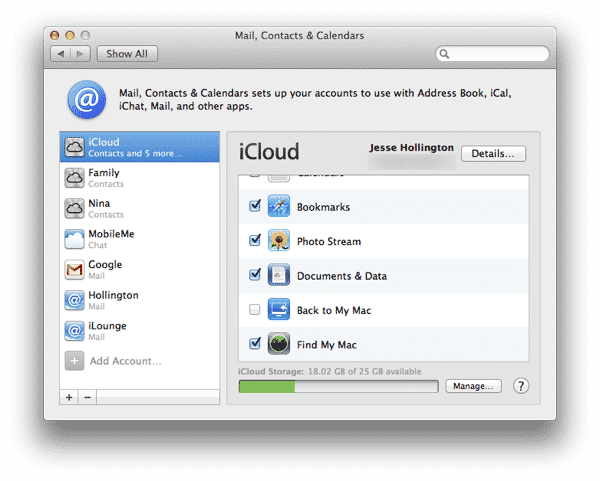
A: There are a few different ways in which you can approach this depending on your specific requirements.
Firstly, keep in mind that your iCloud Apple ID and your iTunes Store Apple ID do not have to be the same. You can use the same account for both, but you are not required to. It’s also worth noting that your iMessage, FaceTime and Game Center Apple IDs have no relationship to any of this either. They can be the same as your iCloud ID, your iTunes Store ID, or different Apple IDs entirely. In fact, they don’t even have to be the same as each other—you could use completely different Apple IDs for iMessage, FaceTime and Game Center.
iCloud
The key point here is that you actually can configure more than one iCloud account on a single iOS device or Mac, however there are some limitations to be aware of.
Only one iCloud account can be used for Photo Stream, Documents & Data, Storage & Backups, Bookmarks and Find My Device. On OS X all of these services can only be enabled on the primary iCloud account—the first one you configure on your Mac. On iOS the Bookmarks and Find My Device features can be enabled on a second iCloud account instead of the primary one.
Mail, Contacts, Calendars, Reminders and Notes can be enabled on multiple iCloud accounts. When you do this, data is kept separately within the appropriate iOS and OS X apps—you will see two groups of calendars, two groups of contacts, two mail accounts, etc. You can still view information from all of the accounts in a single consolidated view, but the data is stored separately rather than merged into a single database.

Keep in mind that you can share Calendars and Reminders between multiple iCloud accounts, but you cannot share Contacts or Mail between accounts. Each iCloud account also gets its own 5GB storage pool that is used by mail, calendars, contacts, reminders, notes and iOS device backups and Documents and Data. Photo Stream and iTunes-related content does not count against this storage. In most cases it is your iOS device backups that will consume the majority of this storage.
So, if you want to share a Photo Stream and possibly Documents (e.g. Pages, Numbers and Keynote files) you can create a “Family” iCloud account and configure that as your primary account on each of your devices under the “iCloud” settings. Leave everything switched off except for the features you want to share (e.g. Photo Stream, Documents and Backups). If you create the same “family” account as your primary account on every iOS device and your iMac and enable Photo Stream on all of them, then photos captured from each device will all go into the same Photo Stream, appearing on each of the other devices and downloading into iPhoto on the iMac.

Note that if you’re backing up your iOS devices to iCloud, you may need to purchase additional space for that primary account to store these backups since all devices will use the primary “family” account as their backup destination. Alternatively, you can simply continue backing some or all of your devices to iTunes instead of iCloud by simply disabling the “Backups” setting in your iCloud preferences or selecting Back up to this computer in your device settings in iTunes.

Once you’ve setup the “family” iCloud account as your primary account, you can then create your own personal secondary iCloud accounts on each of your devices for Mail, Contacts, Calendars and Reminders. This can be done by going into the Mail, Contacts and Calendars section under Settings and adding a new account of type “iCloud.” This will allow you to each have your own personal versions of this data. If you need to share calendars between accounts, you can set this up either in iCal on OS X Lion or via the iCloud.com web interface.

iCloud does not provide the ability to share Contacts between different accounts, but if you want to create a common address book for both of you to use, you could simply enable the Contacts under the primary family account. Contacts that both of you have in common could go into this “family” address book and you could still continue to each maintain your own personal Contacts under your secondary iCloud accounts as well. By default iOS would display all of these in a single contact list, although you could switch to each individual list through the Groups list.

You can choose to enable Find My iPhone either on the primary iCloud account if you want track all of your devices under the single login on iCloud.com or you can enable it on the secondary iCloud accounts if you want to track your devices individually. On your iMac you will only be able to enable Find My Mac on the primary iCloud account.

Bookmarks are a bit trickier as these can only be enabled on the primary account on OS X, which is likely where you’ll want to sync your bookmarks from. With a family iMac with a shared OS X user account this is probably not a big deal as you’re sharing all of your bookmarks anyway, but you won’t be able to share the bookmarks from your MacBook Air separately—it either gets all of the “family” bookmarks from the iMac, or maintains a separate primary iCloud account with its own set of bookmarks (and no access to the family Photo Stream either).

Documents and Data may be the trickiest one to deal with in all of this, since as noted earlier, this can only be enabled on the primary account, which means you’ll both be sharing this across all of your devices. For apps like Pages, Numbers and Keynote this probably isn’t an issue—you’ll simply have one big collection of documents that you share; however you may find this more complicated for apps that use Documents and Data to sync things like settings and game progress, since these assume that there is only a single user of the app. This won’t be an issue unless you’re both using the same apps and don’t want your settings synced, but unfortunately there’s no easy way to turn it off on an app-by-app basis unless the third-party app developer has specifically provided this option in the app itself.
iTunes in the Cloud and iTunes Match
If you are using iTunes in the Cloud to re-download or automatically download content other than apps from the iTunes Store you will only be able to change to a different iTunes Store account on the same device every 90 days.











