
Q: Can you tell me if it is possible to have two iTunes accounts on one Mac Pro? My wife and I want to keep our iTunes accounts separate but can’t seem to get her account set up on the Mac now that mine has been activated. Any help would be much appreciated.
– Michael
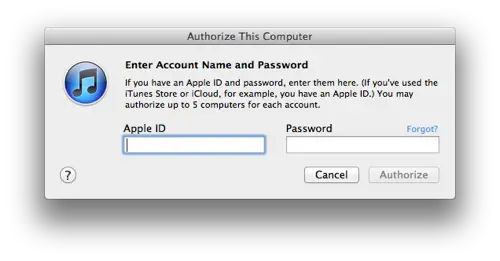
A: There are a couple of different ways that you can accomplish this depending on how you want to share other settings and content on your Mac Pro.
Note that if you’re only concerned about using multiple iTunes Store accounts, you can easily setup both of these in a single iTunes library simply by choosing Authorize This Computer… from the Store menu in iTunes for each account and entering the appropriate credentials.
Of course, this will not allow you to actually maintain the accounts separately—all content from both accounts will reside in a single library. If you actually need to maintain multiple libraries to keep your content separate, read on…
Using Multiple OS X User Accounts
The simplest way is to configure two completely separate OS X user accounts—by default, iTunes stores its library database and media content separately in each user profile, so each OS X user account gets its own iTunes library. You can do this by visiting your OS X System Preferences and choosing the Users & Groups section.

If you create a second user account and then log into that account and run iTunes, it will create a new, empty library for that user. The other user can then proceed to import their own media content and setup their own playlists just as if they were setting up a new computer.
By default, your content is also stored directly within each user profile, although you can change this on the Advanced tab in your iTunes Preferences. This could be useful if you wanted to share a common media folder in order to avoid duplicating files.

Note, however, that if you choose to share a common media folder between two separate iTunes library databases, you will still need to import new content into each library individually, since iTunes relies on its library database as an index for the content. You will also need to be careful about not allowing iTunes to move or reorganize files in this location as the other library may lose track of them; make sure to turn off the Keep iTunes Media folder organized option in the Advanced preferences for both libraries.

Alternatively, you could also take a hybrid approach and place all of your common content in a shared folder that both accounts can access, while still allowing each user to have a personal iTunes Media folder for their own content. Since iTunes does not “manage” any content that is stored outside of the iTunes Media folder, there would be no risk of content being inadvertently moved or deleted if it was renamed or removed from one of the iTunes libraries. At the same time, content imported into one user’s iTunes library would remain in their own iTunes Media folder and be managed (and available) only in that library.
If you were setting up an entirely new library, the easiest way to do this is to place all of the media content in the common, shared folder (/Users/Shared/Music is a good place for this on OS X) and then ensure that the option to Copy files to iTunes Media folder when adding to library is disabled under your Advanced iTunes preferences before importing the content into each library.

With this option disabled, iTunes will leave the items in their original location instead of making a copy in the user’s local iTunes Media folder; the iTunes database will reference these shared copies, and as they are outside of the iTunes Media folder will never attempt to manage the files in any way.
Trying to migrate to this shared model from an existing iTunes library is a little more complicated, but is still achievable.
In this case, you would use the instructions detailed in our article on Transferring your iTunes Library to move your main Media folder to the shared location from your primary OS X user account. This would involve temporarily settings your iTunes Media folder path to the new shared folder, after which you would set it back to its default location by clicking the “Reset” button in your Advanced iTunes preferences. You could then setup the new iTunes library under the other OS X user account, ensure the “Copy files…” option is disabled and import the tracks from the shared folder into the second iTunes library.
Multiple iTunes Libraries under a single OS X user account
It is also possible to create more than one iTunes library under a single OS X user account, although this may be a bit more complicated as your iTunes preferences are stored with the user account and will still be shared across both libraries unless you resort to third-party apps for managing multiple iTunes libraries.
You can create a new iTunes library directly within iTunes simply by holding down the OPT key when starting iTunes up. You will see a dialog box prompting you to choose an existing library or create a new one.

In this case, you would use this option the first time to create a second iTunes library folder in another location, and then subsequently use it to switch between your two iTunes libraries. Note, however, that since all of your preferences are shared between both accounts, settings such as your iTunes Media folder location will be shared between both. You can, however, still use a common media folder apart from your iTunes Media folder to store content that will be shared between both libraries that you do not want managed by iTunes.











