
iLoungeiLounge
  • News
    • Apple
      • AirPods Pro
      • AirPlay
      • Apps
        • Apple Music
      • iCloud
      • iTunes
      • HealthKit
      • HomeKit
      • HomePod
      • iOS 13
      • Apple Pay
      • Apple TV
      • Siri
    • Rumors
    • Humor
    • Technology
      • CES
    • Daily Deals
    • Articles
    • Web Stories
  • iPhone
    • iPhone Accessories
  • iPad
  • iPod
    • iPod Accessories
  • Apple Watch
    • Apple Watch Accessories
  • Mac
    • MacBook Air
    • MacBook Pro
  • Reviews
    • App Reviews
  • How-to
    • Ask iLounge
Font ResizerAa
iLoungeiLounge
Font ResizerAa
Search
  • News
    • Apple
    • Rumors
    • Humor
    • Technology
    • Daily Deals
    • Articles
    • Web Stories
  • iPhone
    • iPhone Accessories
  • iPad
  • iPod
    • iPod Accessories
  • Apple Watch
    • Apple Watch Accessories
  • Mac
    • MacBook Air
    • MacBook Pro
  • Reviews
    • App Reviews
  • How-to
    • Ask iLounge
Follow US

How-to › Ask iLounge

Ask iLoungeiPhoneiTunes

Setting up a ringtone in iTunes

Last updated: May 16, 2021 4:19 pm UTC
By Jesse Hollington
Setting up a ringtone in iTunes

Q: I read your article on adding third-party ringtones to the iPhone. I am using an iPhone 5. I added a third-party James Bond theme as a ringtone but it appeared in iTunes under Music. How do I move it to the Tones folder to add it as ringtone and thereafter synchronize it?


– Piyush
Setting up a ringtone in iTunes

A: Unfortunately, even after all of this time, Apple hasn’t done anything to make the process of creating ringtones easier, and adding your own tracks as ringtones still requires a few manual steps.

The first thing to keep in mind is that iTunes and the iPhone only support ringtones in the AAC file format, and a track must be no longer than about 30 seconds or so to be able to be used as a ringtone.

If the third-party ringtone you’ve downloaded is already short enough and in the AAC format, with something like an M4A extension, then all you actually need to do is rename it to have an M4R extension before importing it into iTunes.


For example, “James Bond Theme.m4a” becomes “James Bond Theme.m4r.” Upon import, this will automatically appear in the “Tones” section, read to be synced to your iPhone from there.

If your third-party ringtone is much longer than that, or is in another format such as MP3, you will need to trim and/or convert it first so that it meets these requirements. The good news is that you can actually do this using iTunes, although it’s not a simple one-button process. If it’s a longer track, you will basically need to set the start and stop times to select the portion you want to use as a ringtone and then use iTunes’ built in conversion feature to create a new file in the proper AAC format.


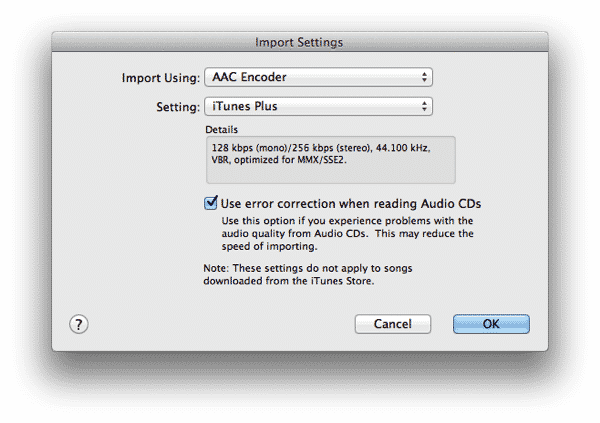
Start by going into your iTunes preferences and choosing “Import Settings” from the General screen, and ensure that you’re set to use the “AAC Encoder.”

If the existing ringtone or track is longer than about 30 seconds, you will also then need to choose the track and select Get Info from the iTunes File menu. On the Options screen, select a “Start Time” and “Stop Time” that covers whichever third-second portion of the track you want to use.

Note that you may be able to get away with up to 40 seconds, depending on the track, but staying at around 30 seconds is usually a safe bet unless you’re willing to repeat the process by trial and error.


Setting up a ringtone in iTunes

Note that you can use fractions of a second here to get your selection just right, and can simply play the track back to preview it before actually converting. When you’re satisfied, simply choose Create New Version, Create AAC Version from the iTunes File menu to create the new shortened version of the track. The new file should appear in your iTunes library under the same name as the old one.

At this point, you will need to rename and reimport the new file to make it appear in the Tones section. The easiest way to do this is to just drag-and-drop the track directly from iTunes to a Windows Explorer or Mac Finder window, or simply to your desktop.



Latest News
The 14-inch MacBook Pro with M5 Chip 16GB RAM/512GB is $250 Off
1 Min Read
Noise and Static on AirPods Pro 3 Still Unfixed
1 Min Read
New iMac with 24-inch OLED Display May be Brighter With 600 Nits
1 Min Read
The 15-inch M4 MacBook Air 256GB Is $250 Off
1 Min Read
Internal Kernel Debug Kit from Apple Reveals Tests for a MacBook with A15 Chip
1 Min Read
Apple Currently In Talks With Suppliers for Chip Assembly & Packaging of iPhones in India
1 Min Read
Apple Allows Easier Battery Replacement For M5 MacBook Pro with 14-inch Display
1 Min Read
The Apple Watch SE 3 44mm GPS is $50 Off
1 Min Read
20th Anniversary iPhone May Launch in Two Years
1 Min Read
Better Image Generation Capabilities and Apple Music Integration Coming to ChatGPT
1 Min Read
A20 Pro Chip Coming to Next Gen iPad Mini OLED
1 Min Read
Amazon has the AirTag 4 Pack Marked $29 off
1 Min Read

iLounge logo

iLounge is an independent resource for all things iPod, iPhone, iPad, and beyond. iPod, iPhone, iPad, iTunes, Apple TV, and the Apple logo are trademarks of Apple Inc.

This website is not affiliated with Apple Inc.
iLounge © 2001 - 2025. All Rights Reserved.
  • Contact Us
  • Submit News
  • About Us
  • Forums
  • Privacy Policy
  • Terms Of Use
Welcome Back!

Sign in to your account

Lost your password?








