
iLoungeiLounge
  • News
    • Apple
      • AirPods Pro
      • AirPlay
      • Apps
        • Apple Music
      • iCloud
      • iTunes
      • HealthKit
      • HomeKit
      • HomePod
      • iOS 13
      • Apple Pay
      • Apple TV
      • Siri
    • Rumors
    • Humor
    • Technology
      • CES
    • Daily Deals
    • Articles
    • Web Stories
  • iPhone
    • iPhone Accessories
  • iPad
  • iPod
    • iPod Accessories
  • Apple Watch
    • Apple Watch Accessories
  • Mac
    • MacBook Air
    • MacBook Pro
  • Reviews
    • App Reviews
  • How-to
    • Ask iLounge
Font ResizerAa
iLoungeiLounge
Font ResizerAa
Search
  • News
    • Apple
    • Rumors
    • Humor
    • Technology
    • Daily Deals
    • Articles
    • Web Stories
  • iPhone
    • iPhone Accessories
  • iPad
  • iPod
    • iPod Accessories
  • Apple Watch
    • Apple Watch Accessories
  • Mac
    • MacBook Air
    • MacBook Pro
  • Reviews
    • App Reviews
  • How-to
    • Ask iLounge
Follow US

How-to › Ask iLounge

Ask iLoungeiPhone

Sending all iPhone calls to voicemail

Last updated: May 16, 2021 4:21 pm UTC
By Jesse Hollington
Sending all iPhone calls to voicemail

Q: I’m wondering if there is a way to direct all of my calls to my voicemail without actually having to turn on Airplane Mode? I know there’s a “Do Not Disturb” feature on the new iPhones, but as I understand it, that will also silence all of my other alarms and notifications for things like text messages. I still want to be able to receive text messages, but I’d like to sometimes be able to ignore incoming calls at times when I’m really busy. Any suggestions would be a big help. Thanks!


– Emily
Sending all iPhone calls to voicemail

A: While there’s no built-in iOS feature to do this specifically, you can actually just use the standard Call Forwarding feature found on the iPhone and forward your calls directly to your voicemail number.

Voicemail on a mobile phone actually works by using a standard GSM feature known as no-answer/busy forwarding. This is a form of call forwarding that only applies when you don’t answer the phone or it’s busy or out of coverage.

When you subscribe to voicemail from your carrier, this feature is automatically enabled to send the calls to the specific number for the carrier’s voicemail service.


However, you can just as easily forward ALL of your calls to this number using the standard iPhone Call Forwarding feature. This will result in every call going straight to your voicemail, rather than only those calls you don’t or can’t answer.

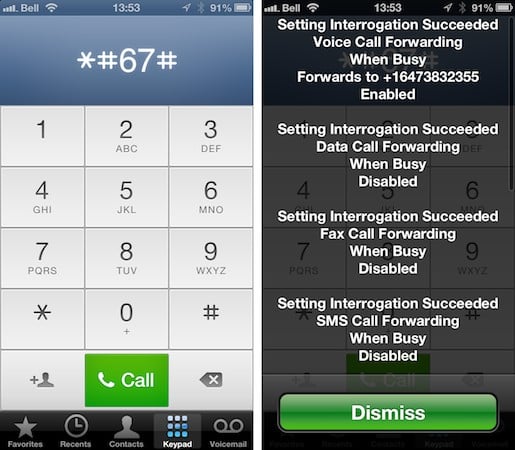
The catch of course is finding the number for your carrier’s voicemail, as it’s not something most carrier’s normally publish, and in fact most carriers often have multiple numbers, assigned to different geographic areas. The good news, however, is that on most GSM networks you can actually send a special query code to the cellular network to check the status of your call forwarding settings; to do this, simply go into the Phone app, and dial *#67# and tap the “Call” button.


You will see a status screen that should include a forwarding number listed for at least one of the “no answer” or “busy” transfer entries.

This number is where your unanswered/busy calls get forwarded.

Write down this number and then go into your iPhone Settings app and select Phone, Call Forwarding, toggle on the call forwarding feature, and enter it as the number that you want to forward your calls to when prompted.


Sending all iPhone calls to voicemail

Once you’ve turned this on, a status indicator will appear at the top of the iPhone screen to indicate that Call Forwarding is enabled, and incoming calls will be sent directly to your voicemail without ringing your iPhone at all.


Sending all iPhone calls to voicemail

Since you’re only forwarding incoming calls, however, you’ll still be able to continue to use data service, receive text messages, and even place outgoing calls. When you want to begin receiving incoming calls again, simply toggle OFF the Call Forwarding option in your Settings app.

As an added bonus, the iPhone saves the last call forwarding number that you used, even after you turn call forwarding off, so you can easily re-enable this any time without needing to worry about entering the number again—simply toggle call forwarding back ON and it will use the same number you were forwarding to before.



Latest News
The 14-inch MacBook Pro with M5 Chip 16GB RAM/512GB is $250 Off
1 Min Read
Noise and Static on AirPods Pro 3 Still Unfixed
1 Min Read
New iMac with 24-inch OLED Display May be Brighter With 600 Nits
1 Min Read
The 15-inch M4 MacBook Air 256GB Is $250 Off
1 Min Read
Internal Kernel Debug Kit from Apple Reveals Tests for a MacBook with A15 Chip
1 Min Read
Apple Currently In Talks With Suppliers for Chip Assembly & Packaging of iPhones in India
1 Min Read
Apple Allows Easier Battery Replacement For M5 MacBook Pro with 14-inch Display
1 Min Read
The Apple Watch SE 3 44mm GPS is $50 Off
1 Min Read
20th Anniversary iPhone May Launch in Two Years
1 Min Read
Better Image Generation Capabilities and Apple Music Integration Coming to ChatGPT
1 Min Read
A20 Pro Chip Coming to Next Gen iPad Mini OLED
1 Min Read
Amazon has the AirTag 4 Pack Marked $29 off
1 Min Read

iLounge logo

iLounge is an independent resource for all things iPod, iPhone, iPad, and beyond. iPod, iPhone, iPad, iTunes, Apple TV, and the Apple logo are trademarks of Apple Inc.

This website is not affiliated with Apple Inc.
iLounge © 2001 - 2025. All Rights Reserved.
  • Contact Us
  • Submit News
  • About Us
  • Forums
  • Privacy Policy
  • Terms Of Use
Welcome Back!

Sign in to your account

Lost your password?








