
Q: I read your article last week about iCloud backups, but I’m confused as to exactly when they happen. You said that it’s once every 24 hours as long as the device is plugged in and on Wi-Fi, but what happens if the device isn’t plugged it at the proper time, and how do I set what time it runs? Does that backup get missed entirely? I work kind of strange hours and I can’t guarantee that my iPhone gets plugged in at the same time every night for these backups to happen. Is there some way I can schedule them to run when I know my device is going to be plugged in at home? Or should I just switch to using iTunes for my backups and plugging it into my computer when I get home every night?
– Derek
A: Actually the iCloud backup process sounds a bit more complicated than it actually is in practical use. You can’t schedule iCloud backups manually, but you don’t need to do so as iOS takes care of this for you, and it’s designed to be pretty transparent.
Once enabled, iCloud backups will run automatically whenever the following conditions are met:
- Your device is powered on,
- Your device is connected to the Internet via Wi-Fi,
- Your device is connected to a power source,
- Your device has the screen locked (i.e.
turned off), and
- It has been at least 24 hours since the last successful backup occurred.
In other words, your device may not be backed up to iCloud at the same time every day, but once 24 hours has elapsed the iPhone will make a backup as soon as it is plugged in and on Wi-Fi with the screen off. For example, if your iPhone backs up to iCloud at 10:00 pm tonight, but you don’t plug it in while on a Wi-Fi connection until midnight tomorrow night, the next backup will occur at midnight—basically as soon as you plug it in—and future backups will continue to run at midnight on subsequent days as long as the iPhone is plugged in, connected to Wi-Fi, and has the screen off at that time. If you’re working an irregular schedule and coming home at different hours, this may gradually push the backups to later at night, but the backup won’t be skipped if you miss the time window—it will still occur as soon as possible once all of the other conditions are met.
This does of course mean that sometimes backups can get pushed to the point where they may be delayed until the next night; come home at 10 a.m. on a Sunday morning and plug in your iPhone and that’s when your next backup will occur, but if you leave for work on Monday morning at 9:00 am and your phone isn’t plugged in and on Wi-Fi while at work, you won’t get another automatic backup until you get home and plug it in later that night.
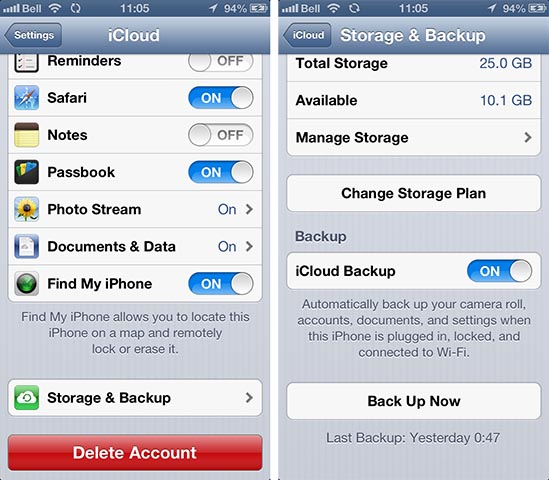
You can check the time of the last successful iCloud backup by going into the Settings app on your iPhone and choosing Storage & Backup from the iCloud section.
You can also tap the “Back Up Now” button from this screen to create a manual iCloud backup at any time. To create a manual iCloud backup, your iPhone only needs to be on Wi-Fi, it does not need to be plugged in or have the screen off. Note that a manual backup also factors into the automatic backup schedule, meaning the next automatic backup will not occur until at least 24 hours later. This can be one method for adjusting to a specific backup time if you really feel the need to, but it’s largely unnecessary as iOS should naturally settle into a standard backup routine as long as your iPhone is regularly plugged in and on Wi-Fi for at least a few hours each day, such as while you’re sleeping.











