
Q: My daughter got an iPhone and we share an iTunes account and, I just discovered, apparently an iCloud account as well. She had my contacts on her phone and she deleted them. Then iCloud did a back-up on our phones and now I have her contacts and none of my own. I have tried to restore my iPhone 4 three times to try to retrieve my contacts. I have restored to a date before she got her iPhone and I see my contacts briefly but within minutes it reverts back to her contacts. We have created a new iCloud account for her but this keeps happening. What do I do? Why does this keep happening?
– Amy
A: Information such as Contacts, Calendars, and Reminders are actually “synced” to specific iCloud database during normal operation. This information also gets stored in your device backups that are made to either iCloud or your PC via iTunes.
The problem here is most likely that your daughter’s contact information is still what’s actually stored in the iCloud “Contacts” database for your account, so after you restore your device from backup, this information gets synced back down to your device. Since you’re working with an older backup, the information from your iCloud account is technically newer than what is in your backup, so as soon as your restored device syncs with iCloud, this “newer” information overwrites what’s already on your device.
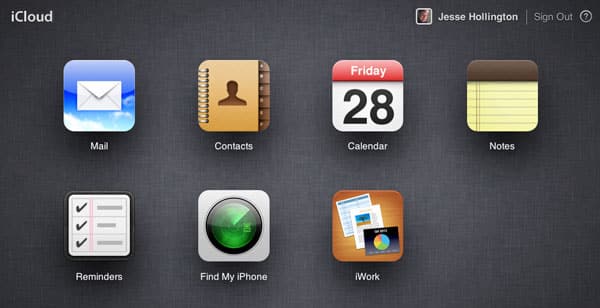
You can log into your iCloud account at www.icloud.com and go into the “Contacts” section to see exactly what is stored there. If you like, you can even remove your daughter’s contact info using the web app, but unfortunately this will not solve the problem, as the empty contact database will still be newer than whatever you’re restoring from your backup; in this case you would simply find that your contacts all disappeared to be replaced by nothing following an iCloud restore.
This can be a bit tricky to deal with, but essentially what you want to do is restore the information in such a way that it gets pushed up to iCloud instead of the other way around. The easiest and most reliable way to do this is from your Mac or PC, assuming that you have a backup of your contacts there. Unlike on an iPhone, information restored to your computer should be pushed back up to the iCloud servers and then down to your iPhone from there.
If restoring the information onto your computer is not practical, then you will need to do this from your iPhone.
This will be slightly trickier as you need to avoid syncing your data with iCloud after restoring your device. Restoring a device from iTunes or iCloud actually takes place in two stages. In the first stage, your application data and settings are restored, including your Contacts. Following this, your device reboots to begin syncing apps and media content from either iCloud or iTunes. It is during this second stage—when your iPhone has basically rebooted into normal operation—that things like iCloud sync will also occur in the background.
If you turn on Airplane Mode on your device immediately after it reboots at the end of the first stage, your Contact information should remain intact on your device, as it won’t have an opportunity to sync with iCloud. Once you have enabled Airplane Mode, you can go into your iCloud settings in the iOS Settings app and disable Contacts. You should see a prompt asking whether you want to keep or remove the previously synced information; select “Keep on my iPhone” to create a local, non-synced copy of your data.











