
iLoungeiLounge
  • News
    • Apple
      • AirPods Pro
      • AirPlay
      • Apps
        • Apple Music
      • iCloud
      • iTunes
      • HealthKit
      • HomeKit
      • HomePod
      • iOS 13
      • Apple Pay
      • Apple TV
      • Siri
    • Rumors
    • Humor
    • Technology
      • CES
    • Daily Deals
    • Articles
    • Web Stories
  • iPhone
    • iPhone Accessories
  • iPad
  • iPod
    • iPod Accessories
  • Apple Watch
    • Apple Watch Accessories
  • Mac
    • MacBook Air
    • MacBook Pro
  • Reviews
    • App Reviews
  • How-to
    • Ask iLounge
Font ResizerAa
iLoungeiLounge
Font ResizerAa
Search
  • News
    • Apple
    • Rumors
    • Humor
    • Technology
    • Daily Deals
    • Articles
    • Web Stories
  • iPhone
    • iPhone Accessories
  • iPad
  • iPod
    • iPod Accessories
  • Apple Watch
    • Apple Watch Accessories
  • Mac
    • MacBook Air
    • MacBook Pro
  • Reviews
    • App Reviews
  • How-to
    • Ask iLounge
Follow US

How-to › Ask iLounge

Ask iLoungeiPad

Resetting a forgotten iPad passcode

Last updated: May 16, 2021 4:22 pm UTC
By Jesse Hollington
Resetting a forgotten iPad passcode

Q: My daughter was playing with my iPad. Somehow, she figured out how to change my password (I already had a simple password installed) and now she doesn’t remember what that password was. Cardinal sin, I know. How do I reset? It’s set to my iOS password, so if I had to do a hard reset, I can use that, if that helps. I know this is the baseline defense against hacking/thievery. How can I help defend against stupidity? Or am I screwed?


– Greg
Resetting a forgotten iPad passcode

A: Don’t worry—as fathers of iPad-savvy toddlers ourselves, we can completely relate.

The problem is actually quite solvable as long as you have a current backup, but unfortunately you will need to erase your device completely and then restore that backup from either iTunes or iCloud.

The key here is that the passcode itself is actually not included in your backup, so when you restore your device, all of your data will be back, but you will no longer have a passcode on your device—you would simply need to set it again manually (to one that you actually know, of course).


If you have iCloud Backups enabled, these will still occur automatically once every 24 hours even when your device is locked with a passcode, as long as it is on a Wi-Fi connection and connected to a power source.

You can also still make a manual backup to your computer using iTunes from a locked iOS device, provided you have an iTunes library that you normally sync with; iTunes will only sync to a locked iOS device if it already has a pre-existing sync relationship with that device.


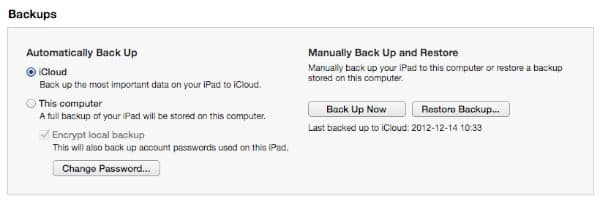
You can easily check the status of your backups and manually create a backup by connecting your iPad to your computer, selecting your device in iTunes, and looking at the Summary screen.

This will show you which method is selected for automatic backups and when the last backup was made using that method.

You can also toggle between using iCloud and iTunes backups from here, and doing so will show you the last date and time for each. Clicking on Back Up Now will make a new, manual backup to your computer via iTunes regardless of which method you have selected for automatic backups.


Once you’re satisfied that you have an appropriate backup, you can erase your device and return it to factory settings by clicking the Restore iPad button found on the same screen.


Resetting a forgotten iPad passcode

This will erase everything on your device, returning it to basically the same configuration it was in when you took it out of the box. You can then go through the standard iOS setup wizard and use either iTunes or iCloud to restore your backup, which will restore all of your data and settings and resync your apps and media content. For more information check out our article on Transferring your Content to a new iPhone, iPad or iPod touch, which provides additional details the backup and restore procedures.



Latest News
The Apple Watch Series 11 46mm GPS Is $100 Off
1 Min Read
Clamshell Style iPhone Being Looked Into By Apple
1 Min Read
Foldable iPhones May Have the Largest Battery Ever
1 Min Read
Apple and TSMC’s 10-Year Collaboration May Be Ending
1 Min Read
The 13-inch M5 iPad Pro 256GB Wi-Fi Is $149 Off
1 Min Read
M5 Pro and M5 Max Chips for the MacBook Pro could Roll Out with macOS 26.3
1 Min Read
Mac Ordering Process Revamped
1 Min Read
Check Signed By Steve Wozniak and Steve Jobs Sold For $2.4 Million
1 Min Read
The Anker 140W 4-Port GaN USB-C Charger is $35 Off
1 Min Read
No iPhone Air 2 This Year, according to Latest Report
1 Min Read
New Report Corroborates Split iPhone Release Dates
1 Min Read
Apple Losing More Researchers As They Plan To Release 2 Siri Versions
1 Min Read

iLounge logo

iLounge is an independent resource for all things iPod, iPhone, iPad, and beyond. iPod, iPhone, iPad, iTunes, Apple TV, and the Apple logo are trademarks of Apple Inc.

This website is not affiliated with Apple Inc.
iLounge © 2001 - 2025. All Rights Reserved.
  • Contact Us
  • Submit News
  • About Us
  • Forums
  • Privacy Policy
  • Terms Of Use
Welcome Back!

Sign in to your account

Lost your password?








