
iLoungeiLounge
  • News
    • Apple
      • AirPods Pro
      • AirPlay
      • Apps
        • Apple Music
      • iCloud
      • iTunes
      • HealthKit
      • HomeKit
      • HomePod
      • iOS 13
      • Apple Pay
      • Apple TV
      • Siri
    • Rumors
    • Humor
    • Technology
      • CES
    • Daily Deals
    • Articles
    • Web Stories
  • iPhone
    • iPhone Accessories
  • iPad
  • iPod
    • iPod Accessories
  • Apple Watch
    • Apple Watch Accessories
  • Mac
    • MacBook Air
    • MacBook Pro
  • Reviews
    • App Reviews
  • How-to
    • Ask iLounge
Font ResizerAa
iLoungeiLounge
Font ResizerAa
Search
  • News
    • Apple
    • Rumors
    • Humor
    • Technology
    • Daily Deals
    • Articles
    • Web Stories
  • iPhone
    • iPhone Accessories
  • iPad
  • iPod
    • iPod Accessories
  • Apple Watch
    • Apple Watch Accessories
  • Mac
    • MacBook Air
    • MacBook Pro
  • Reviews
    • App Reviews
  • How-to
    • Ask iLounge
Follow US

How-to › Ask iLounge

ArticlesAsk iLoungeiPhoneiTunes

Removing synced photos from iPhone

Last updated: May 16, 2021 4:58 pm UTC
By Jesse Hollington
Removing synced photos from iPhone

Q: The last time I synced my iPhone to my PC all of the photos on my PC transferred to my iPhone. I want to now delete the photos in my photo library that are on my iPhone and not have them come back when I sync again. I know how to delete photos from the camera roll but it wont let me do it the same way in the photo library.


– Jerry
Removing synced photos from iPhone

A: As you’ve already discovered, photos synced to your iPhone cannot be deleted on the device itself in the same way that photos in your camera roll can.

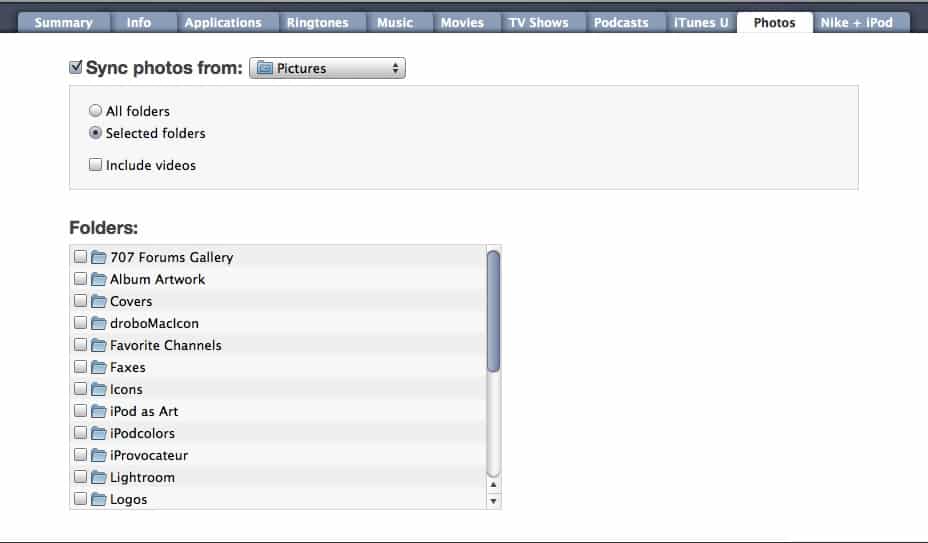
To remove these photos, you must go back into iTunes and DE-select the photos that you do not want synced to your iPhone and then re-sync the device to remove these photos. This works much the same way it does for music content, and is adjusted from the Photos tab in your iPhone settings within iTunes.


200912061921.jpg

To remove some photos while keeping others, simply ensure that “Selected Albums” is chosen and choose only the albums or folders that you want to sync to your iPhone. To remove ALL of the photos from your iPhone photo library (other than those in the camera roll), simply UNcheck the “Sync Photos” option.

iTunes will prompt you to confirm that you actually want to remove all of the photos from your device.


200912061921.jpg

Selecting “Yes” will remove all of the photos on the next sync, while selecting “No” will leave the photos on your iPhone but break the sync connection with iTunes such that no new photos will be synced. In this case, you still won’t be able to delete existing library photos directly on the device—you would need to re-establish a sync connection with iTunes and then repeat the above steps.

Note that none of the photo settings in iTunes will affect photos stored in your Camera Roll on the iPhone or “Saved Photos” on the iPod touch.



Latest News
The Apple Watch Series 11 42mm GPS is $100 Off
1 Min Read
Apple Launching A New Education Hub In India Teaching Robotics and Swift Programming
1 Min Read
Women’s and Men’s Golf Added to Apple Sports
1 Min Read
Apple Adding Civilization VII and Other Games To Apple Arcade
1 Min Read
AirPods 4 ANC Is $59 Off
1 Min Read
Apple Using 2NM Process For Their M6 and A20 Chip
1 Min Read
iPhone 18 Models Will Not Have a Big Redesign
1 Min Read
Launch of MacBook Pro M5 Pro and M5 Max Models is Approaching
1 Min Read
Get the iPad Mini 7 256GB Wi-Fi at $99 Off
1 Min Read
Mozilla Now Allows Turning AI Features Off
1 Min Read
Barcelona Passeig de Gràcia Apple Store Temporarily Closing
1 Min Read
Apple’s Plans to Enter the Smart Glasses Market is Changing the Industry
1 Min Read

iLounge logo

iLounge is an independent resource for all things iPod, iPhone, iPad, and beyond. iPod, iPhone, iPad, iTunes, Apple TV, and the Apple logo are trademarks of Apple Inc.

This website is not affiliated with Apple Inc.
iLounge © 2001 - 2025. All Rights Reserved.
  • Contact Us
  • Submit News
  • About Us
  • Forums
  • Privacy Policy
  • Terms Of Use
Welcome Back!

Sign in to your account

Lost your password?








