
Q: I have all of my music located on an external hard drive. My desktop was my main music player, but it is now heading to the recycle bin. My laptop has iTunes but it won’t find my music on my external. I tried going in to advanced and locating my library. Didn’t work. I tried shutting down iTunes, restarting and holding shift. Sure enough it asked me to find my library, which I did. Still won’t work.
Does my music library have to be in a file called “iTunes library” and does it have to be in “.itl”? Again, nothing has changed but the computer. I have been happily playing my music from my “my music” file on the external for years.
– Hugh
A: It sounds like the problem here is that your iTunes library database remained on your desktop PC while only your actual content was moved to the external hard drive.
By default, iTunes stores its library database (“iTunes Library.itl”) in a folder named “iTunes” under the Music folder in the current user’s home folder; this folder is named “My Music” on Windows XP, or simply “Music” on Windows Vista, Windows 7 and Mac OS X. The library database is what contains the location of all of your content along with information such as playlists, ratings, play counts, last played dates, iPod and iOS device sync settings and other iTunes-specific information. Generic track data such as song name, artist, album and genre are generally stored within the tracks themselves as well as in the iTunes database, as it artwork that you add to your tracks manually or via third-party artwork utilities.
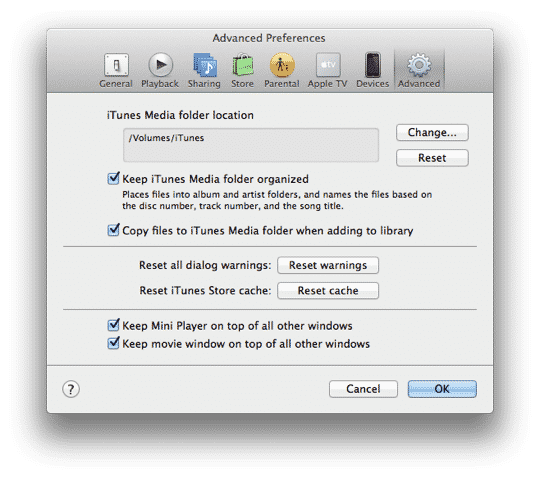
The iTunes Media folder, specified under iTunes’ advanced preferences, specifies where your content is stored by default. However this setting has nothing to do with the location of the iTunes library database; your library database will remain in your home folder regardless of what you set the iTunes Media folder path to.
iTunes does not provide any way for the user to automatically move the database folder to another location, although it is possible to do this manually by shutting down iTunes, moving or copying the database files over to the new location, and then restarting iTunes while holding the SHIFT key (Windows) or OPT key (Mac) and selecting the new database folder location.

Unfortunately, this additional, manual step means that most users who are using an external hard drive with iTunes are likely only storing their content on that drive, with the iTunes library database still living on the internal system drive, but may not necessarily be aware that this is the case. As long as you’re backing up your internal hard drive this is not normally an issue, and the iTunes database folder is relatively small in comparison to most users’ media content.
The iTunes library database folder contains a number of files and folders, however the critical file is the database itself, “iTunes Library.itl.” If this file is not located anywhere on your external hard drive, then it is most likely that only your media content was on that drive, and your library database was on your desktop PC. If you still have access to the hard drive on that PC or have a backup of the data that was stored there you can easily recover your library database to the new laptop or the external hard drive. Ideally, you should restore the entire “iTunes” folder if it’s available, but failing that you’ll need at least the ITL file. Simply putting this into the corresponding location on your laptop should be enough to allow iTunes to find your library, although you should also ensure that your external hard drive is assigned the same drive letter as it had on the desktop PC, and you’ll need to check the “iTunes Media” folder path in your advanced settings to ensure that it’s pointing to the external hard drive. See our tutorial on Transferring your iTunes Library for more details about how this all fits together.











